
Deploy the OpenClaw Plugin
Connect the OpenClaw plugin to Cored as an enterprise bot so organization members can start conversations with it from the Cored client.
Complete the Cored Server deployment guide before creating the bot application.
Step 1: Create an app
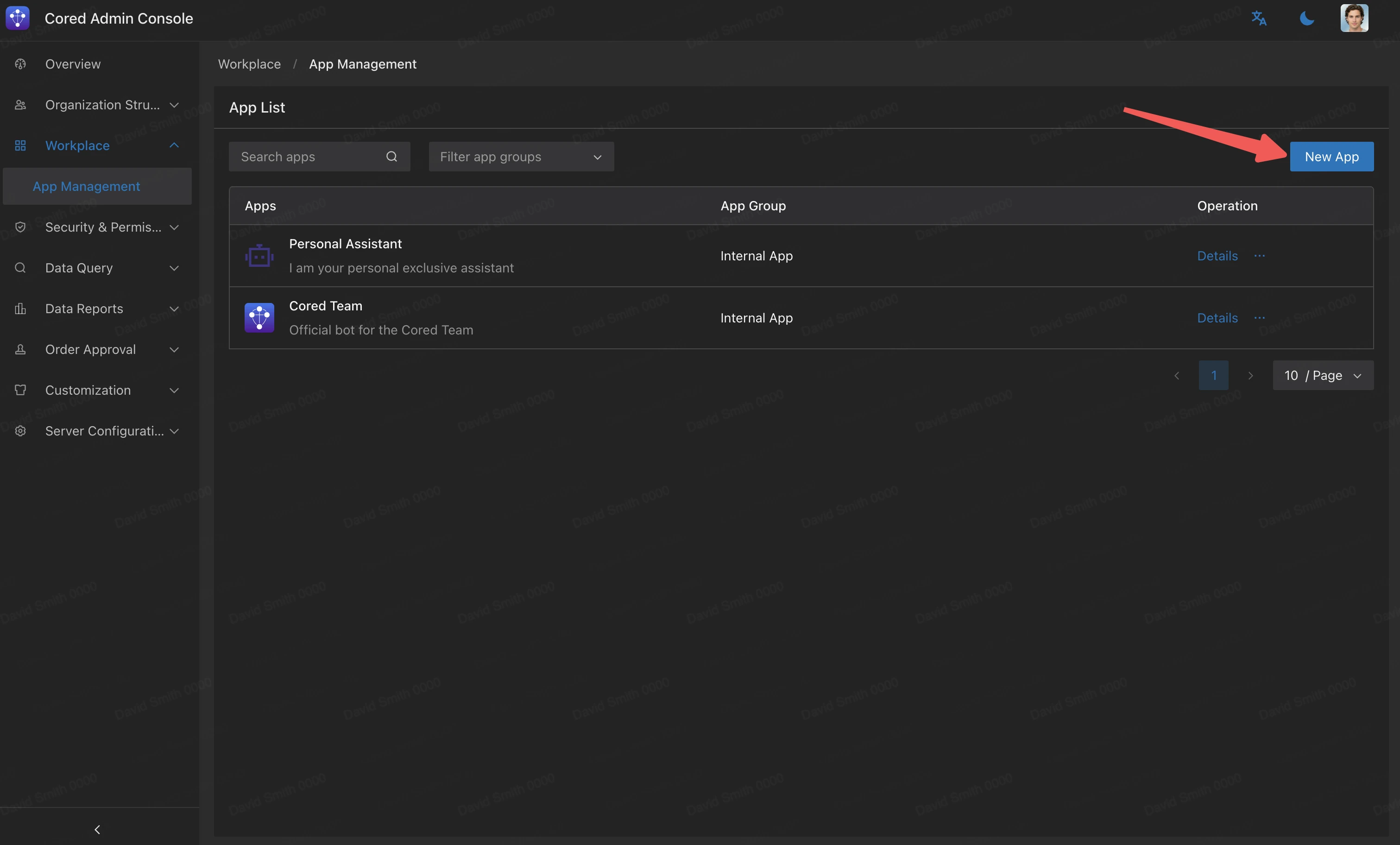
- Sign in to Cored Admin Console and open Workplace > App Management.
- Click New App in the upper-right corner.
Step 2: Enter app information
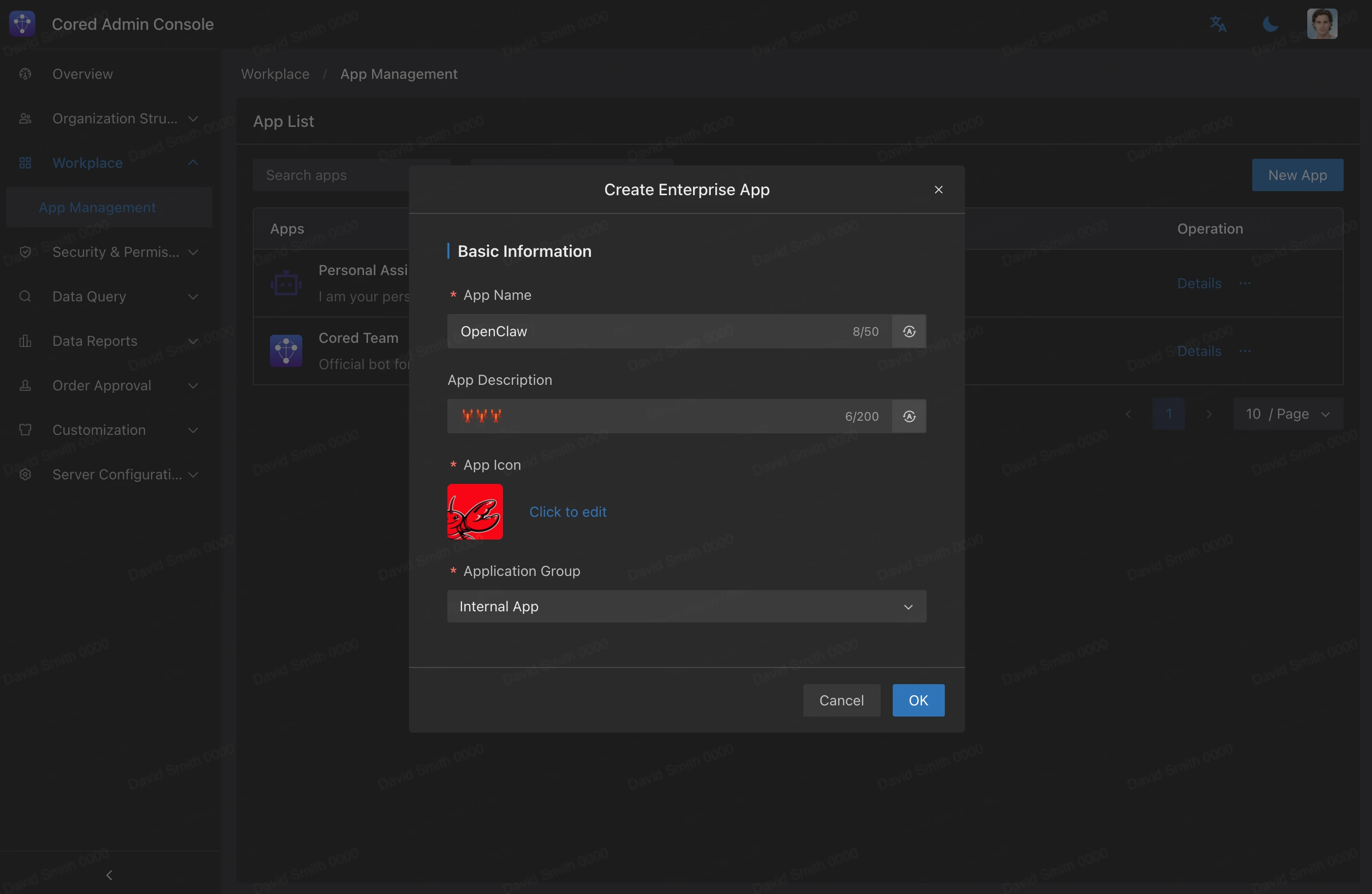
Complete these fields in the Create Enterprise App dialog:
Click OK to create the app.
Step 3: Open the app details
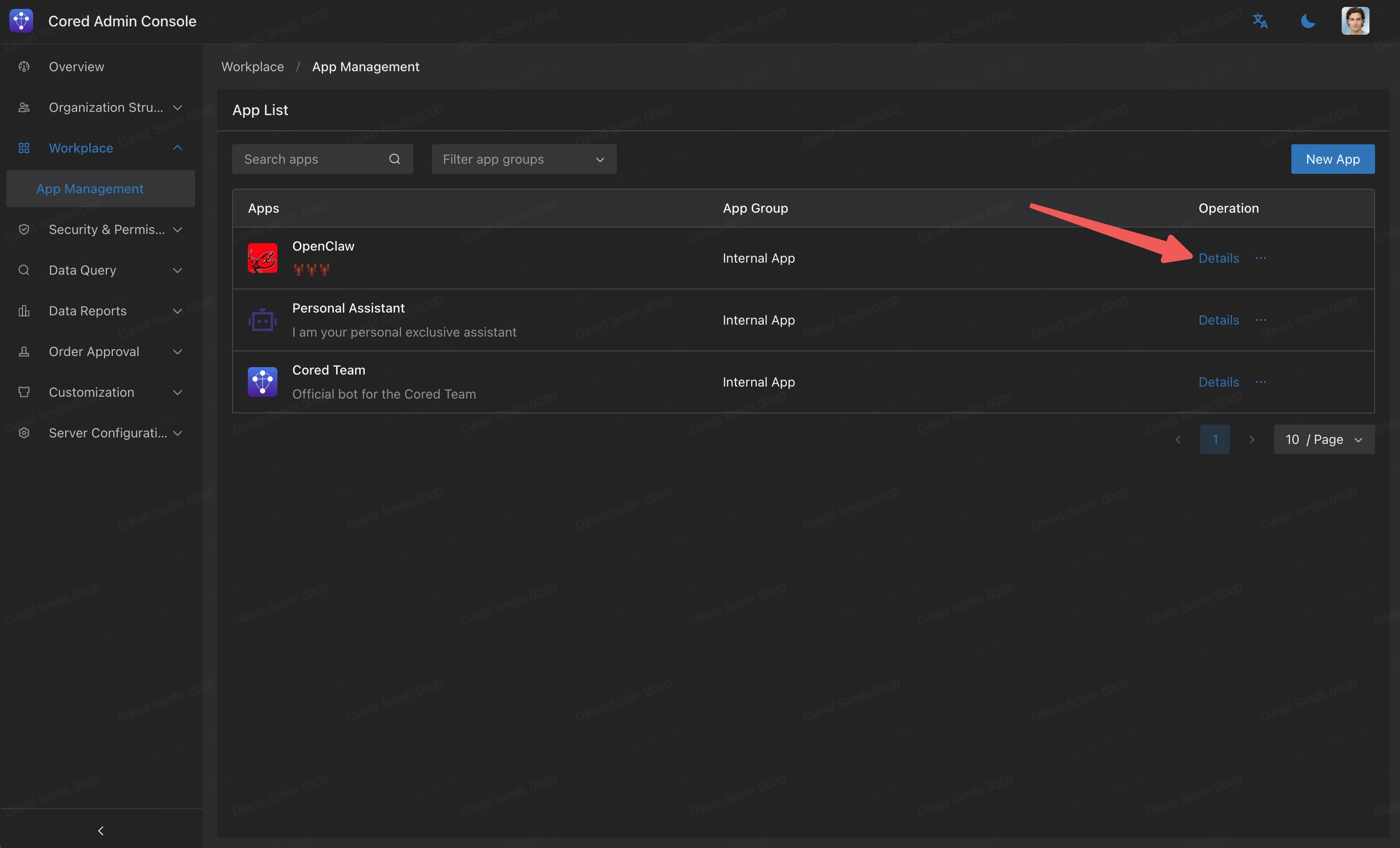
Find OpenClaw in the app list and click Details.
Step 4: Enable the bot capability
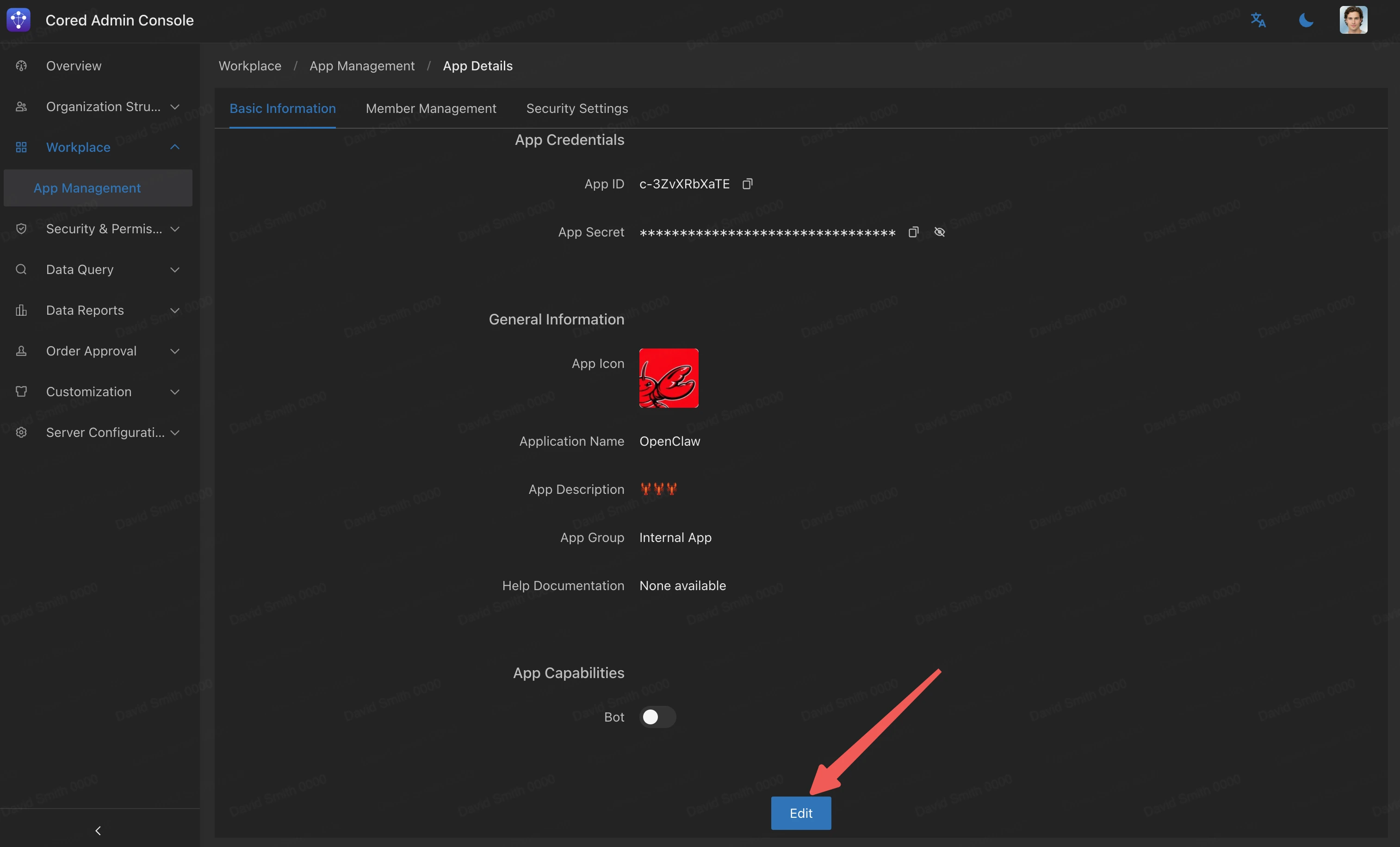
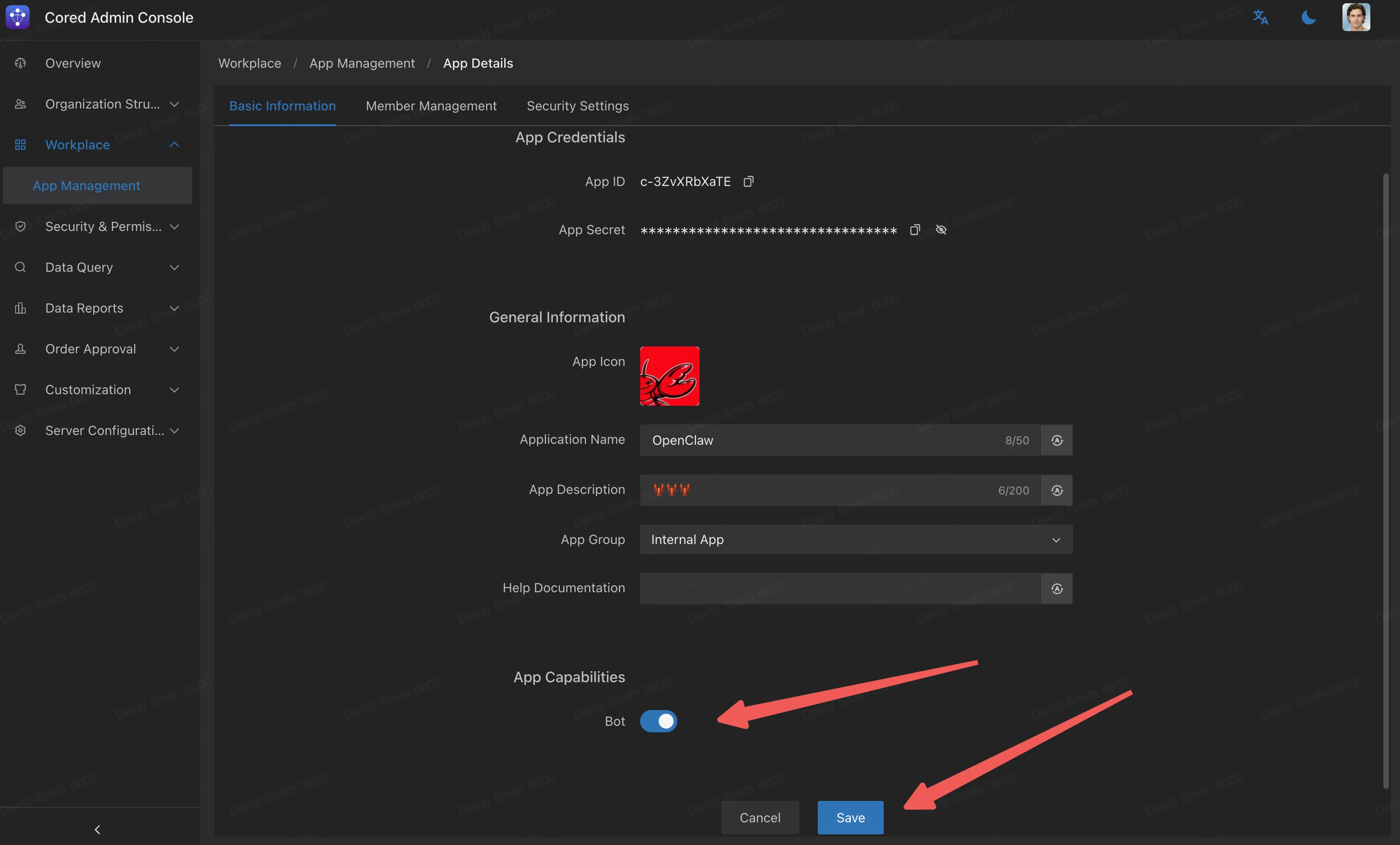
- On the App Details page, scroll to App Capabilities. The Bot capability is disabled by default.
- Click Edit at the bottom of the page.
- Turn on Bot, then click Save.
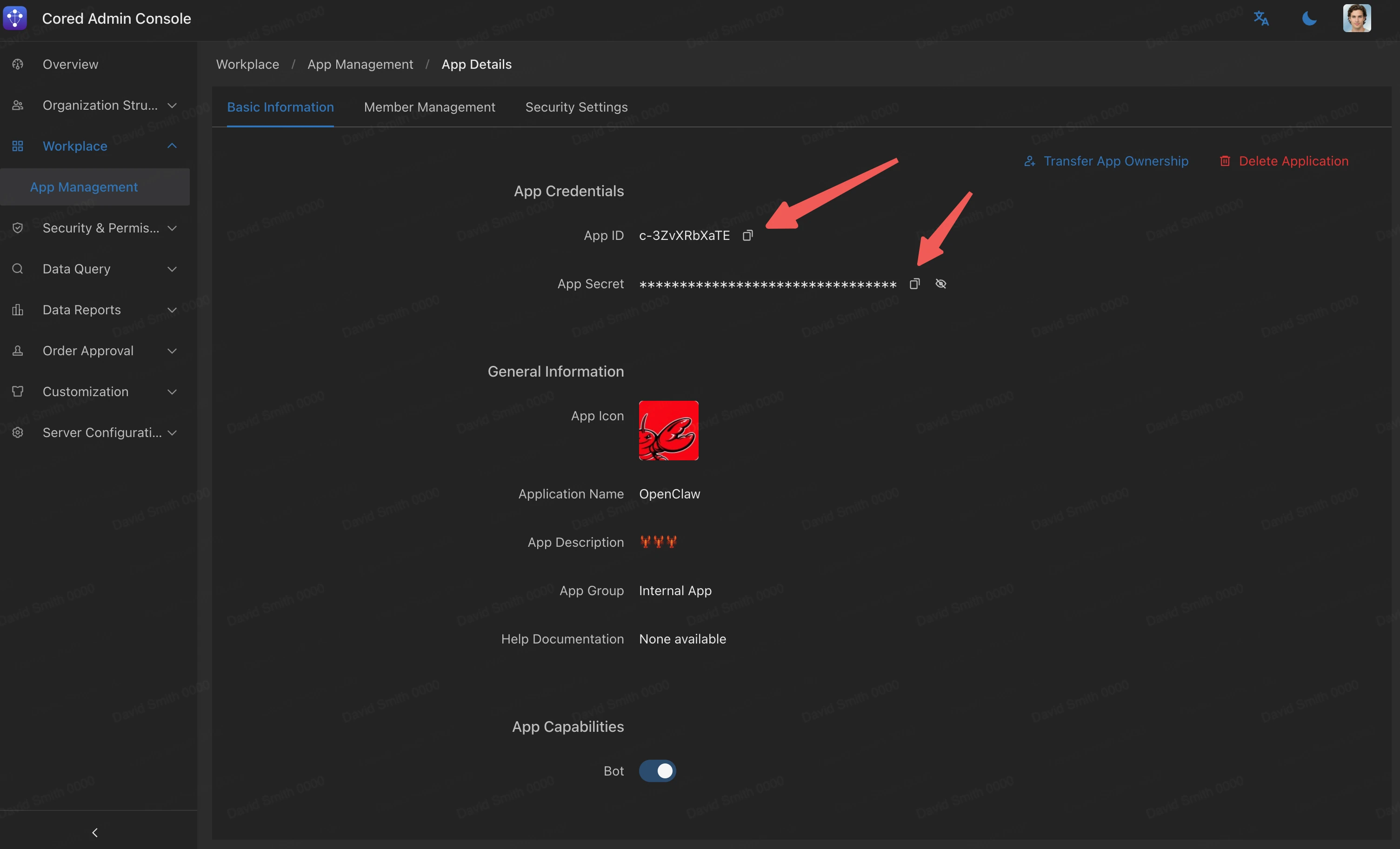
Step 5: Copy the app credentials
Copy the App ID and App Secret from App Credentials. You will use both values when configuring the OpenClaw channel.
Treat the App Secret as a password. Do not send it in chat, include it in documentation, or commit it to version control.
Step 6: Install and configure the OpenClaw plugin
Install OpenClaw on the machine that will run the bot before continuing.
Install the plugin
Open a terminal on the OpenClaw host and run:
Configure the channel
Replace each placeholder, then run the command:
Manage multiple accounts (optional)
Add an account
To connect another Cored bot, add --account and assign the account a unique name:
The --account value identifies the account in OpenClaw. The first account is named default; additional accounts use the name you provide, such as bot2 or sales-bot.
Disable an account
To disable an account without deleting its configuration, run:
To enable it again, edit ~/.openclaw/openclaw.json and set "enabled": true for the account, or remove the "enabled" field.
Remove an account
To permanently delete an account and its configuration, run:
Restart the gateway after adding, enabling, disabling, or removing an account.
Restart the gateway
Restart the gateway to load the channel configuration:
Advanced configuration
To change encryption or request timeout settings, edit ~/.openclaw/openclaw.json:
Step 7: Verify the bot
Open a Cored client and search for OpenClaw. Select the bot under Contacts, send a test message, and confirm that it responds.
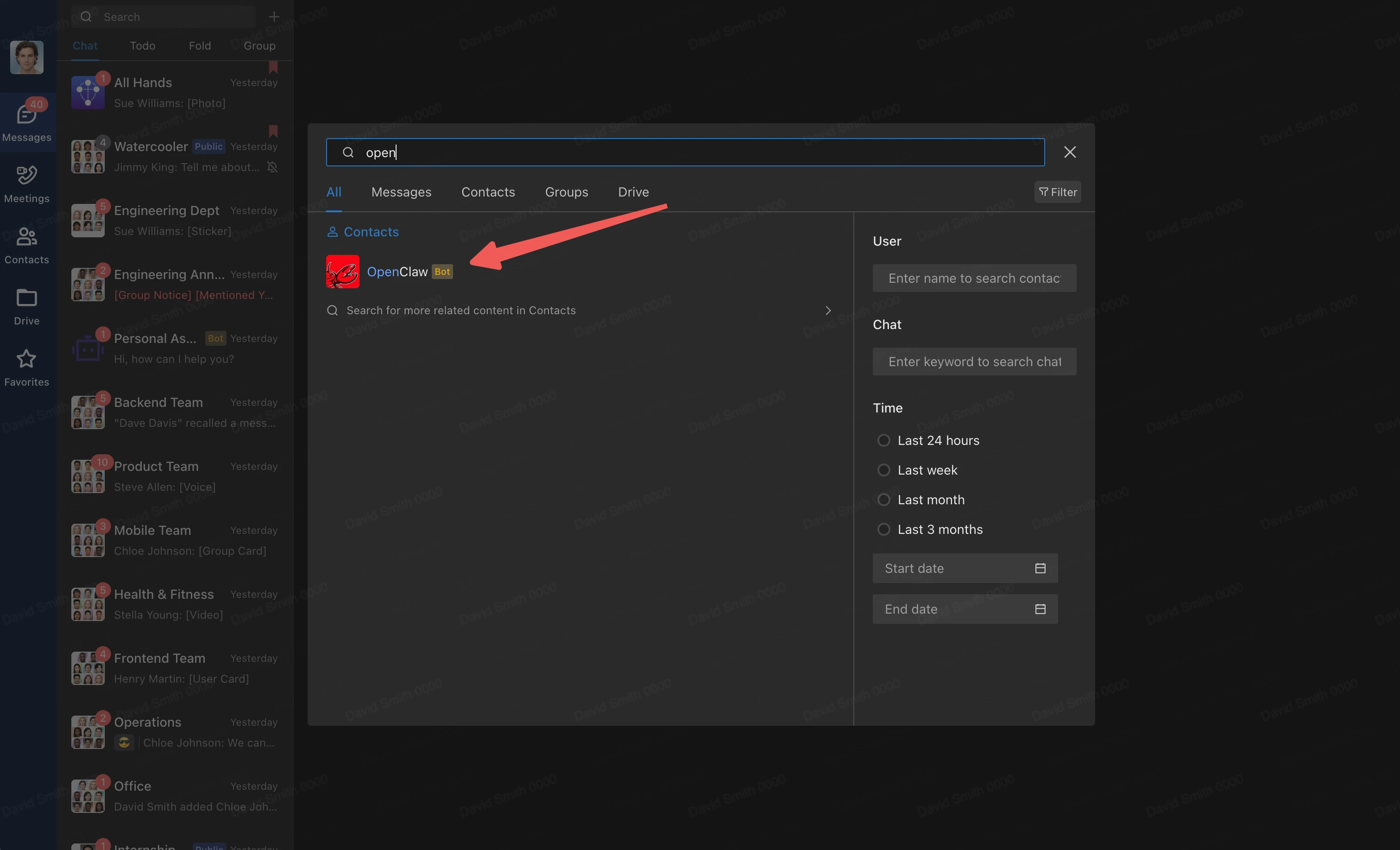
The OpenClaw bot is now available to organization members who can access the application.