
Docker - Deployment Guide
Deploy Cored Server as a Docker container, then finish setup in the browser-based initialization wizard.
Quick start container
Run the following command on the Docker host:
The container exposes these service ports:
21000(TCP): core service (HTTP API / WebSocket)27881(TCP): RTC media fallback27882(UDP): RTC media transport
To keep configuration and data outside the container, mount host directories at /app/config and /app/data:
Initialize Cored Server
- Open
http://localhost:21000in a browser. In the initialization wizard, select the server version and upload your Cored license file (.fhl).
Tip
When opening the wizard from another computer, replace localhost with the Docker host name or IP address.
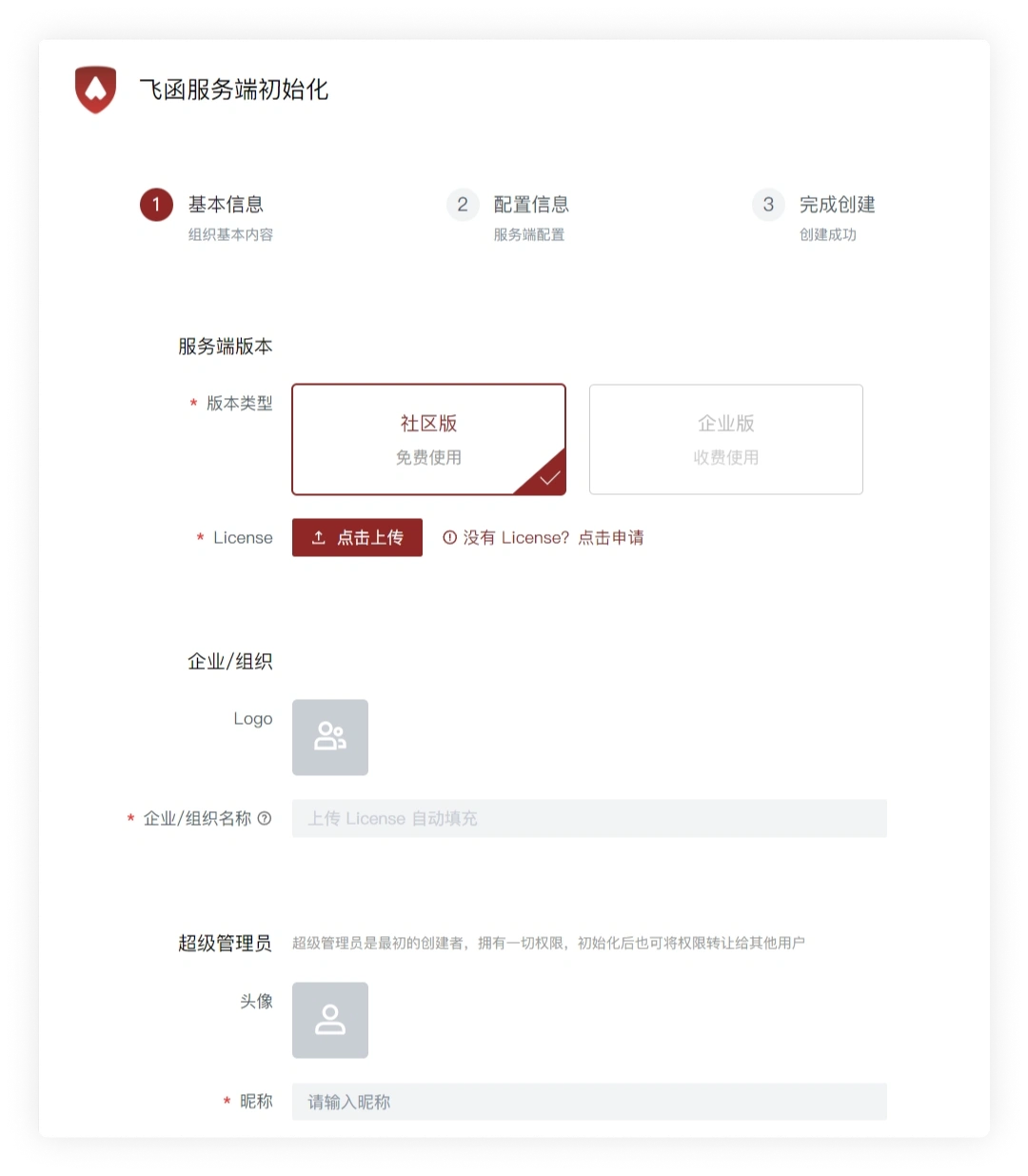
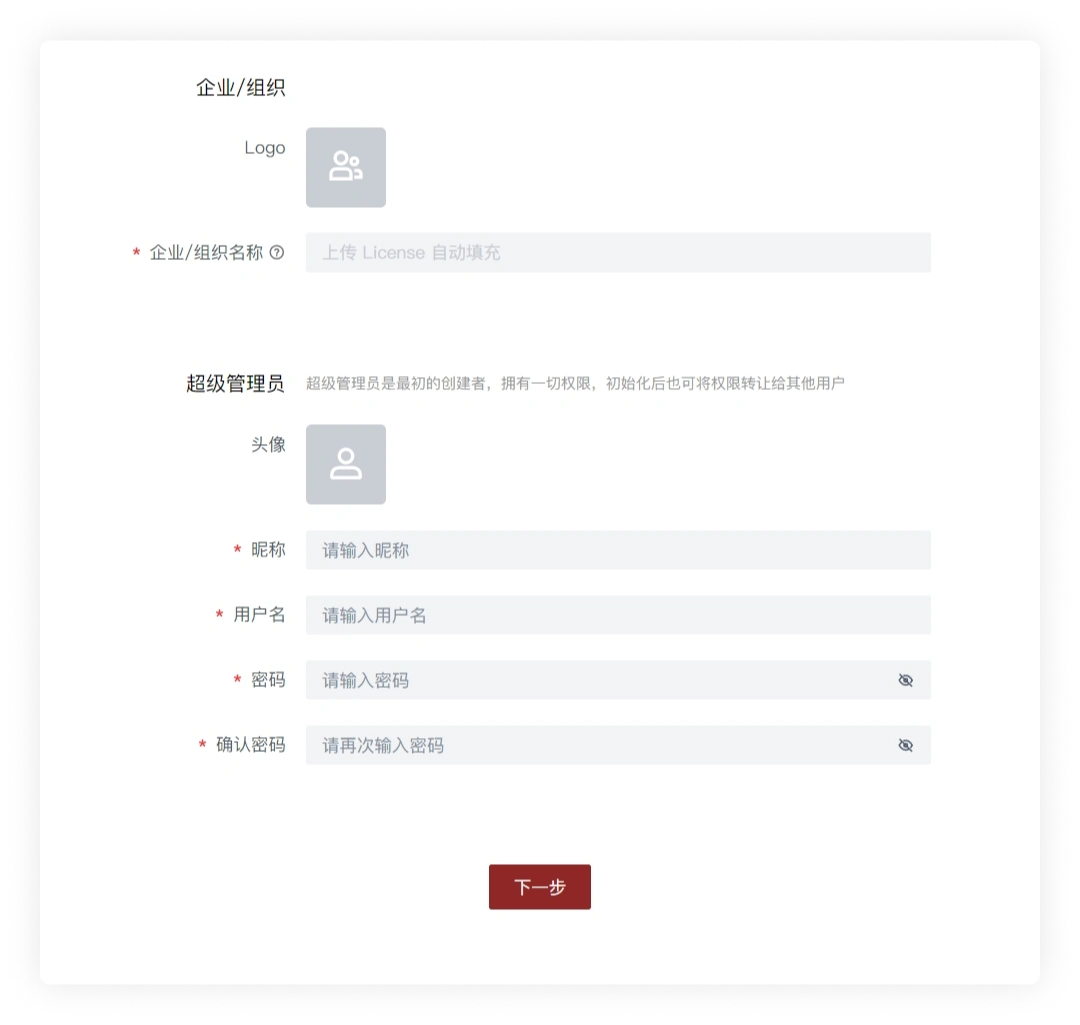
- Set the organization avatar and create the super administrator account, then click Next.
Tip
Store the super administrator username and password securely. You can also use this account to sign in to a Cored client.
- Review the remaining organization settings and continue.
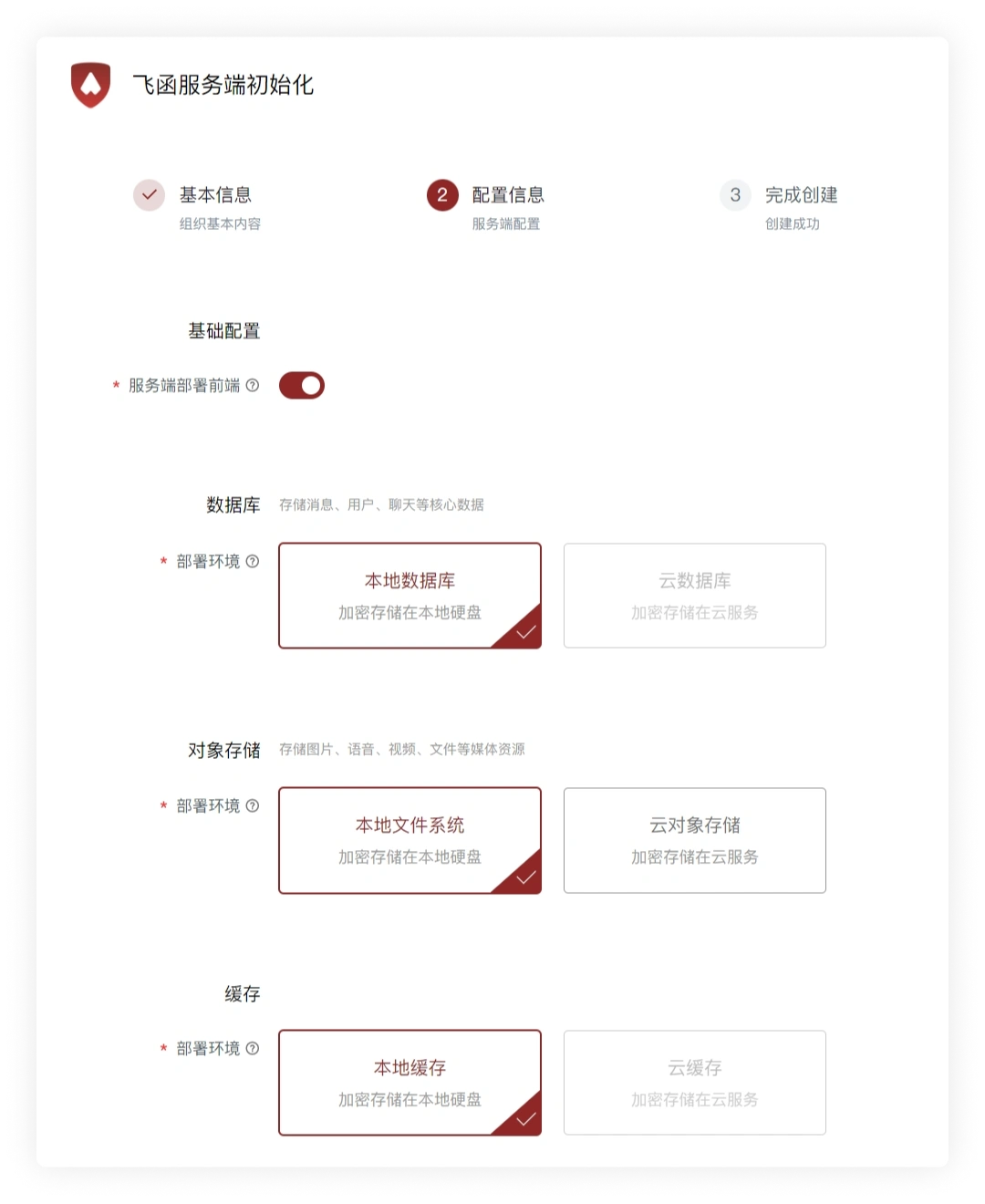
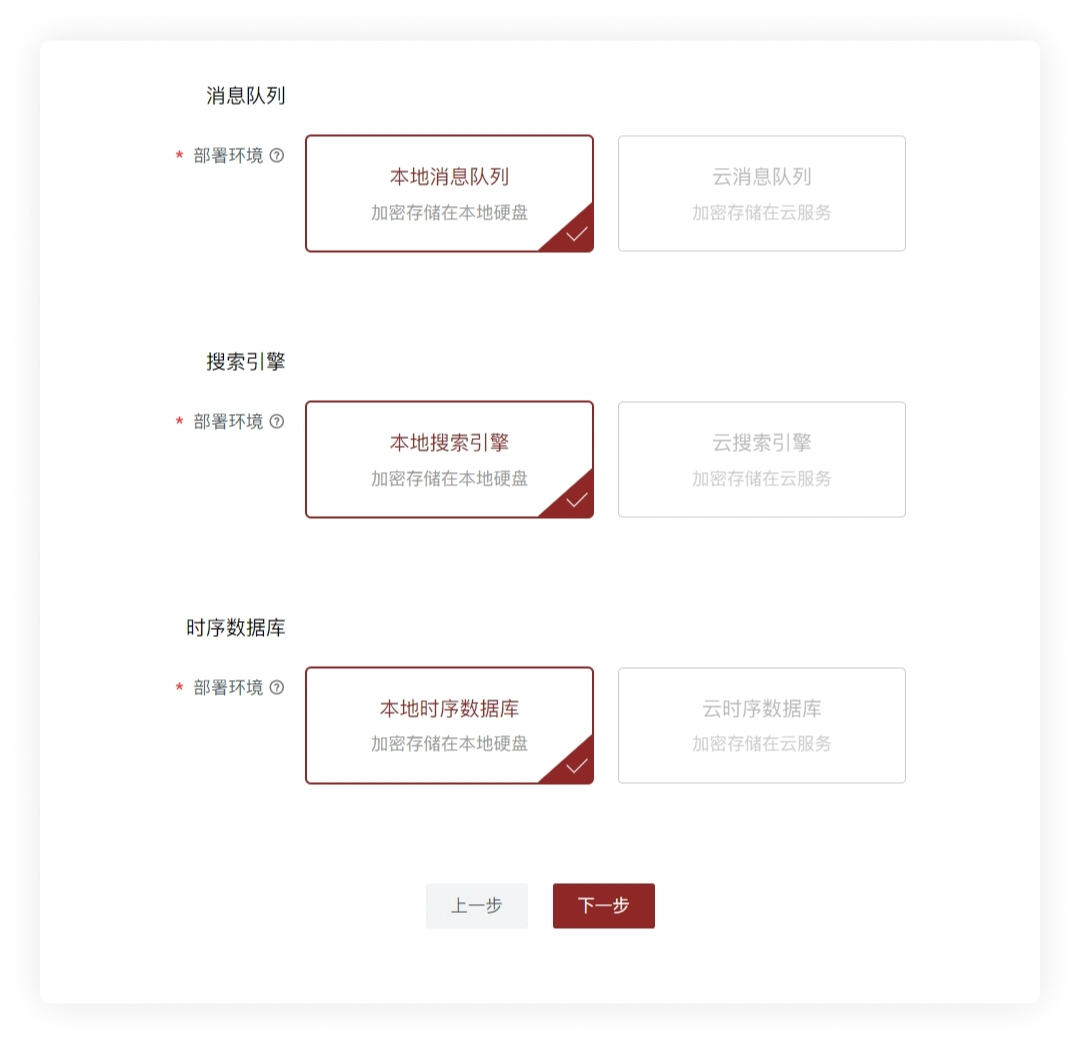
- Keep the container running while initialization completes.
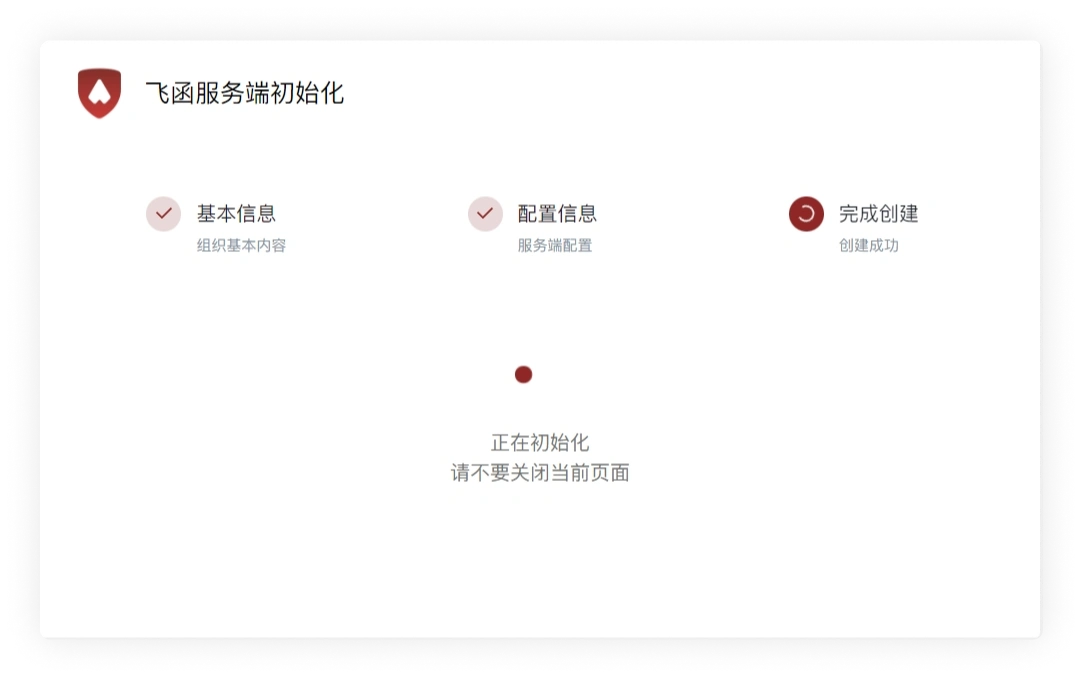
Initialization complete
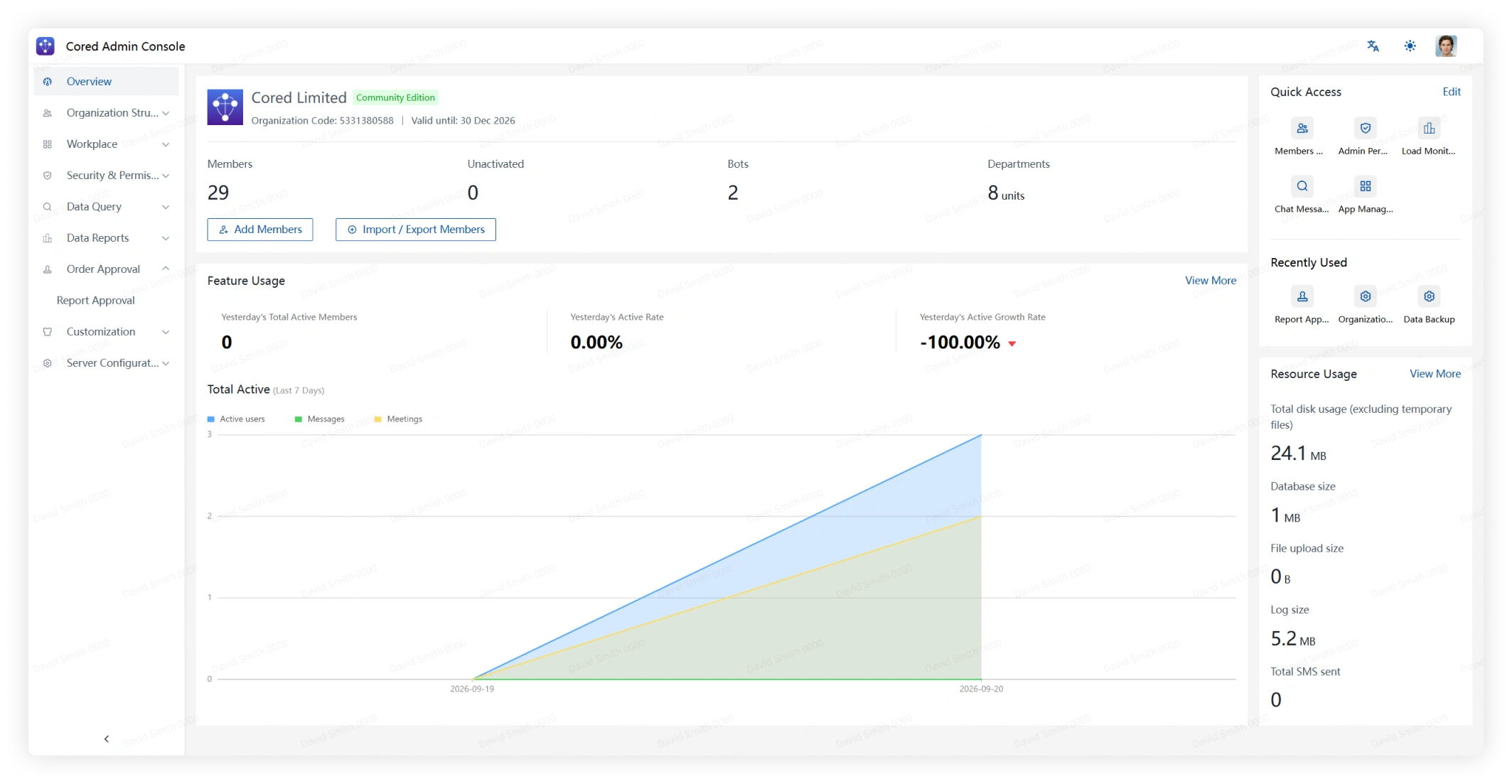
- When initialization finishes, Cored opens Admin Console.
Sign in to clients
After the server is ready, continue with the client installation and sign-in guide.