
Windows - Download and Install Guide
Install Cored Server from the Windows server package, then complete initialization in a browser.
Download and start
- Open the Cored Server download page approved by your organization.
- Download the Windows Server package.
- Extract the archive.
- Open Command Prompt or PowerShell in the extracted directory and run:
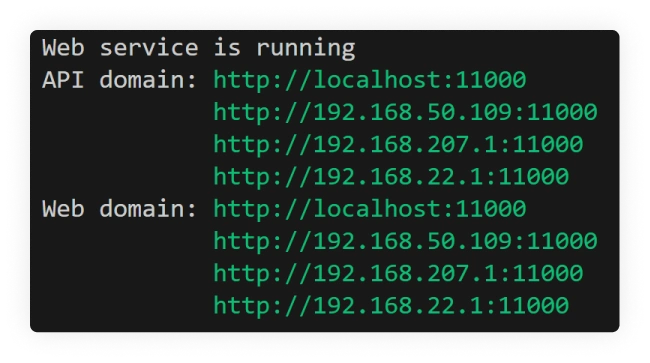
- Wait until the terminal shows
Web service is running.

Copy an initialization URL from the terminal and open it in a browser.
Initialize Cored Server
- In the setup wizard, select the server version and upload your Cored license file (
.fhl).
Tip
A valid license is required before the server can be initialized.
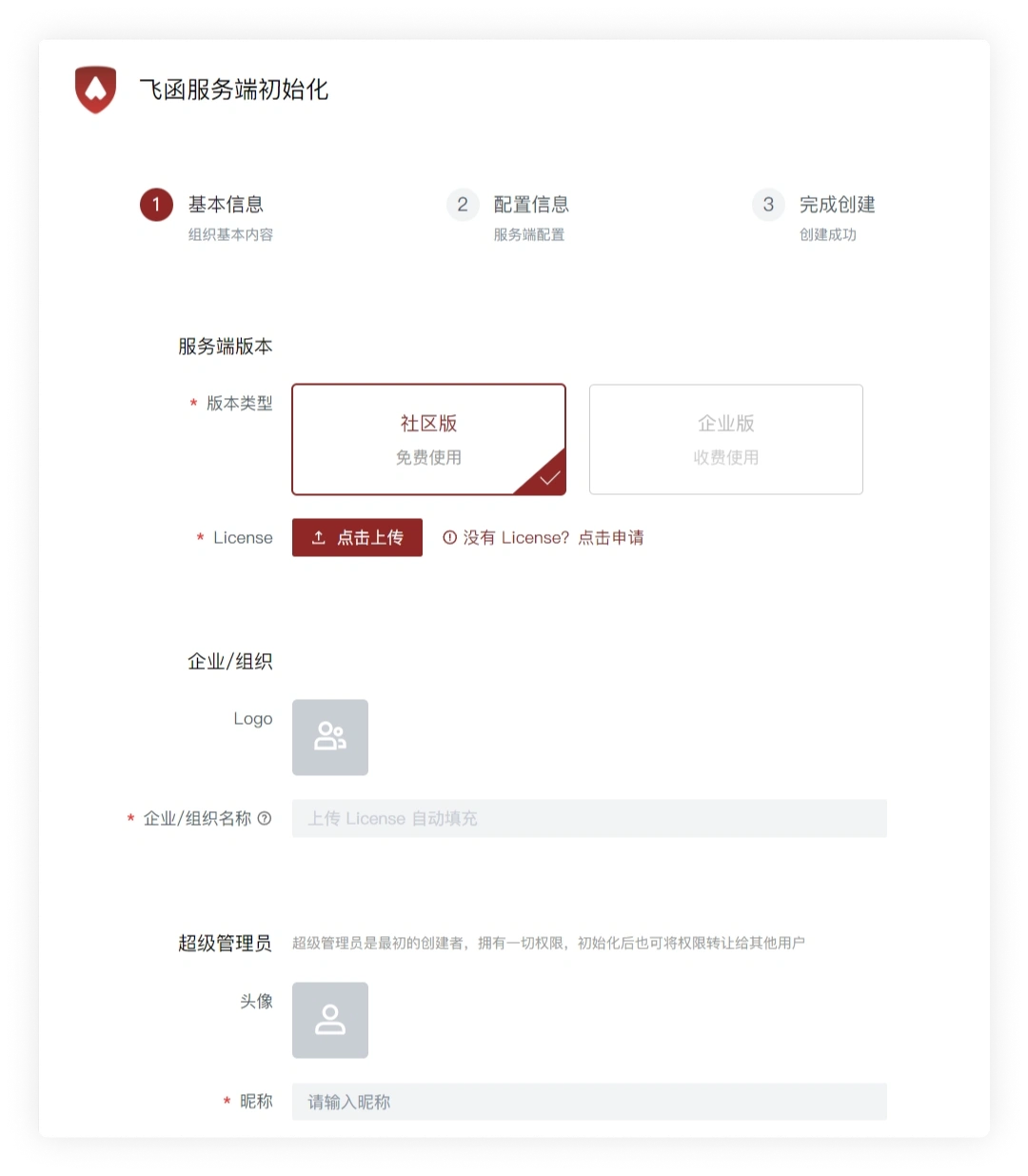
- Set the organization avatar and create the super administrator account, then click Next.
Tip
Store the super administrator username and password securely. You can also use this account to sign in to a Cored client.

- Review the remaining organization settings and continue.
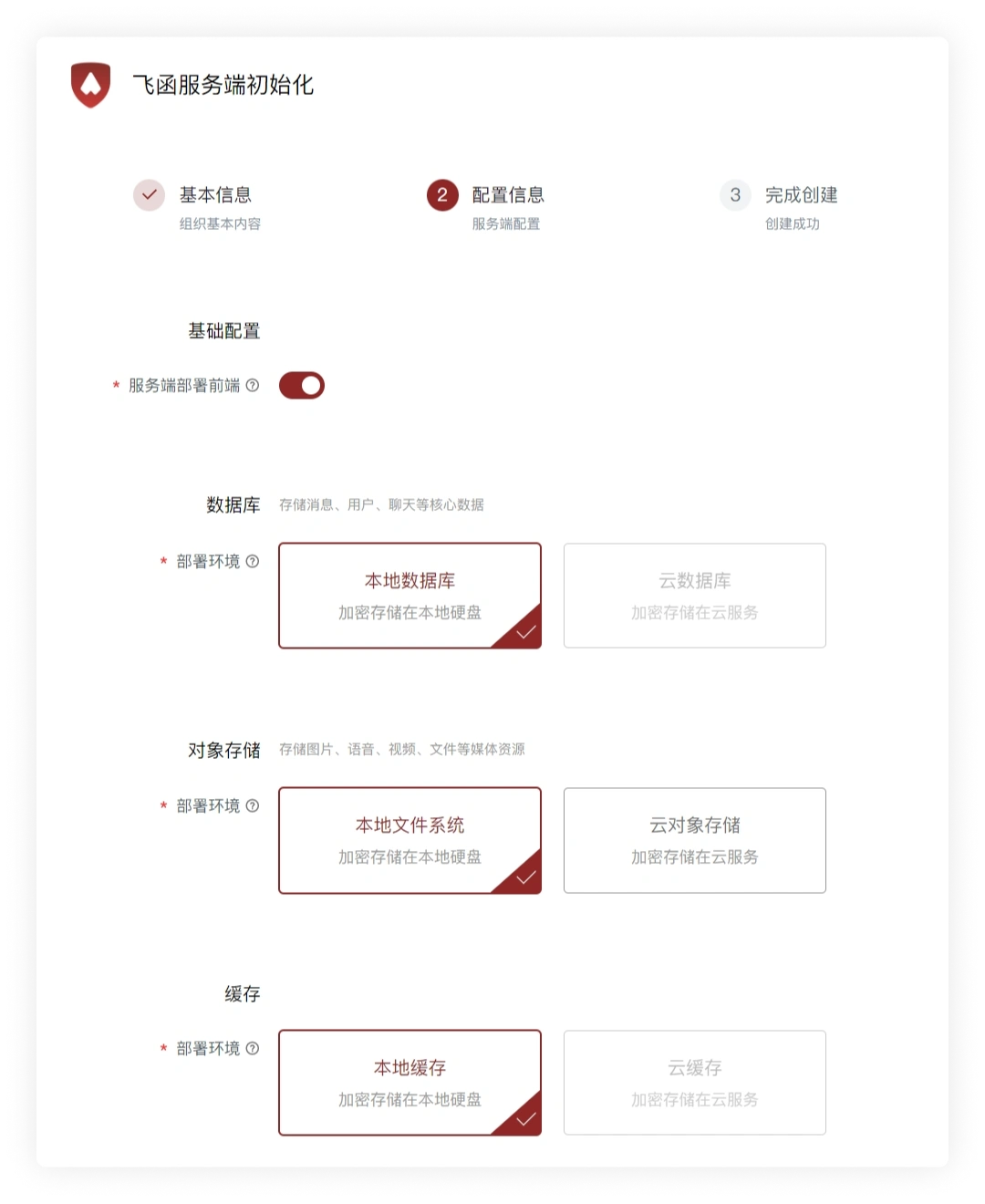
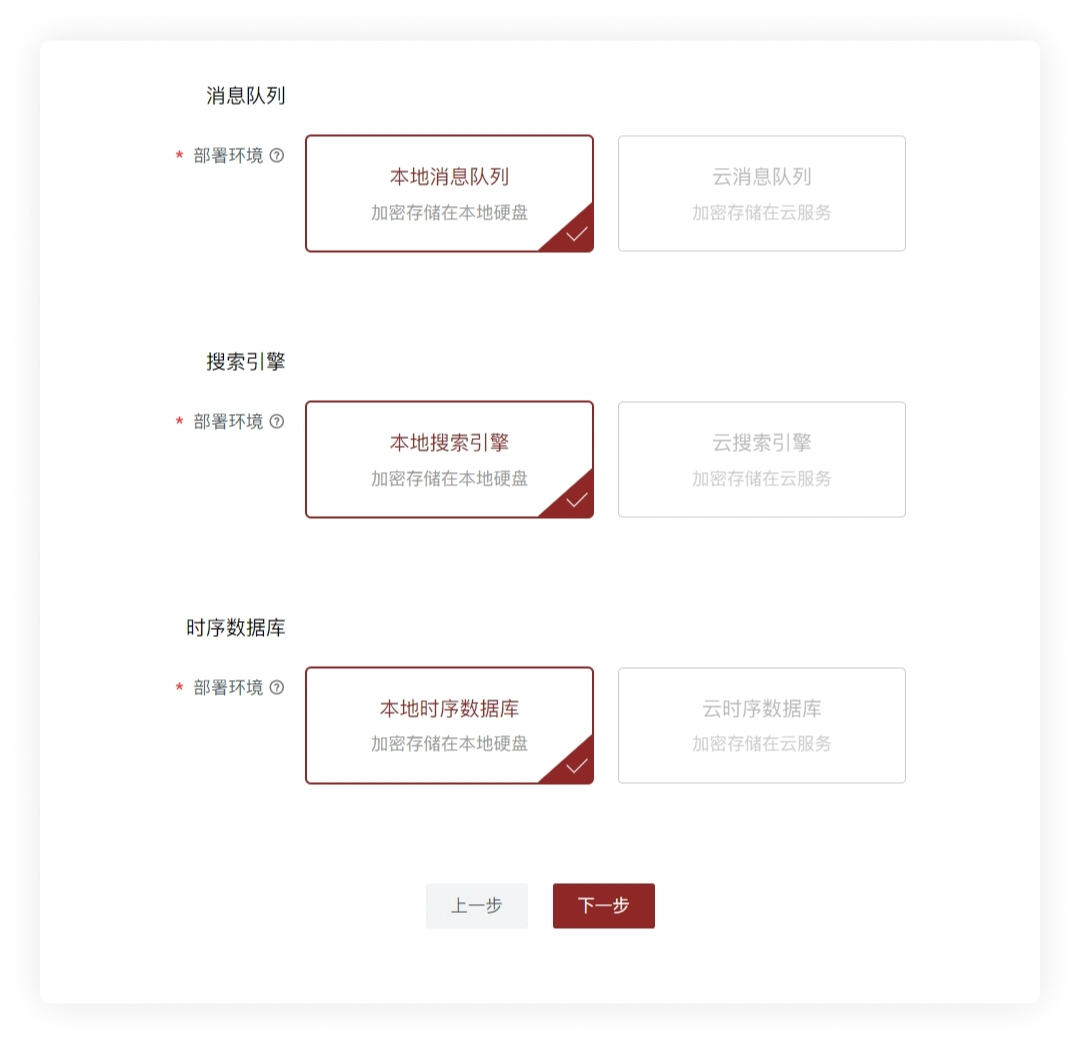
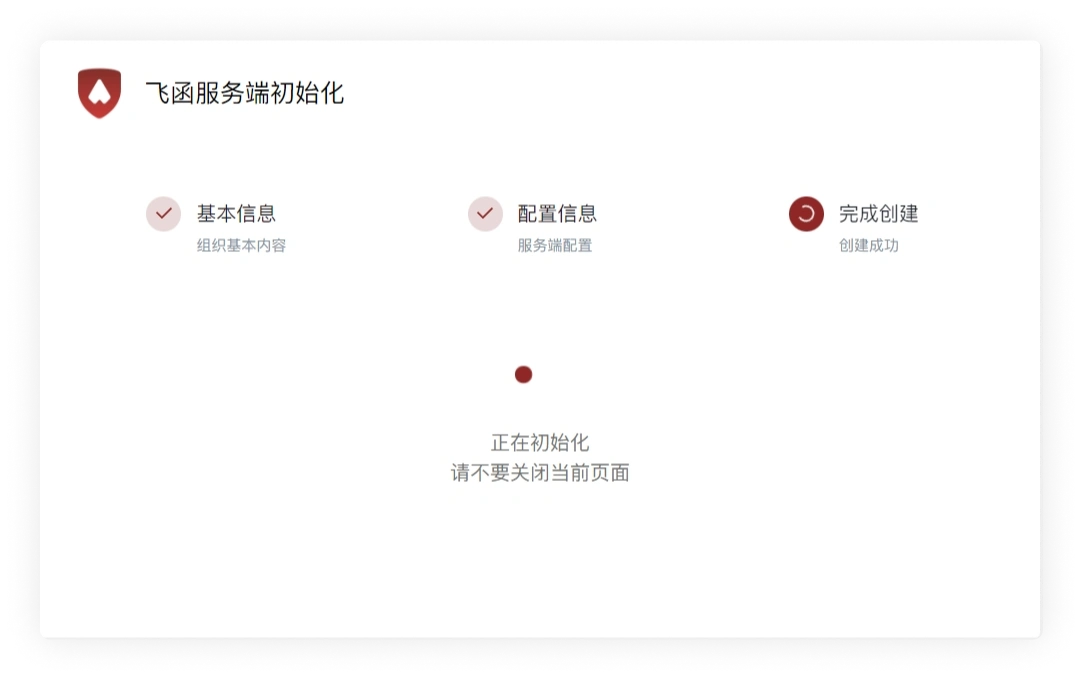
- Wait for server initialization to finish.
Initialization complete
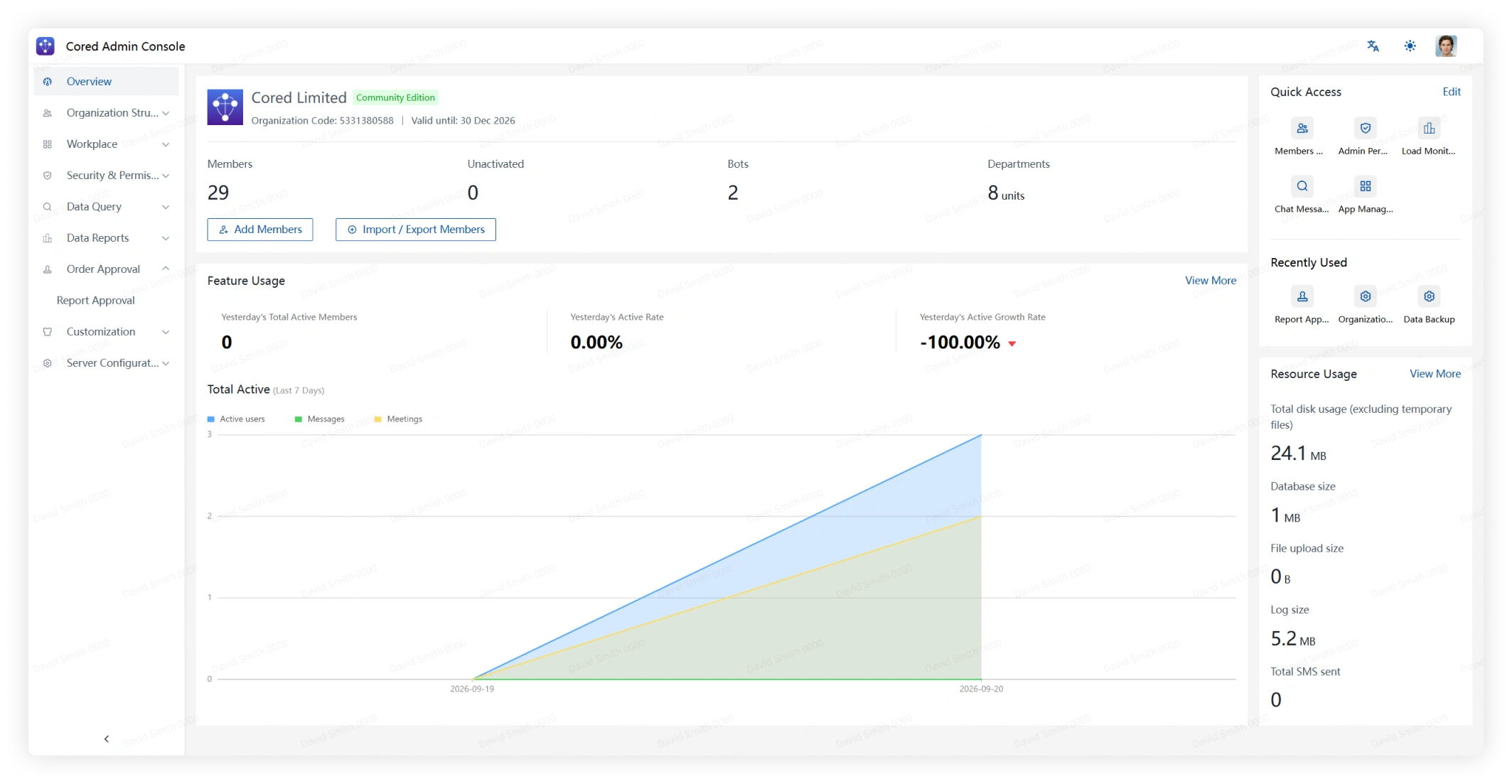
- When initialization finishes, Cored opens Admin Console.
Sign in to clients
After the server is ready, continue with the client installation and sign-in guide.