Desktop Chat Guide
1. Chat interface
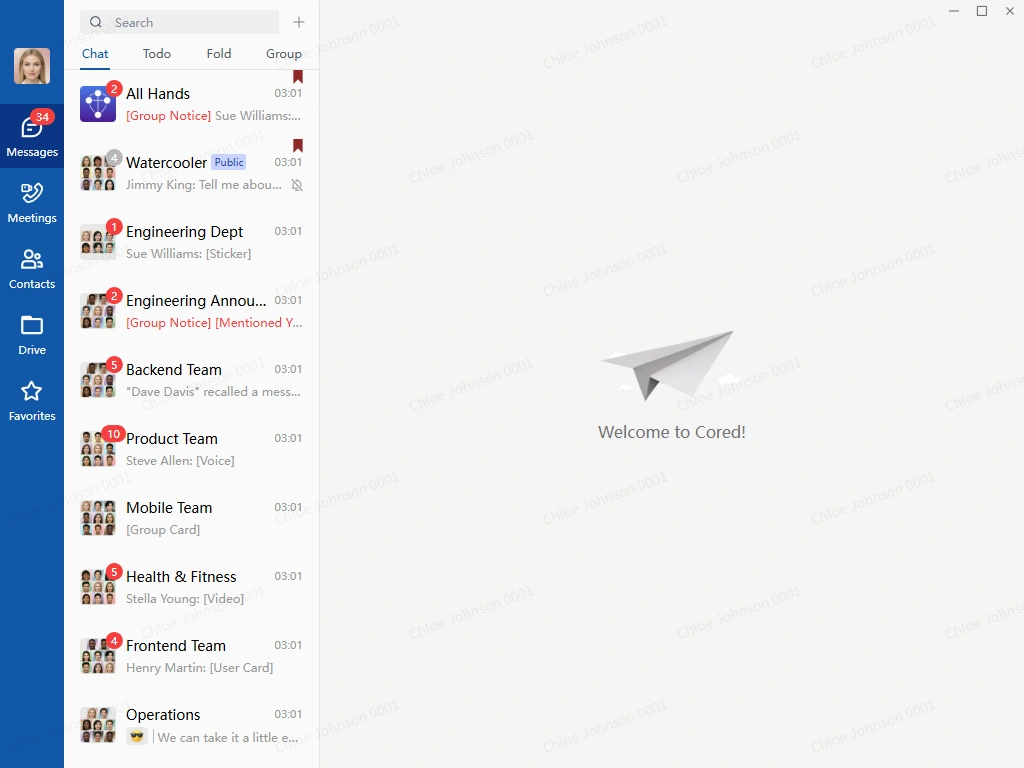
The chat list shows the most recently active conversations first. Select a chat to open it.
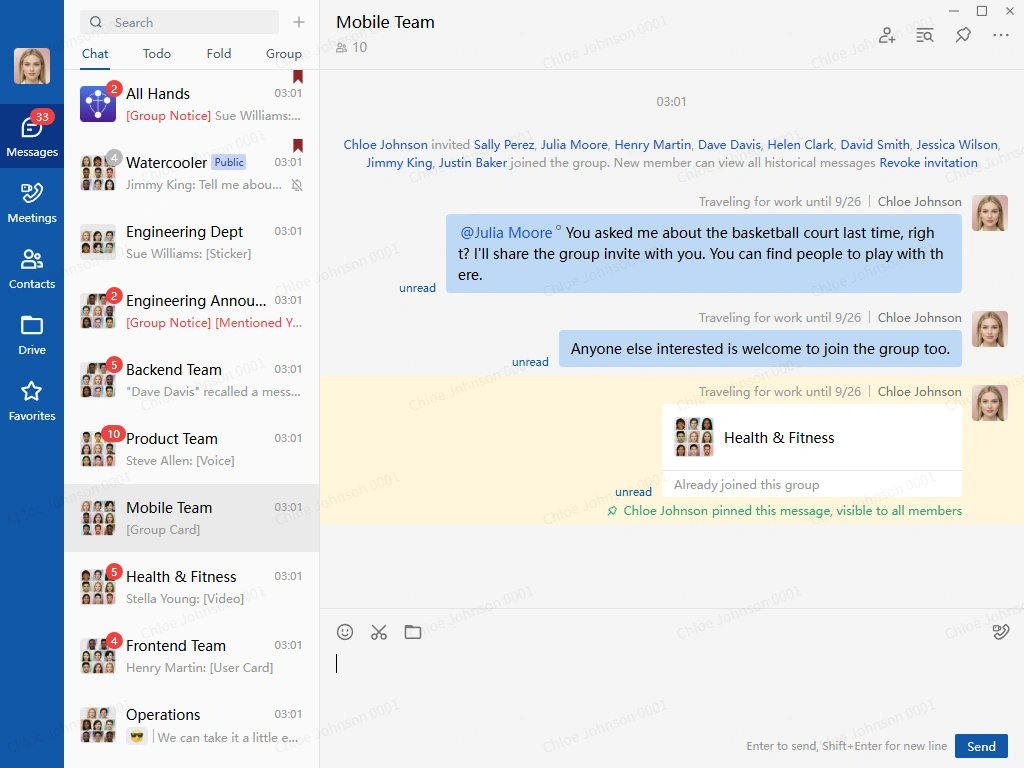
From the conversation window, you can send text, emoji, stickers, and files, and review earlier messages.
2. Start a private chat
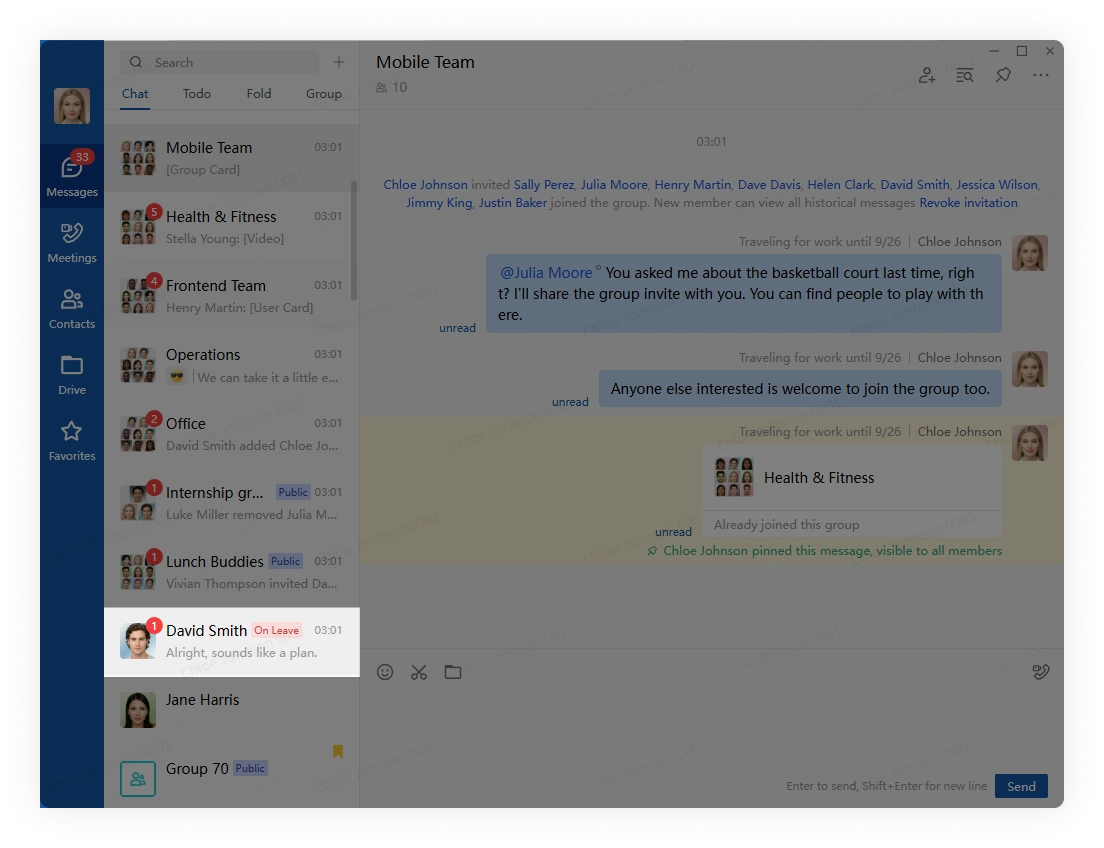
Select a coworker in the chat list to open a private conversation.
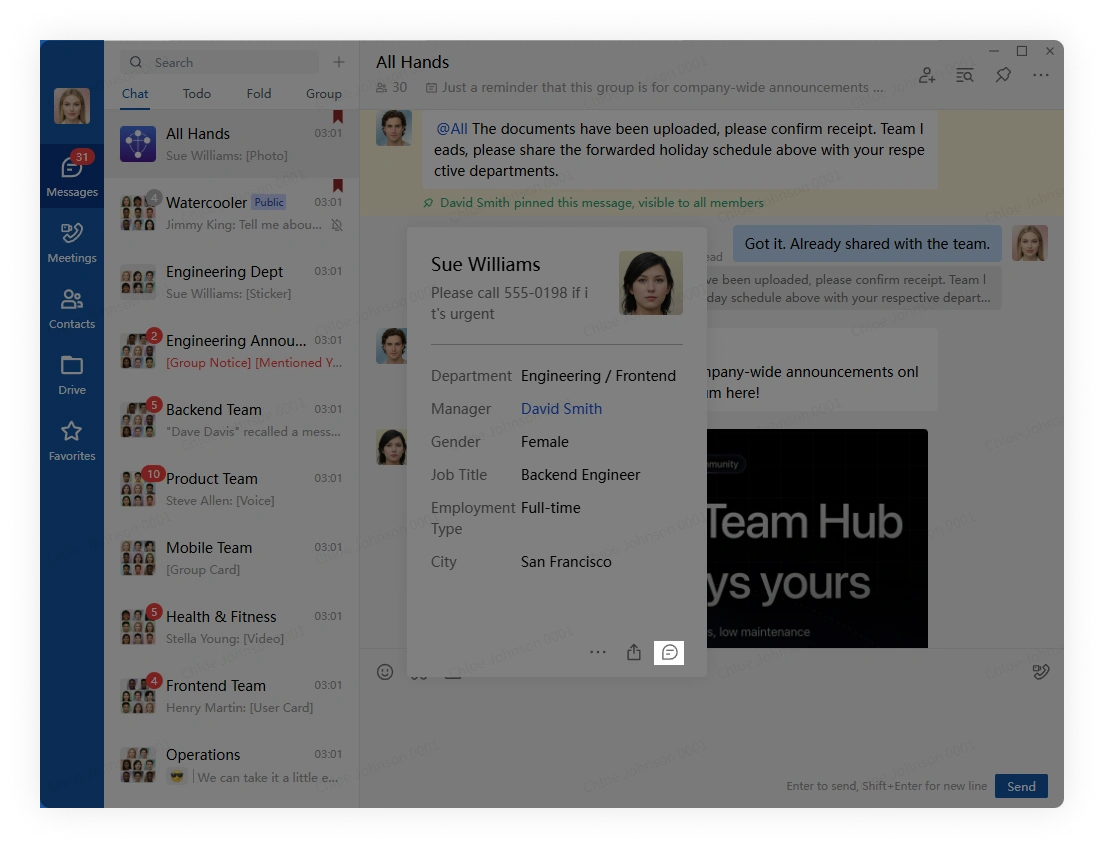
Open a coworker's profile and click Send Message.
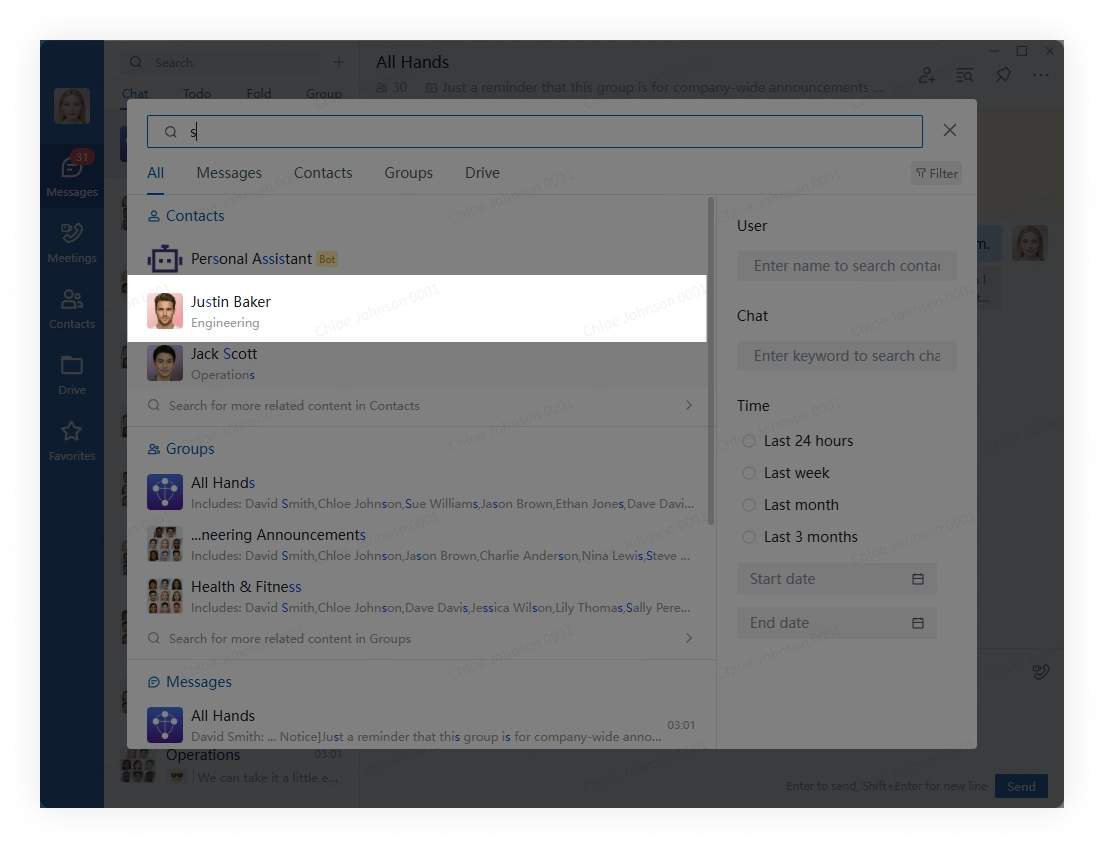
Search for a coworker, then select the result to start a conversation.
3. Start or enter a group chat
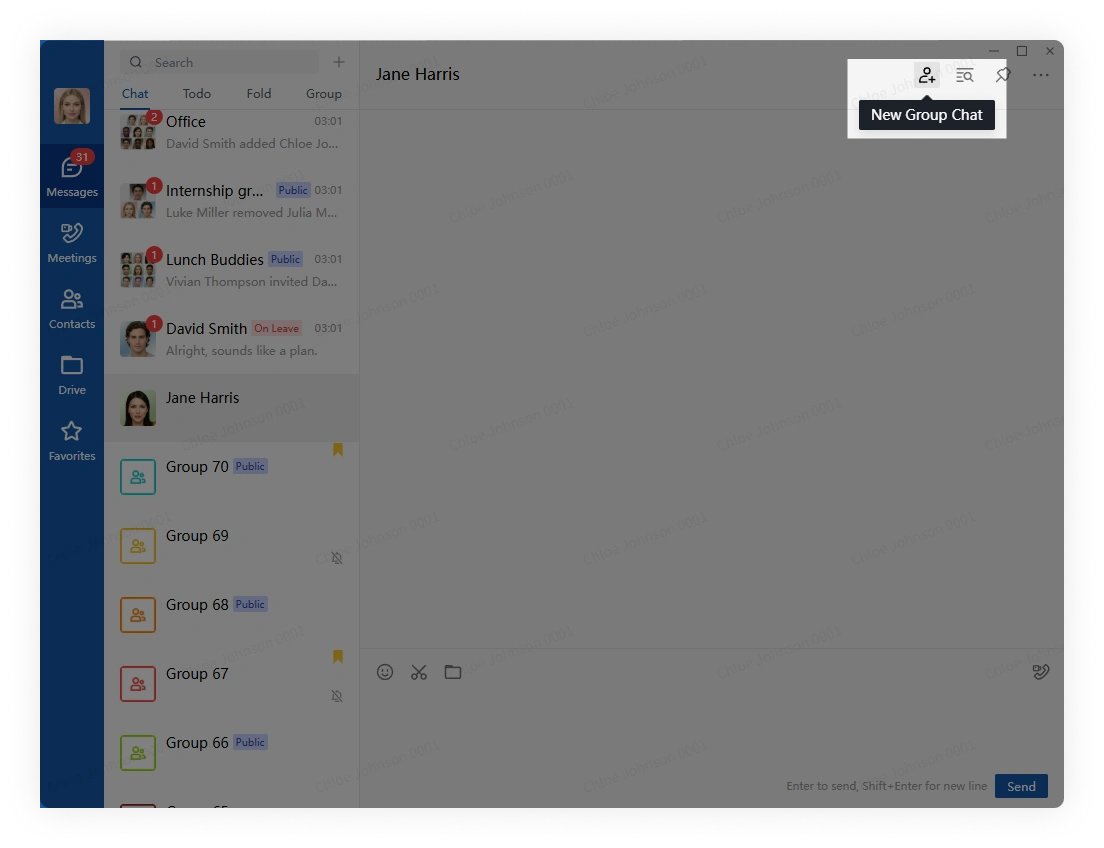
In a private conversation, click Invite in the upper-right corner, select additional members, and confirm.
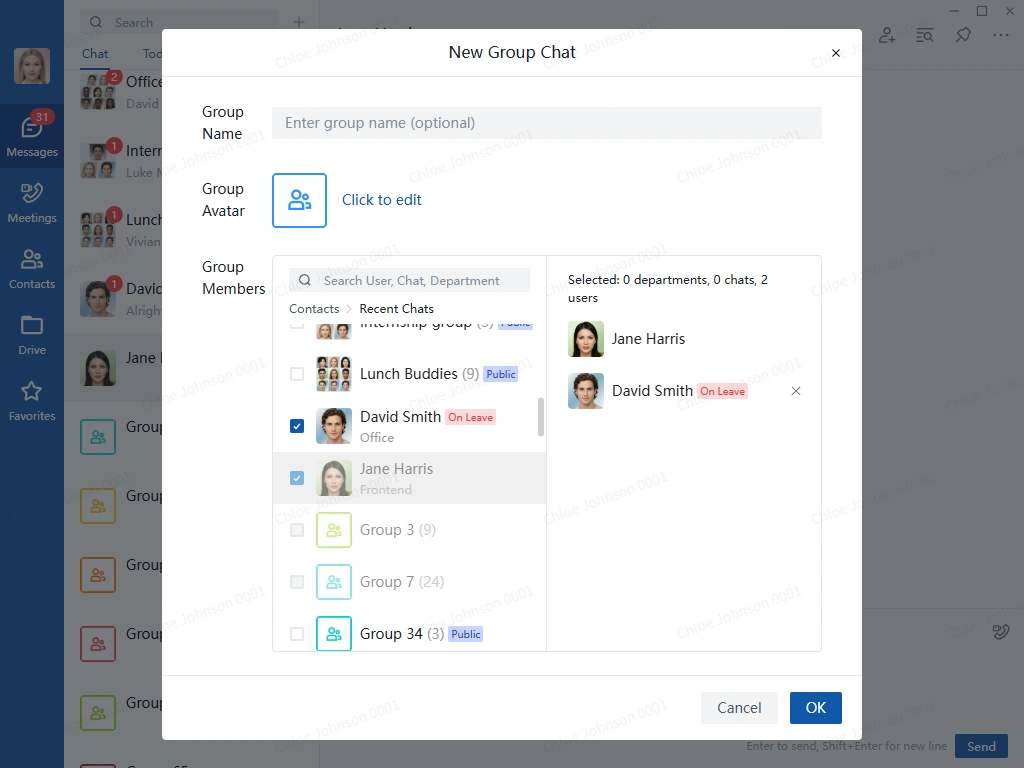
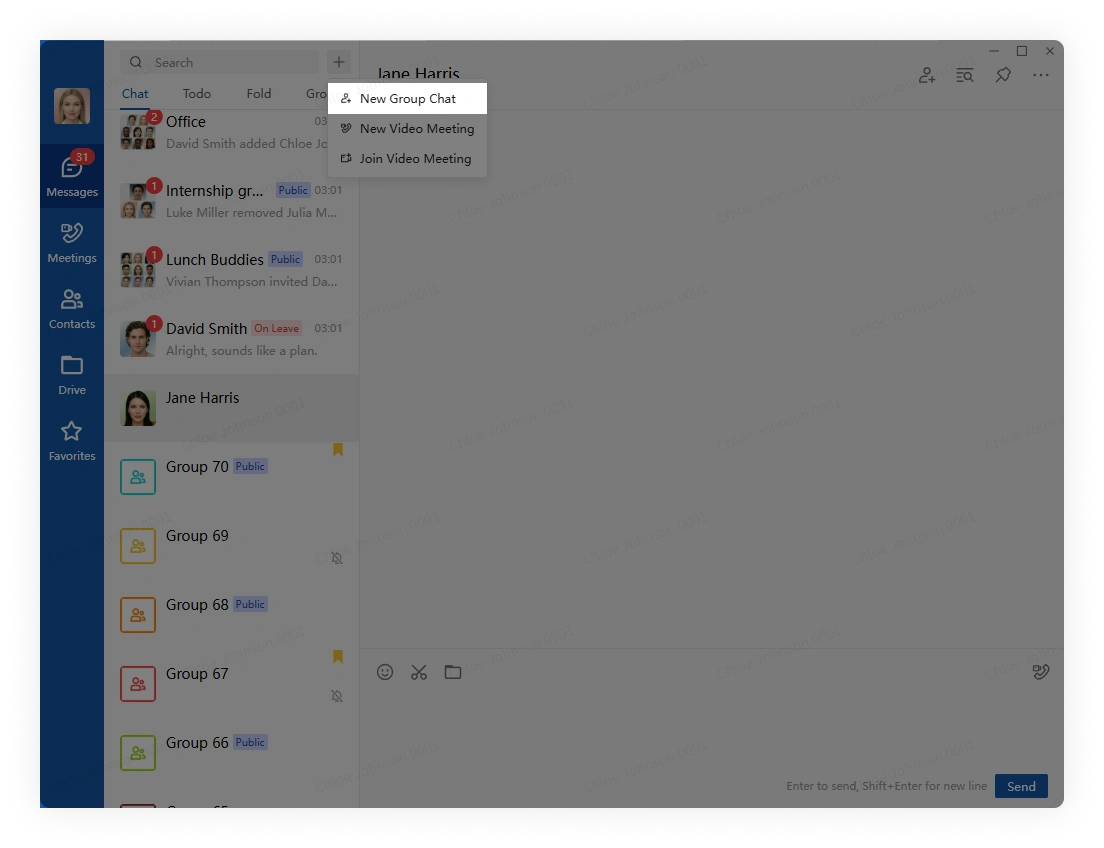
Click the plus button next to search, select Start Group Chat, choose members, and confirm.
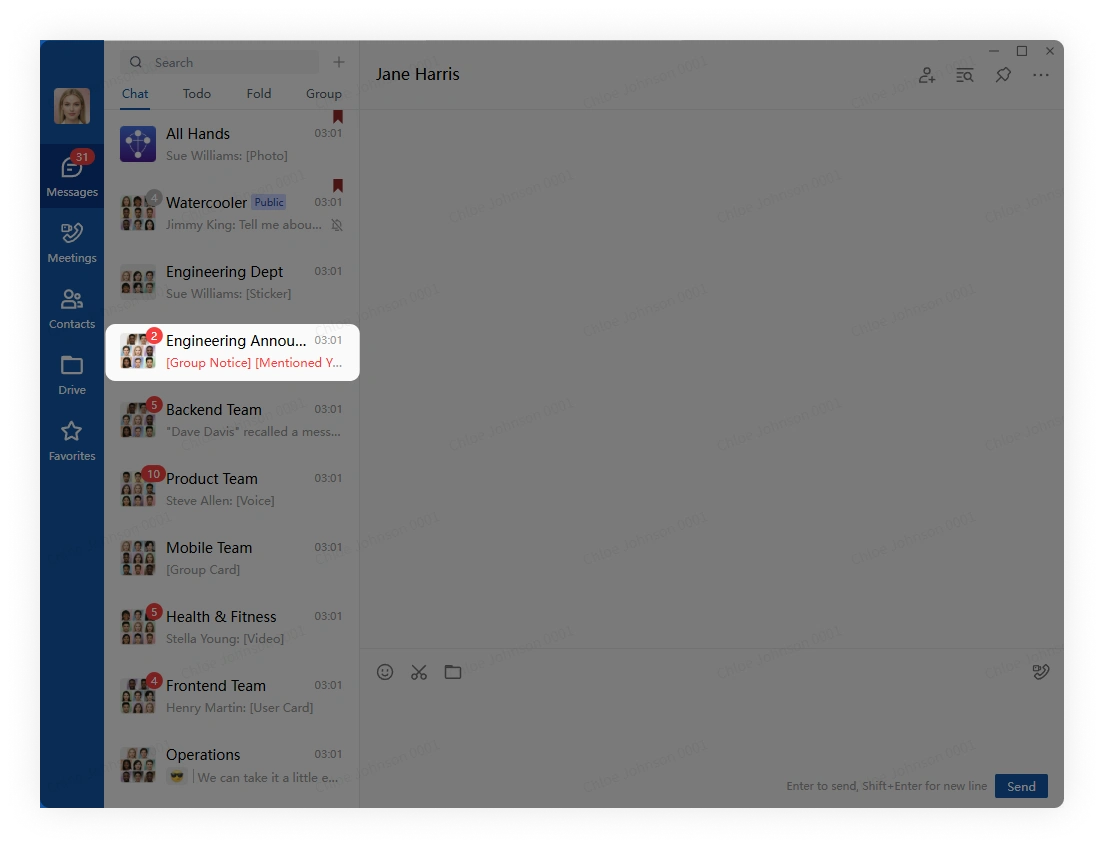
Select a group in the chat list to open the conversation.
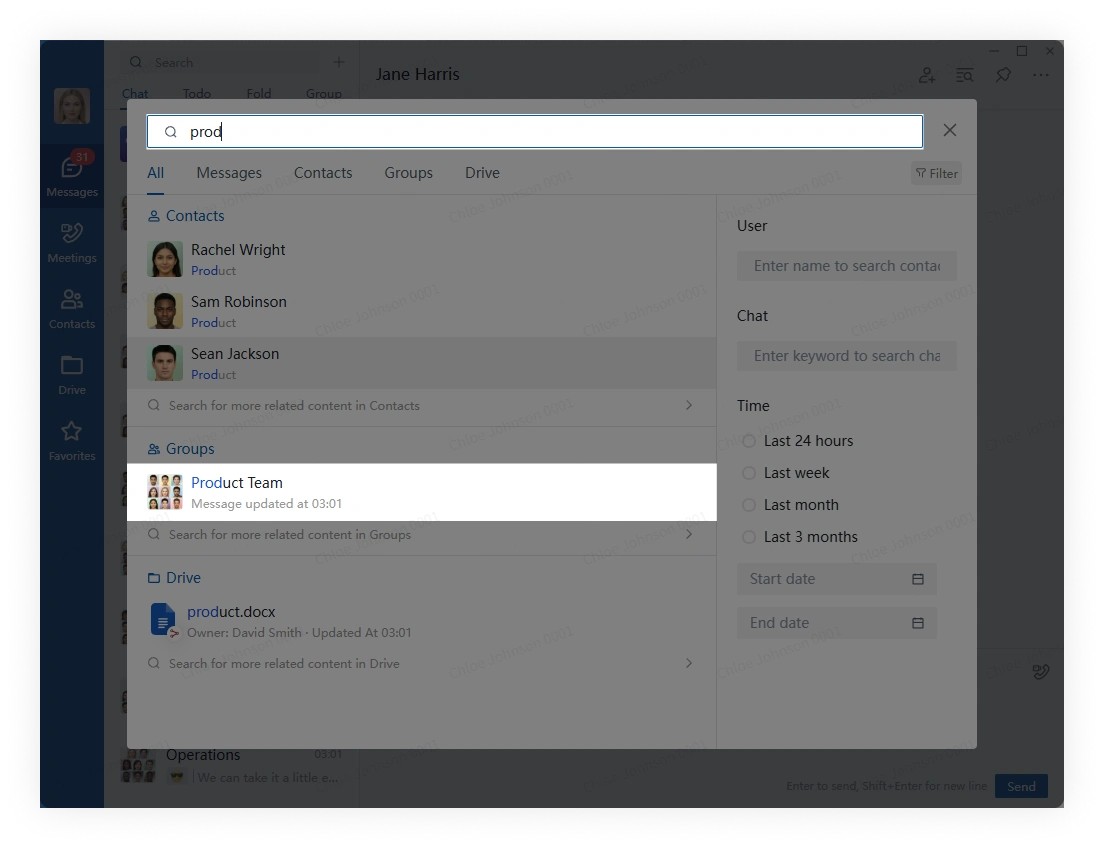
Search for a group by name, then select the result to open it.
4. Send files
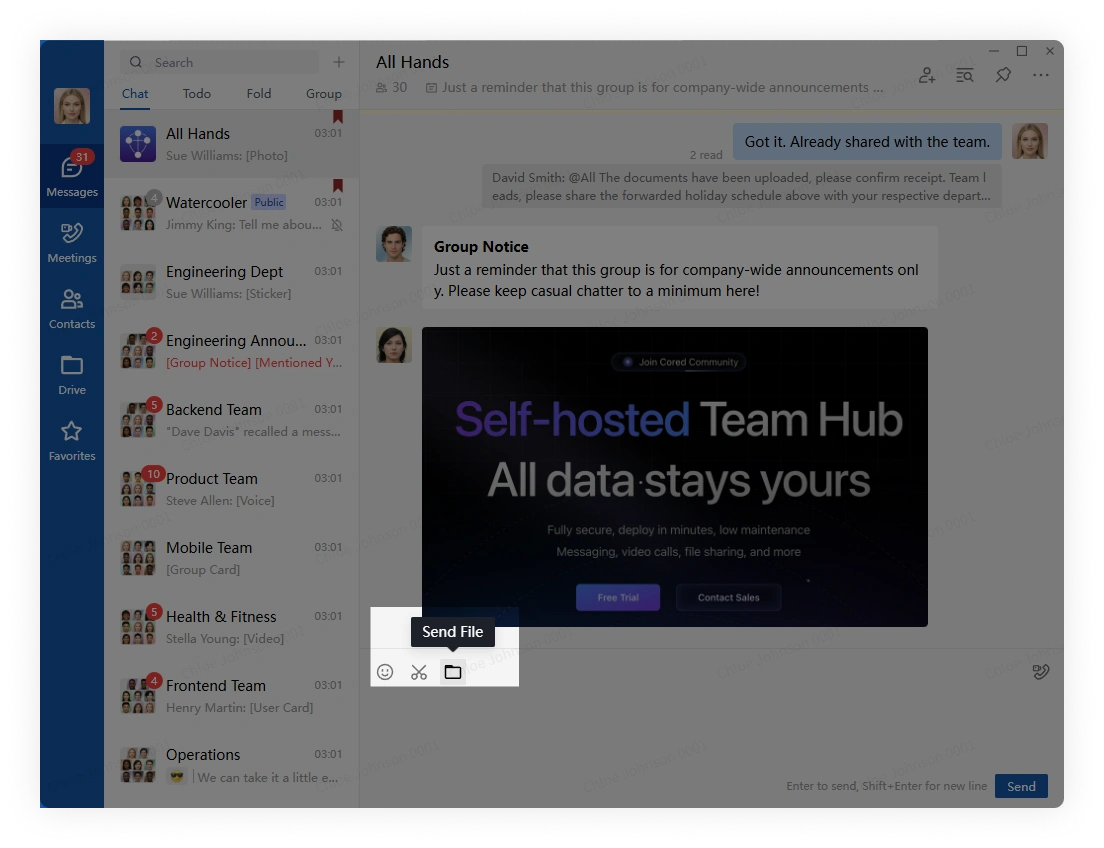
Click the file button in the message toolbar and choose a file.
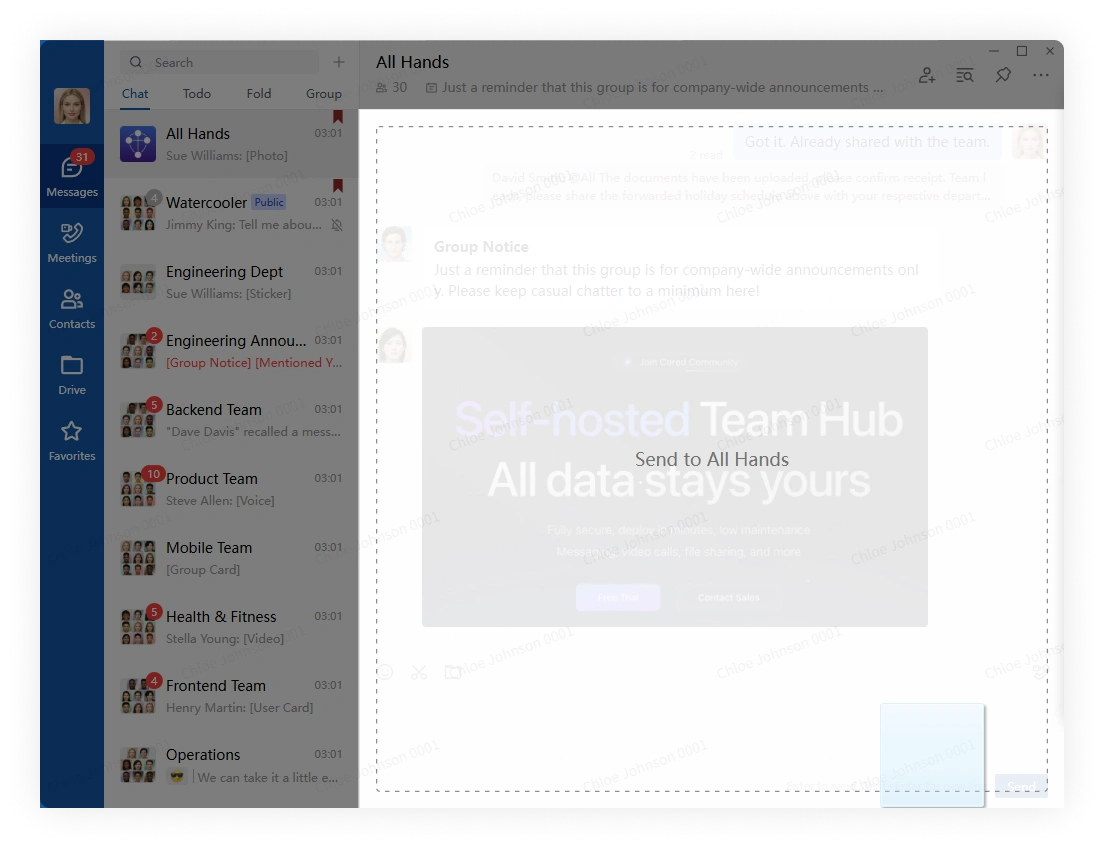
You can also drag a file into the conversation or paste it from the clipboard.