
Organize Chats into Groups
Overview
Create custom chat groups to keep related conversations together without changing the conversations themselves.
Steps
Desktop
-
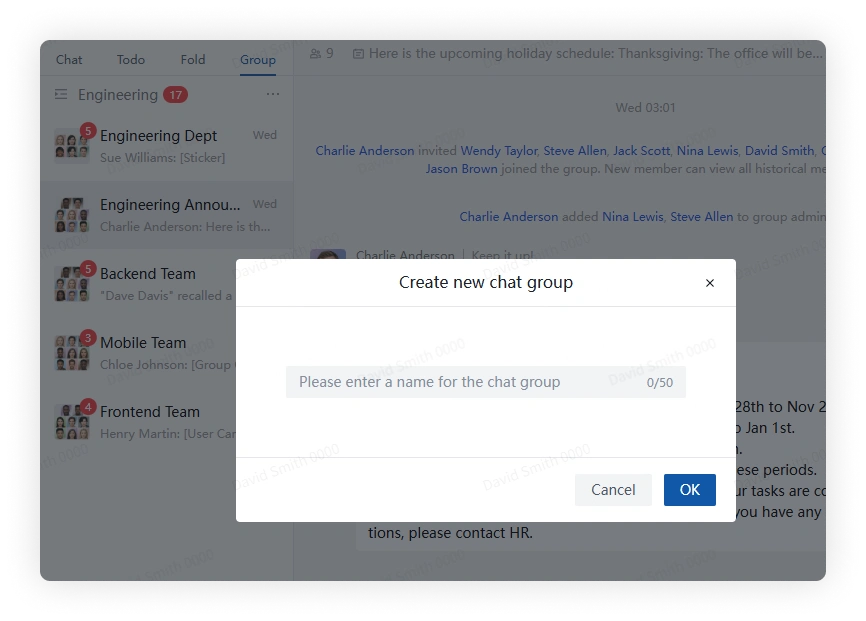
Above the chat list, click Group > New Group, enter a name, and confirm.
-
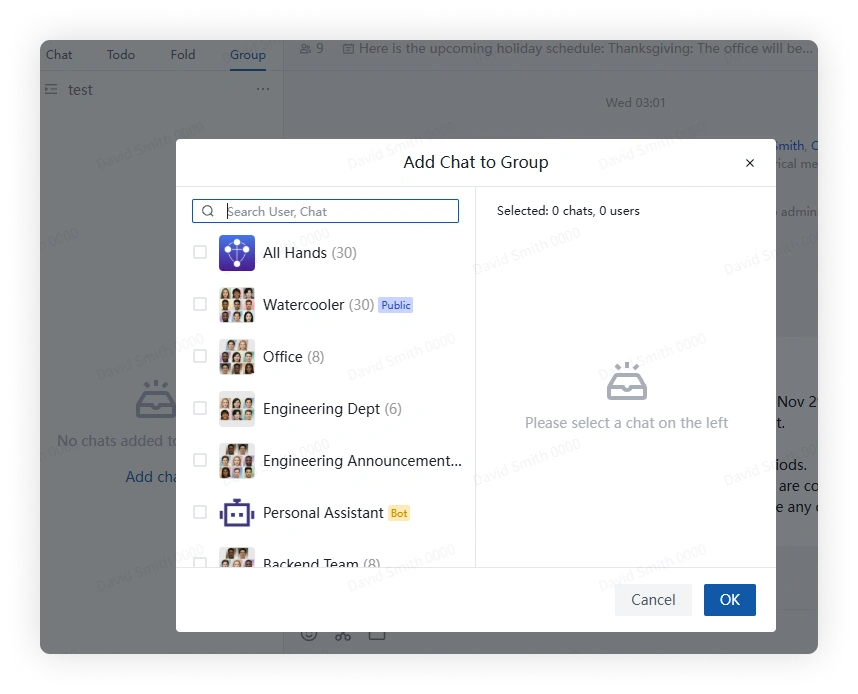
Click Add Chats, select or search for conversations, and confirm.
-
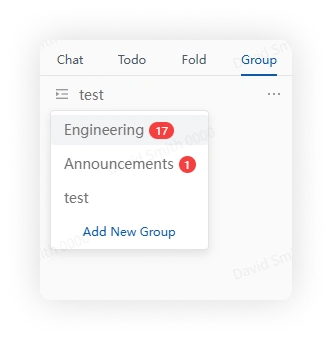
Open the group list and select a group to view its conversations.
- The badge beside a group shows its total unread count.
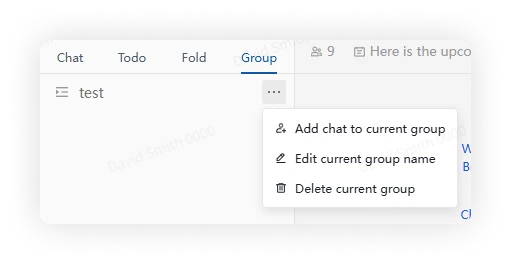
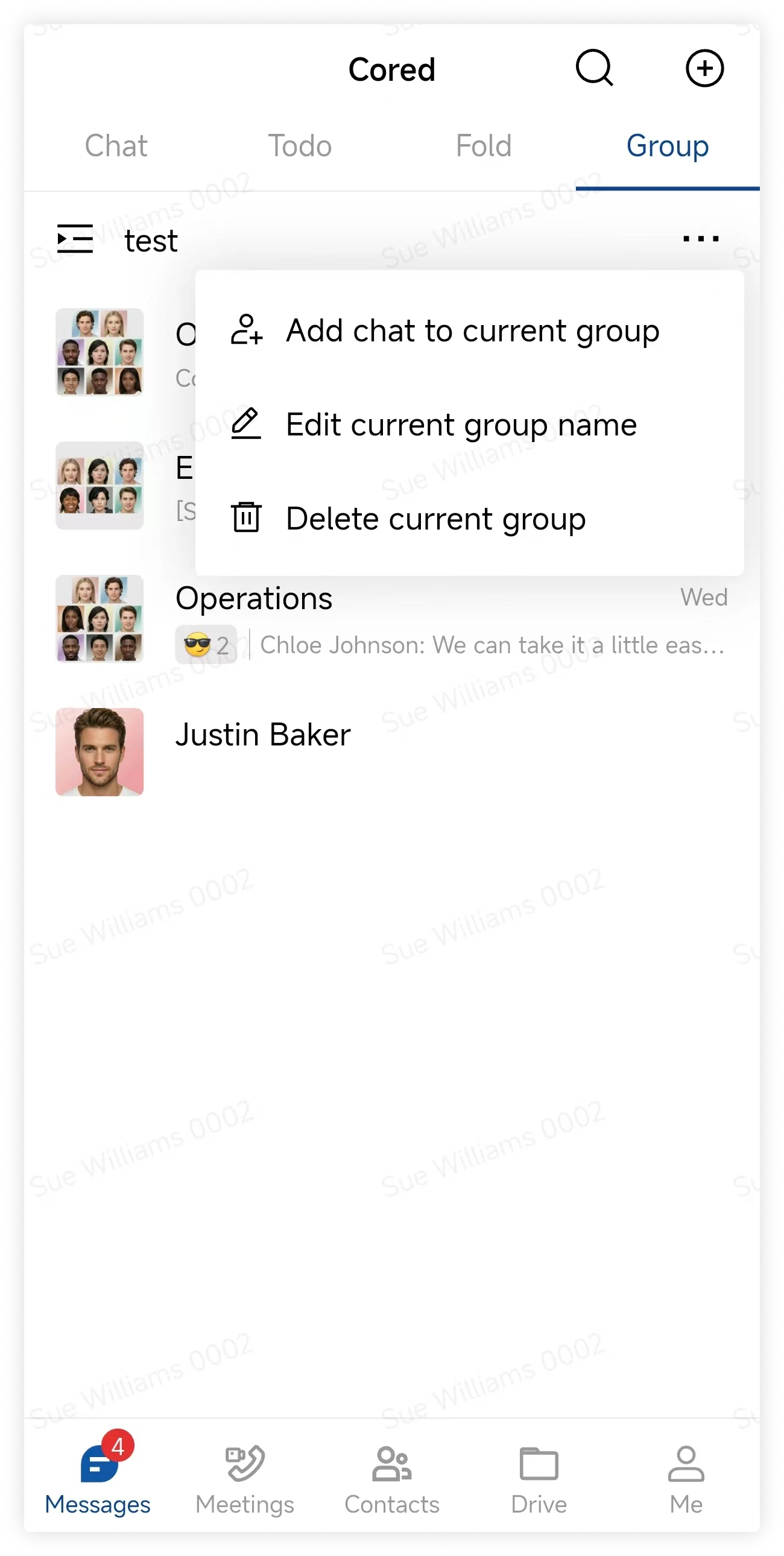
- Use the More menu to add conversations, rename the group, or delete it.
- To remove a conversation, open the group, right-click the conversation, and select Remove from Group.
Mobile
-
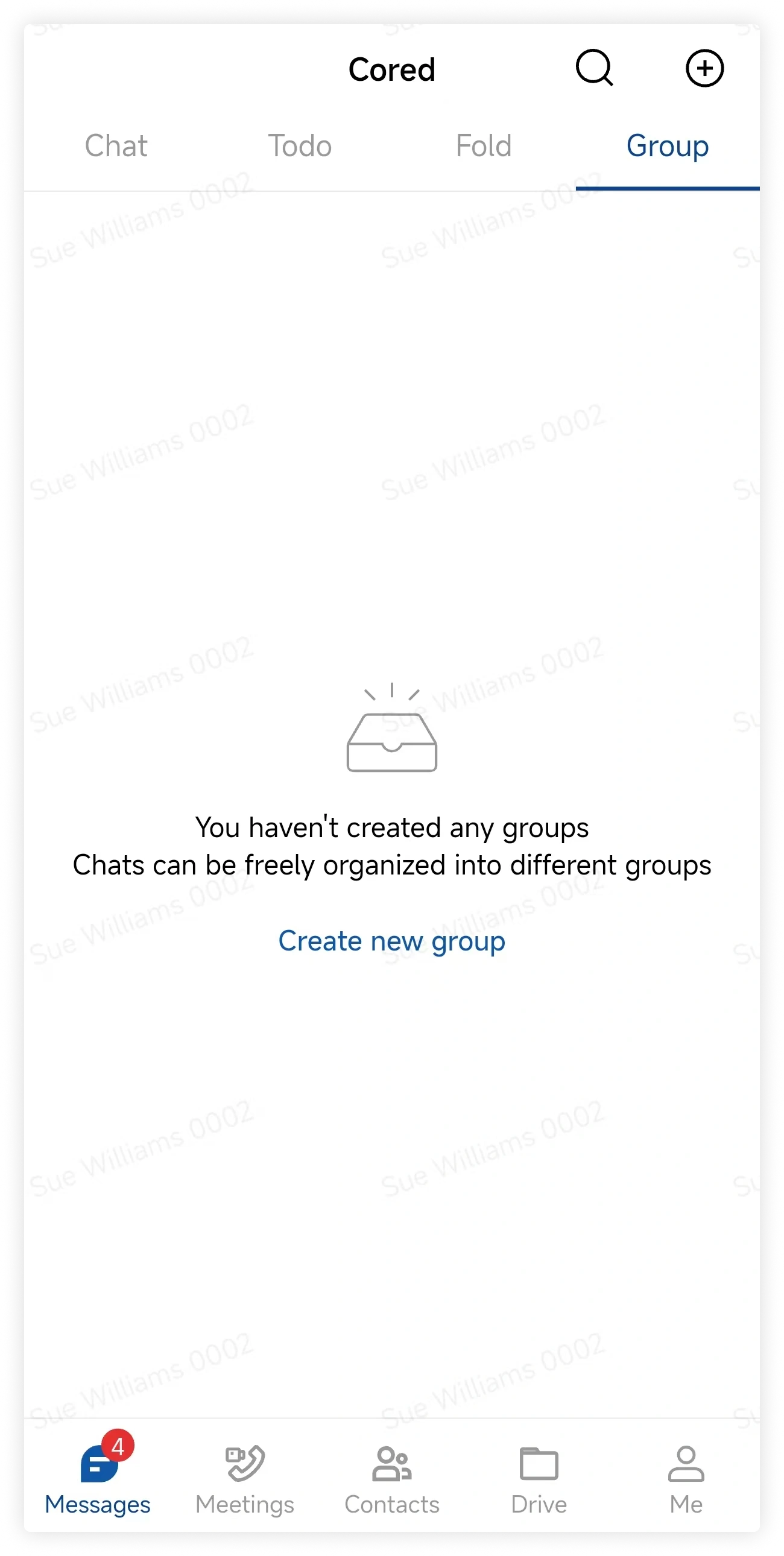
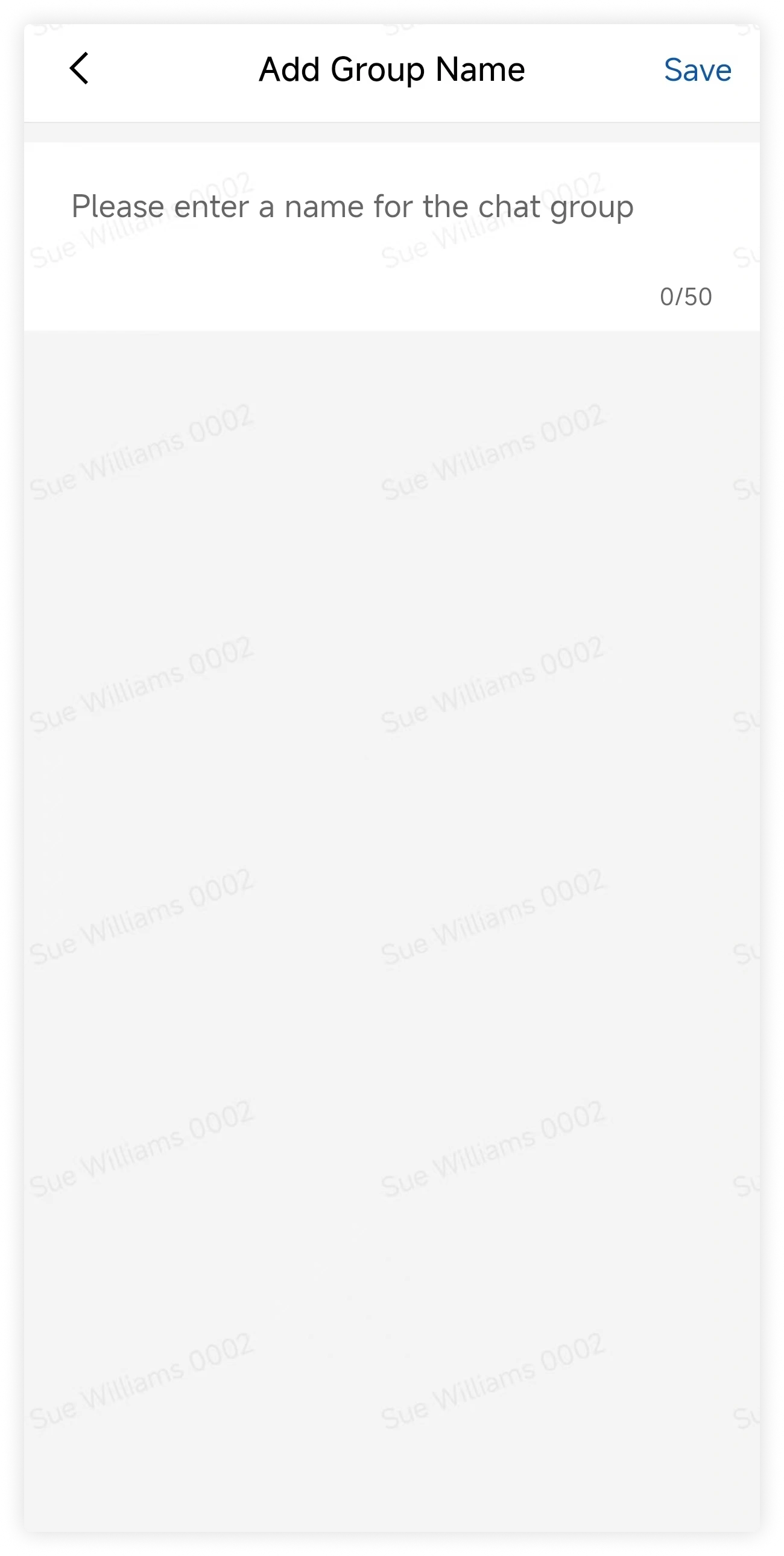
Above the chat list, tap Group > New Group, enter a name, and confirm.
-
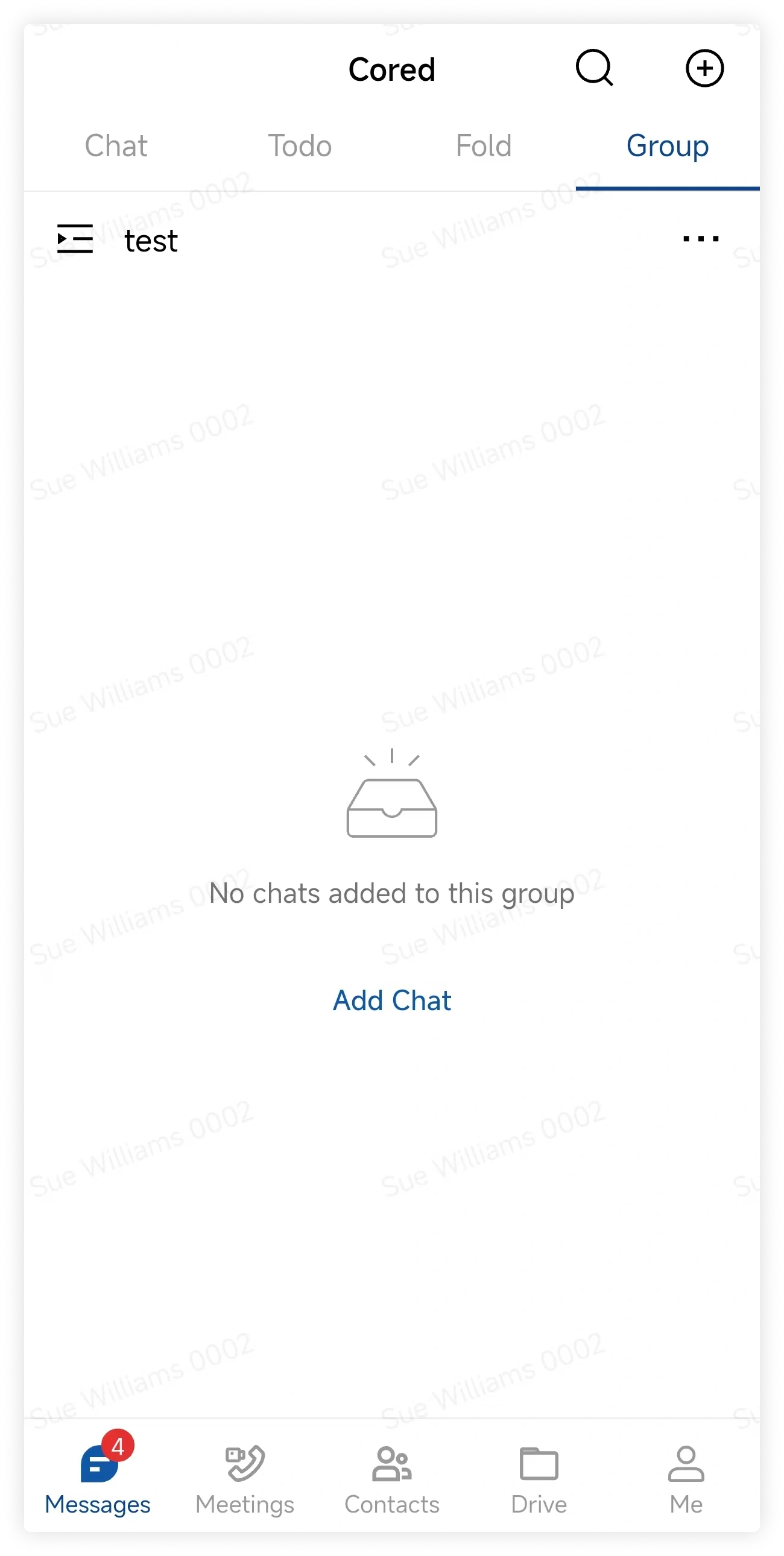
Tap Add Chats.
- Tap a conversation to add it immediately.
- Tap Multi-select to add several conversations at once.
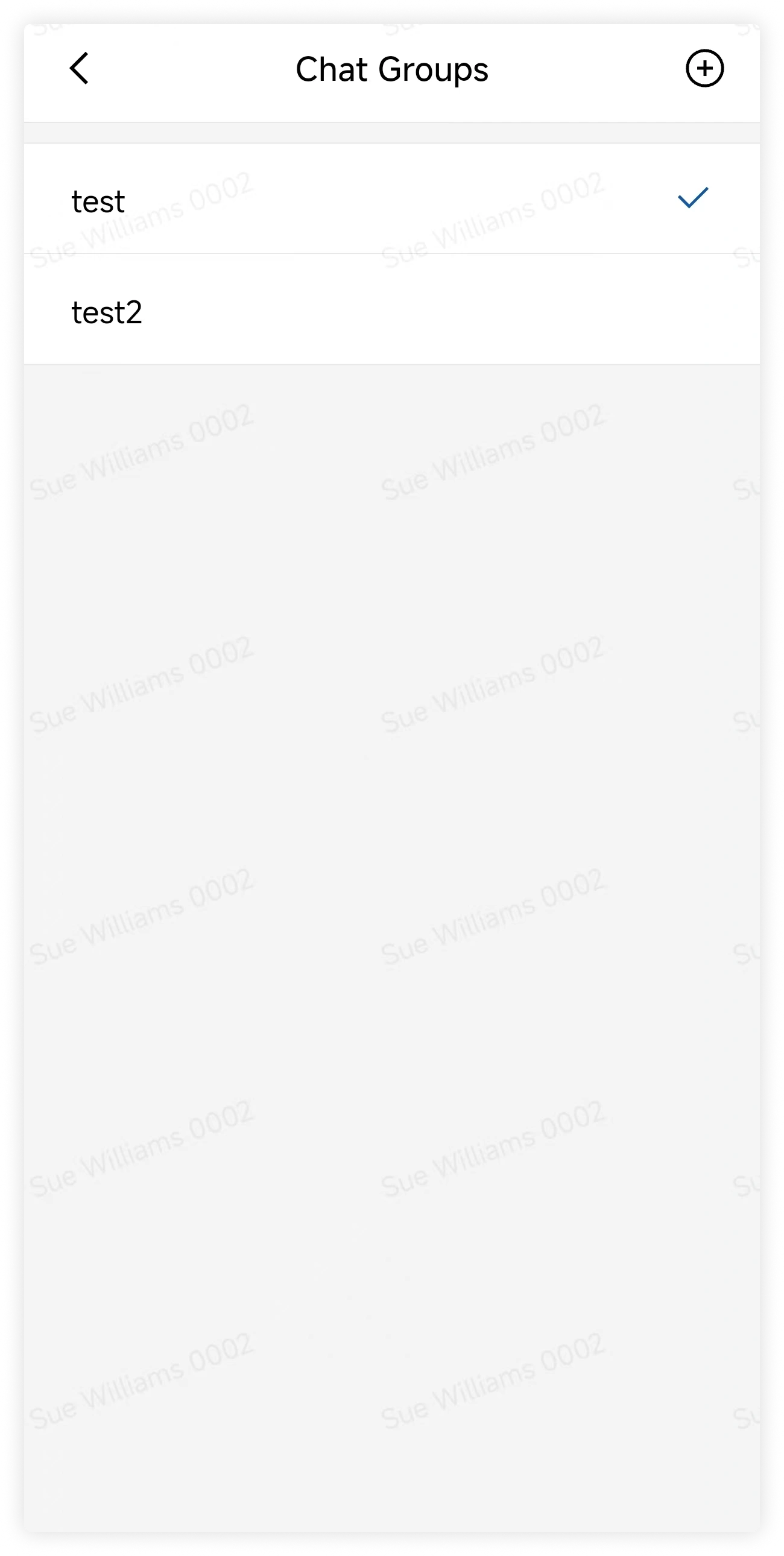
- Open the group list and tap a group to view its conversations.
- The badge beside a group shows its total unread count.
- Use the More menu to add conversations, rename the group, or delete it.
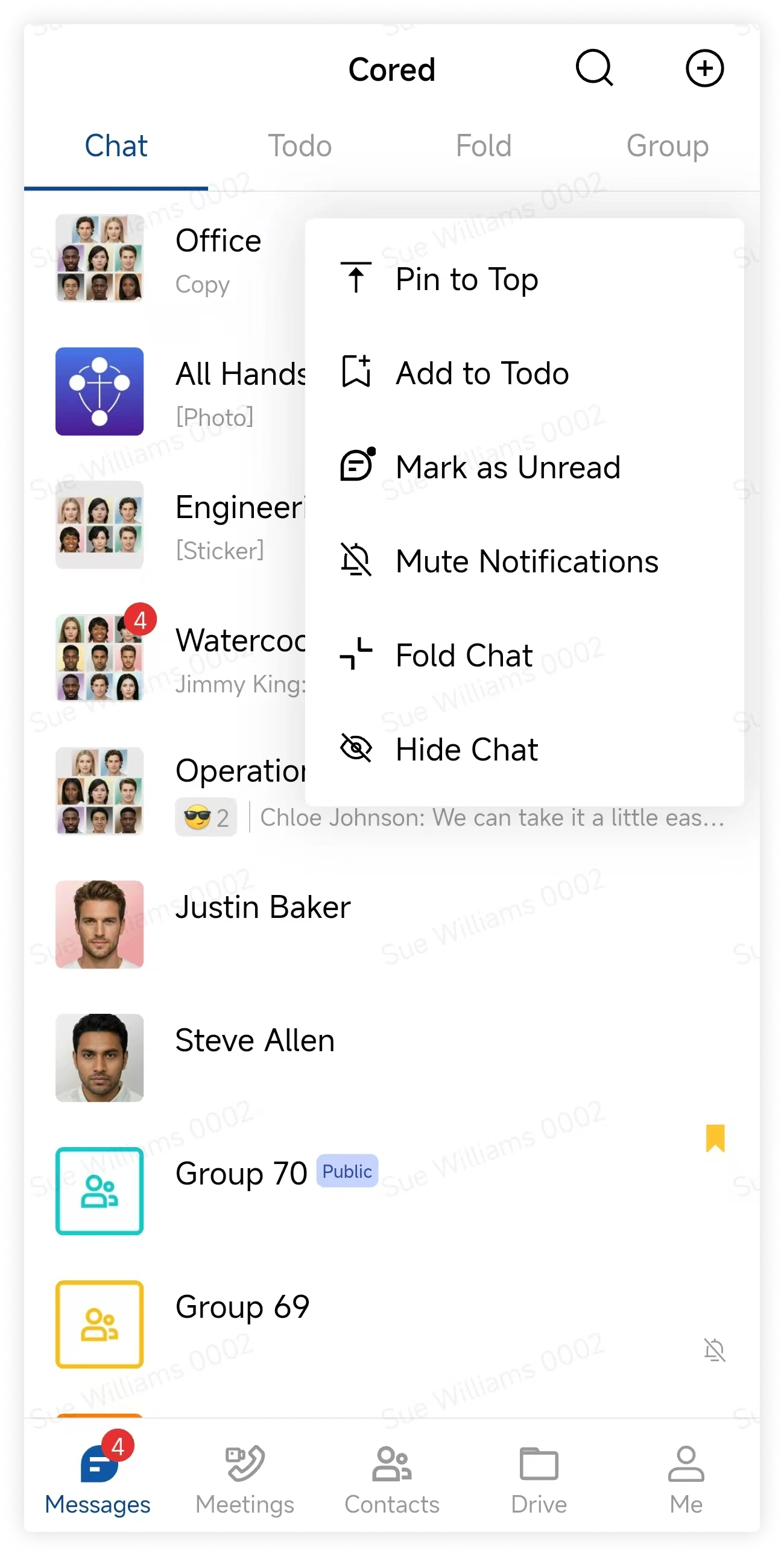
- To remove a conversation, open the group, long-press the conversation, and select Remove from Group.
FAQ
If I delete a group, do I leave those chats?
No. Deleting a custom group removes only the organization shortcut. Its conversations remain in your chat list.
If I remove a chat from a group, what changes?
The conversation is removed from that custom group but otherwise remains unchanged.