
Send and Download Images and Videos
Send images/videos in chat
Desktop
-
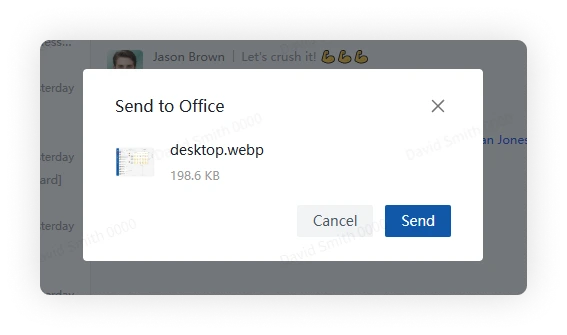
Click the file button beside the message box and choose one or more images or videos.
-
Alternatively, drag images or videos into the conversation.
Mobile
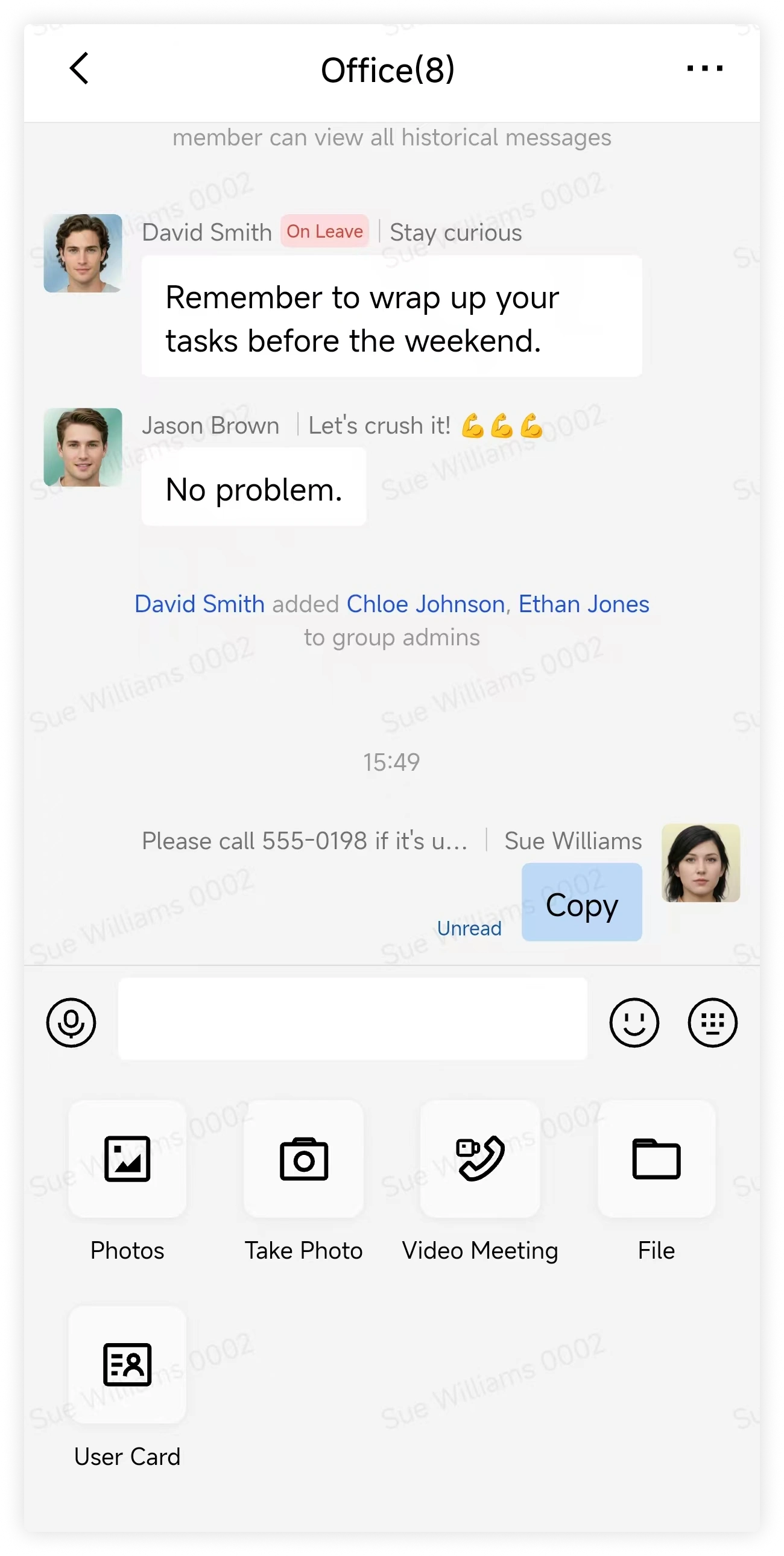
Tap the plus button beside the message box, select Album, choose images or videos, and send them.
Download images/videos in chat
Desktop
Open an image, then select Download Image or Download Original from the upper-left menu.

Mobile
Open an image and tap Download, or tap More and select Save Image.
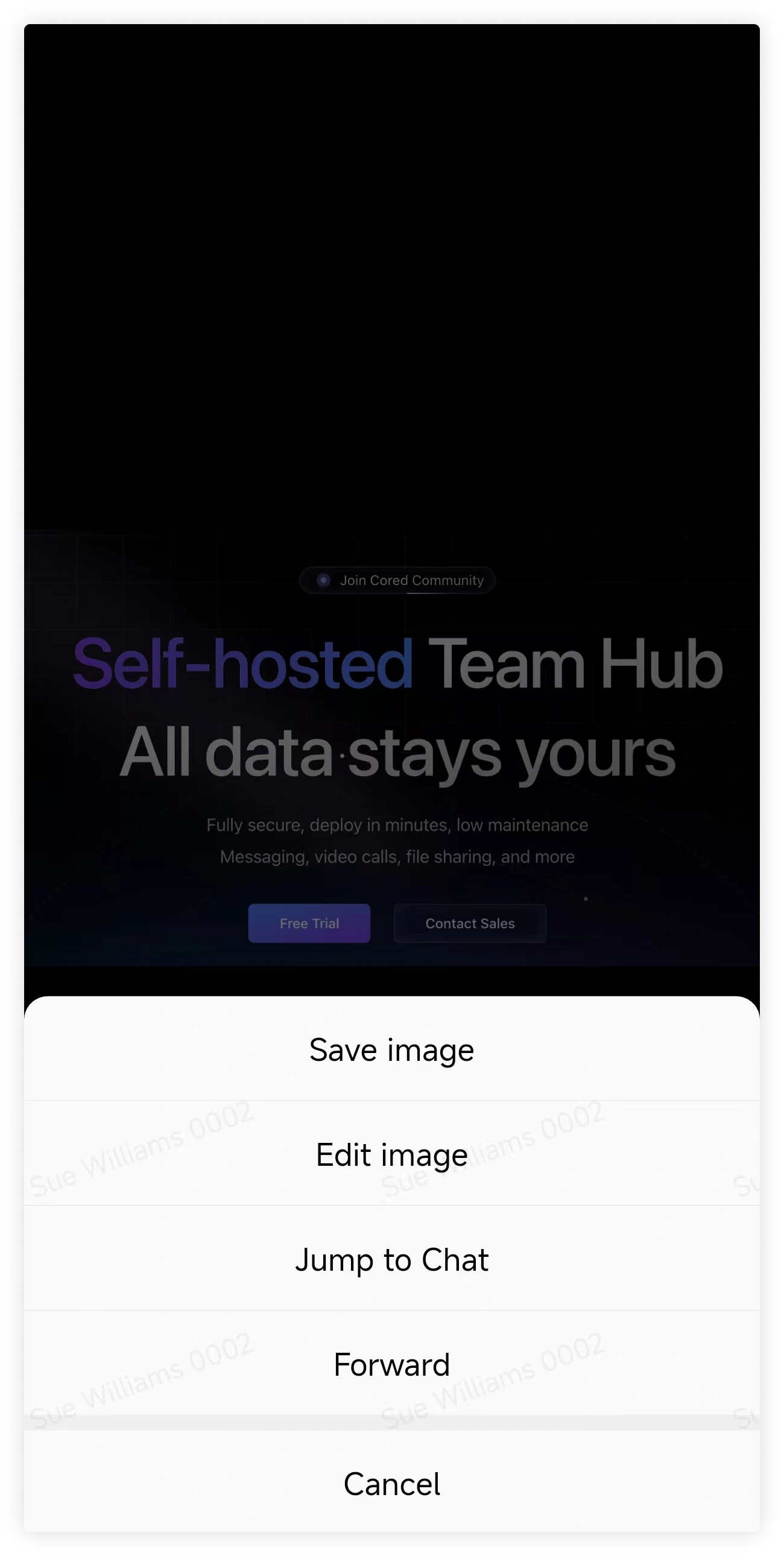
To download the full-resolution file, tap View Original.
FAQ
Is image quality compressed when sending?
Select Original Image before sending to preserve the original image quality.
I cannot open received images/videos
- Ask another member to open the same image or video.
- If only your device is affected, restart Cored and try again.
- If the issue continues, contact your administrator with the time sent and the error message.