
Send and Download Files
Send files in chat
Desktop
-
Click the file button beside the message box and choose a file.
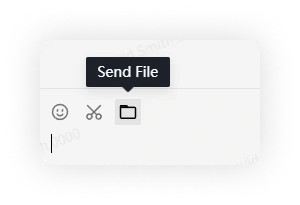
-
Alternatively, drag a file into the conversation.
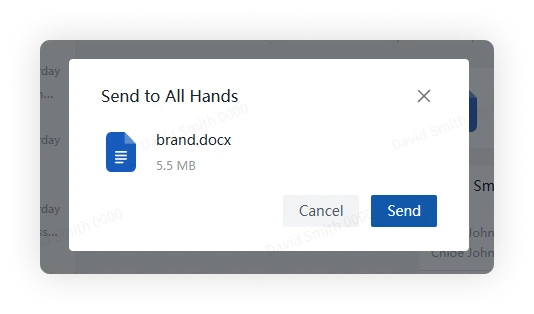
Mobile
Tap the plus button beside the message box, select File, choose a file, and send it.
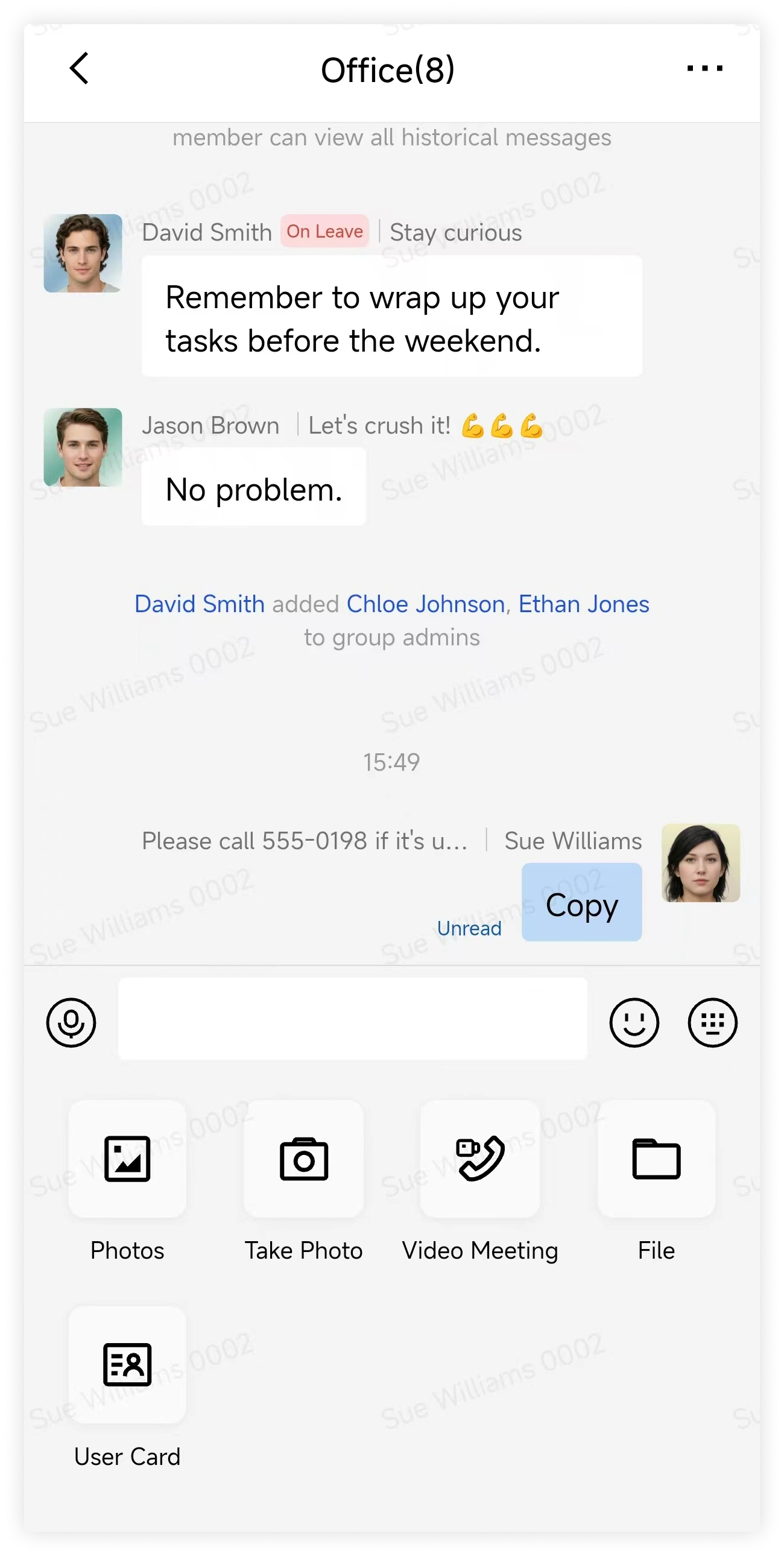
Download files in chat
Desktop
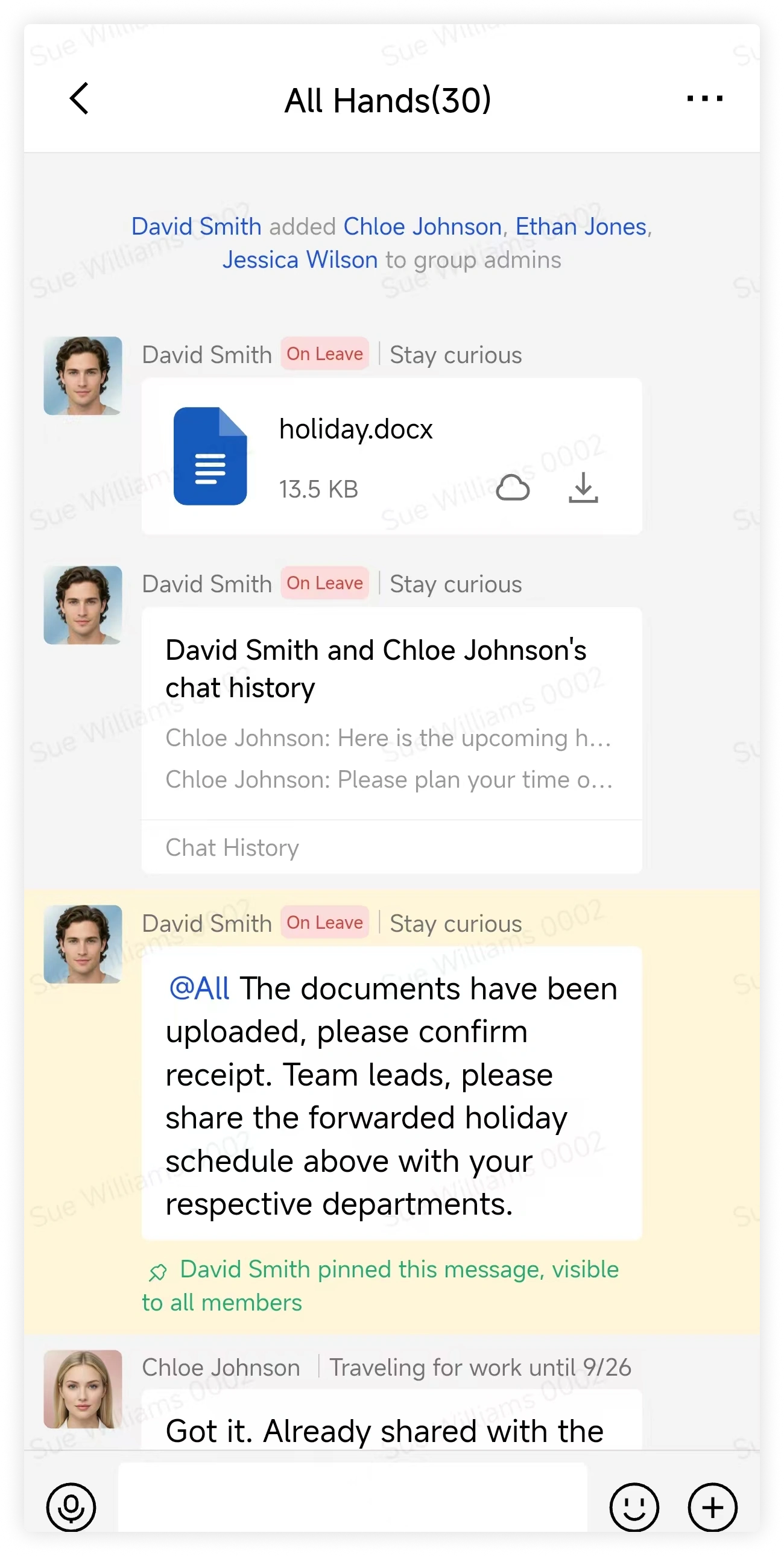
Click Download in the lower-right corner of the file message.
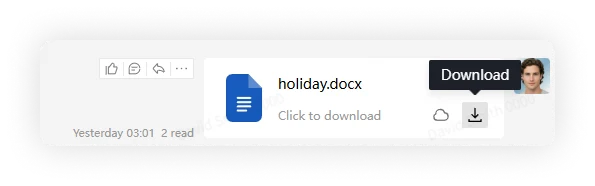
Mobile
Tap Download in the lower-right corner of the file message.
FAQ
Can I delete a file message I sent?
Deleting a file message removes it only from your view. Other conversation members can still see it.
To remove it for everyone, recall the message before your organization's recall time limit expires.
I cannot open a received file
- Ask another member to open the same file.
- If only your device is affected, restart Cored and try again.
- If files continue to fail, contact your administrator with the file name, time sent, and error message.