
Set a Group as Public
Overview
A public group appears in organization search results. Group owners and administrators can enable this setting when members should be able to discover and join the group.
Steps
Desktop
-
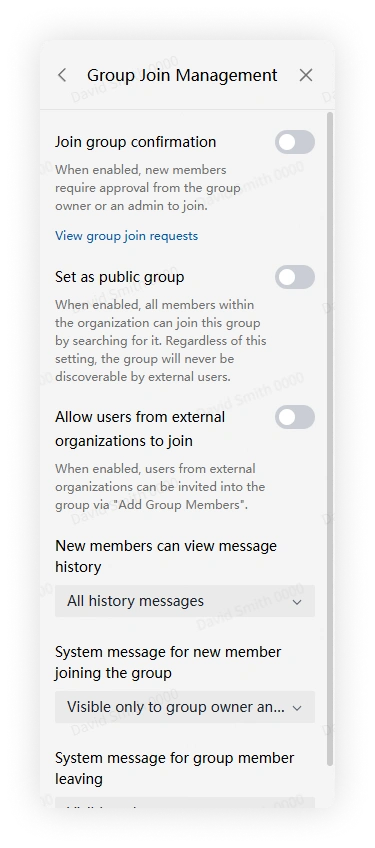
Open More Group Info > Group Management > Join Management.
-
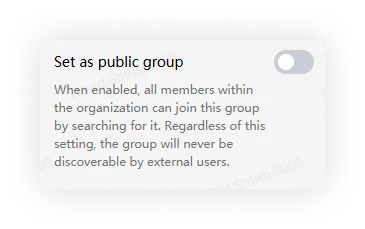
Turn on Set as Public Group.
-
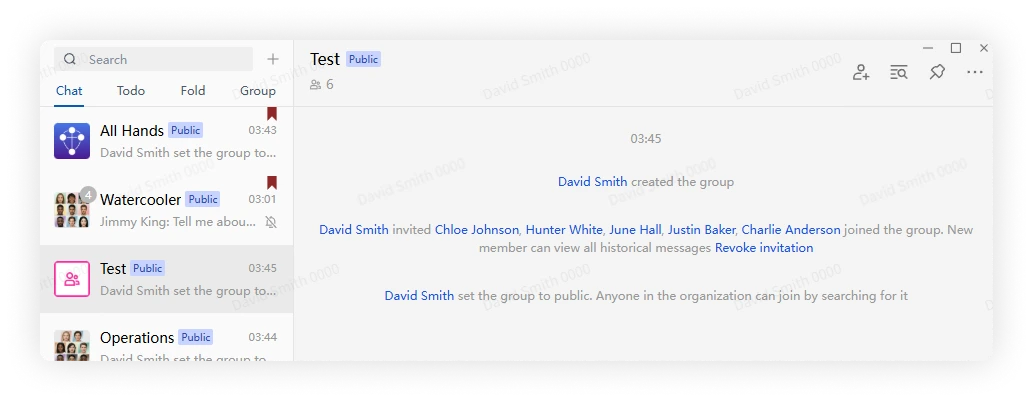
Confirm that the Public label appears beside the group name. Members can now find the group through search and share it according to the current group permissions.
-
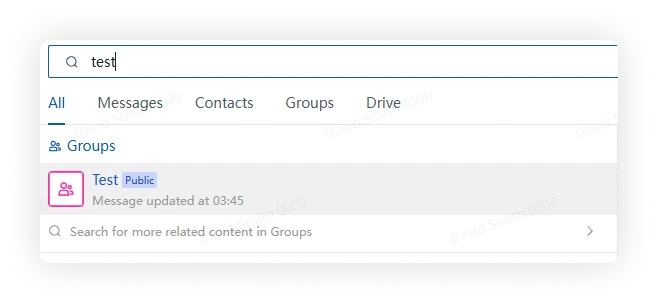
Organization members can search for the group by name and open it from the results.
Mobile
-
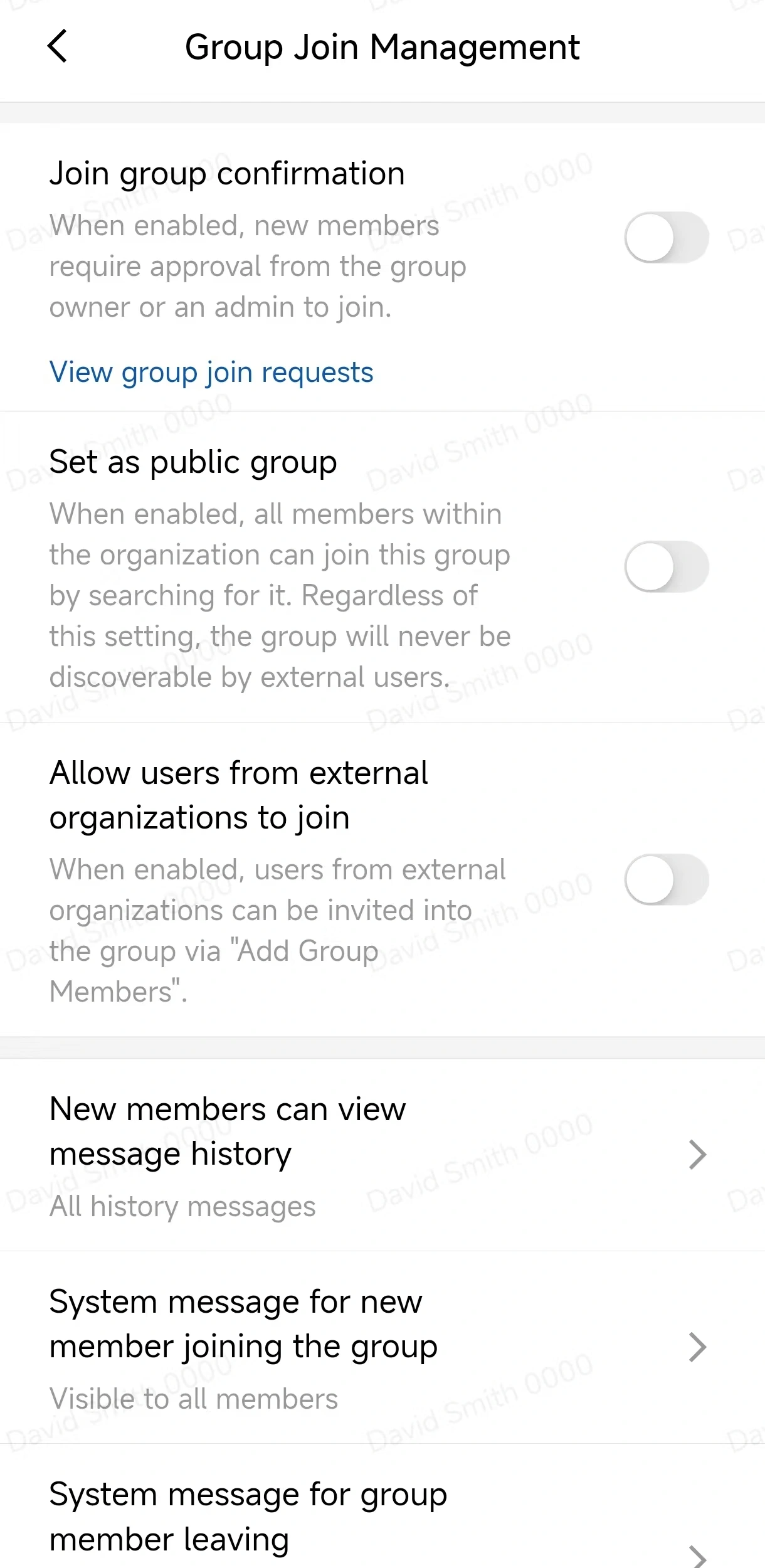
Open More Group Info > Group Management > Join Management.
-
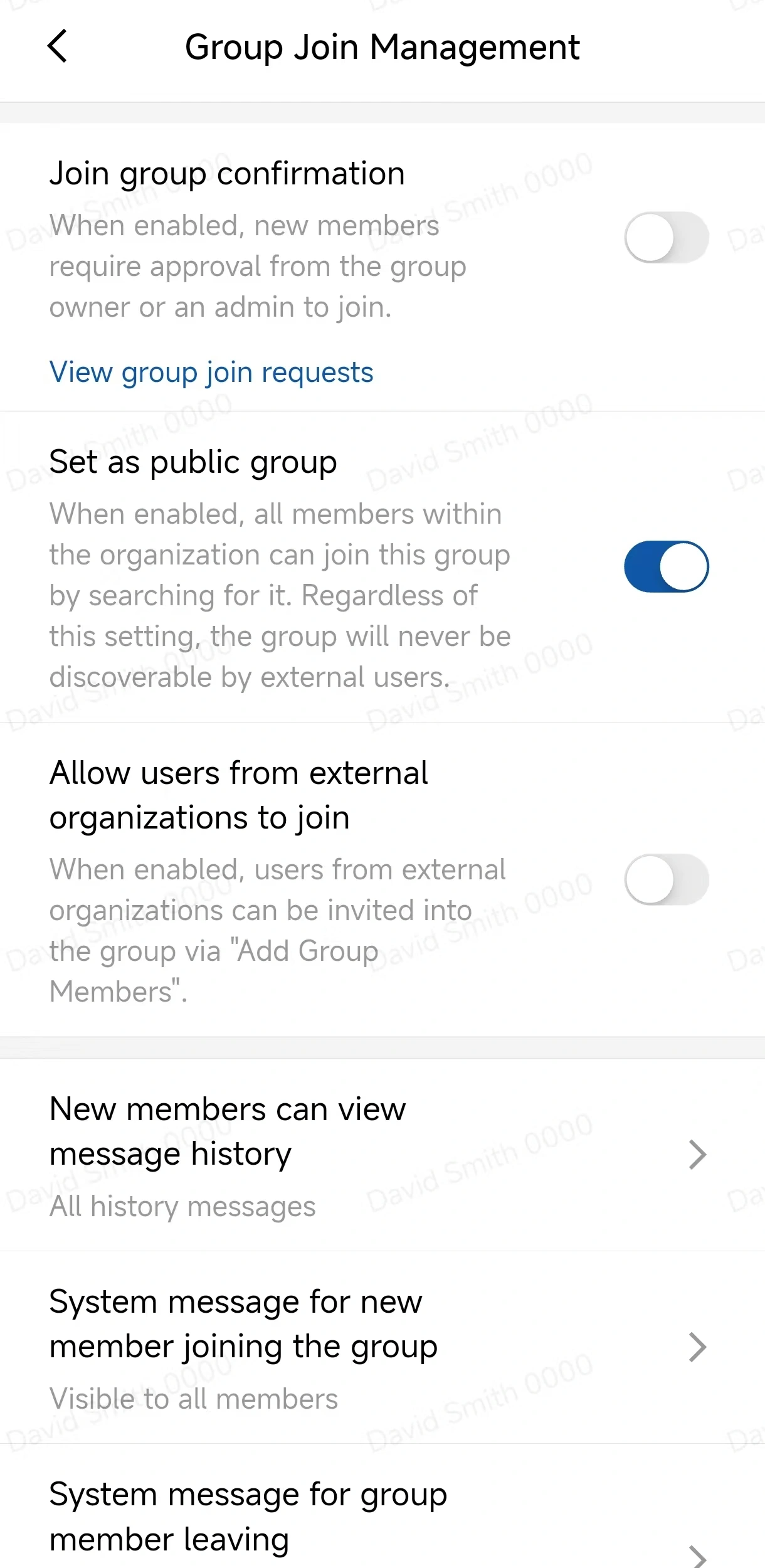
Turn on Set as Public Group.
-
Members can now find the group in search and join according to its current join rules.
Enable join approval
Enable join approval when the group should remain searchable but new members must be reviewed.
-
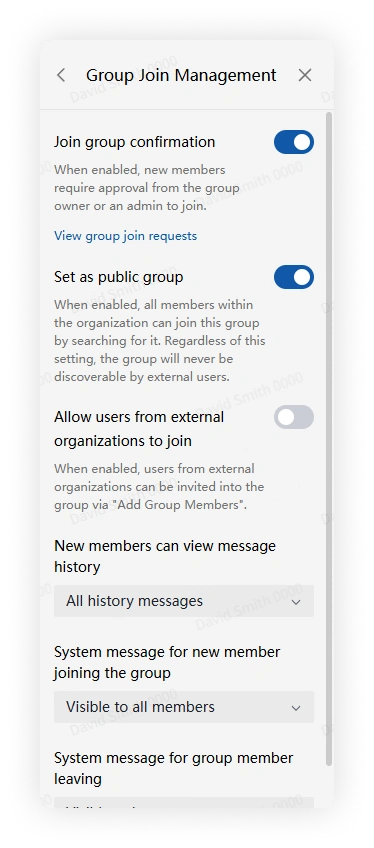
In Join Management, turn on Join Confirmation.
-
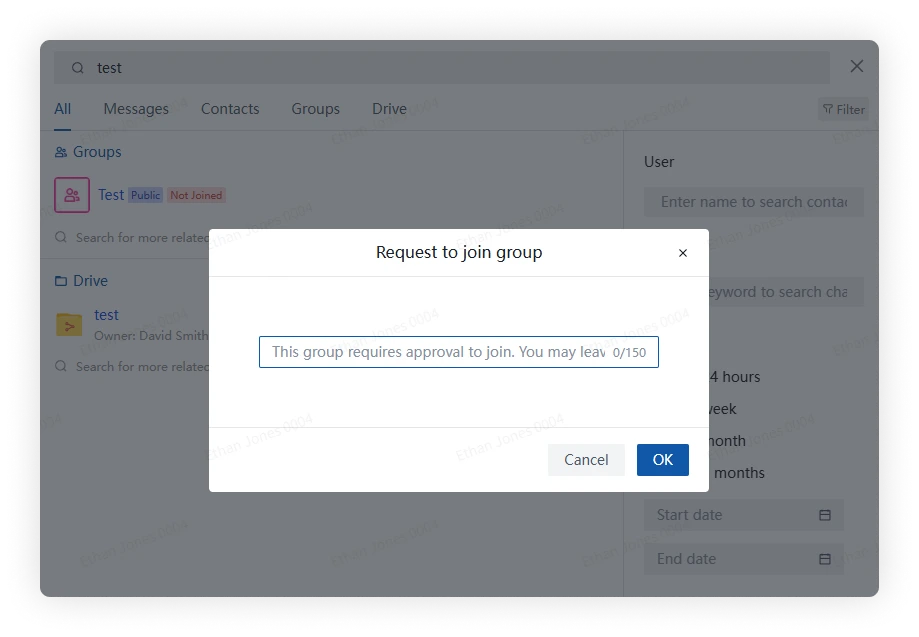
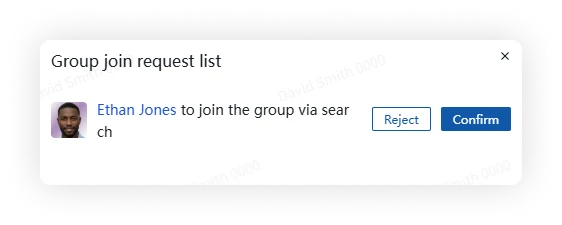
Applicants enter a reason for joining and submit the request.
-
A group owner or administrator opens the request, clicks Process, and selects Approve or Reject.
- Approve adds the applicant to the group.
- Reject closes the request without adding the applicant.
FAQ
How do I switch a public group back to private?
Open Join Management and turn off Set as Public Group.
Can a private group require join confirmation?
Yes.