Mobile Chat Guide
1. Chat interface
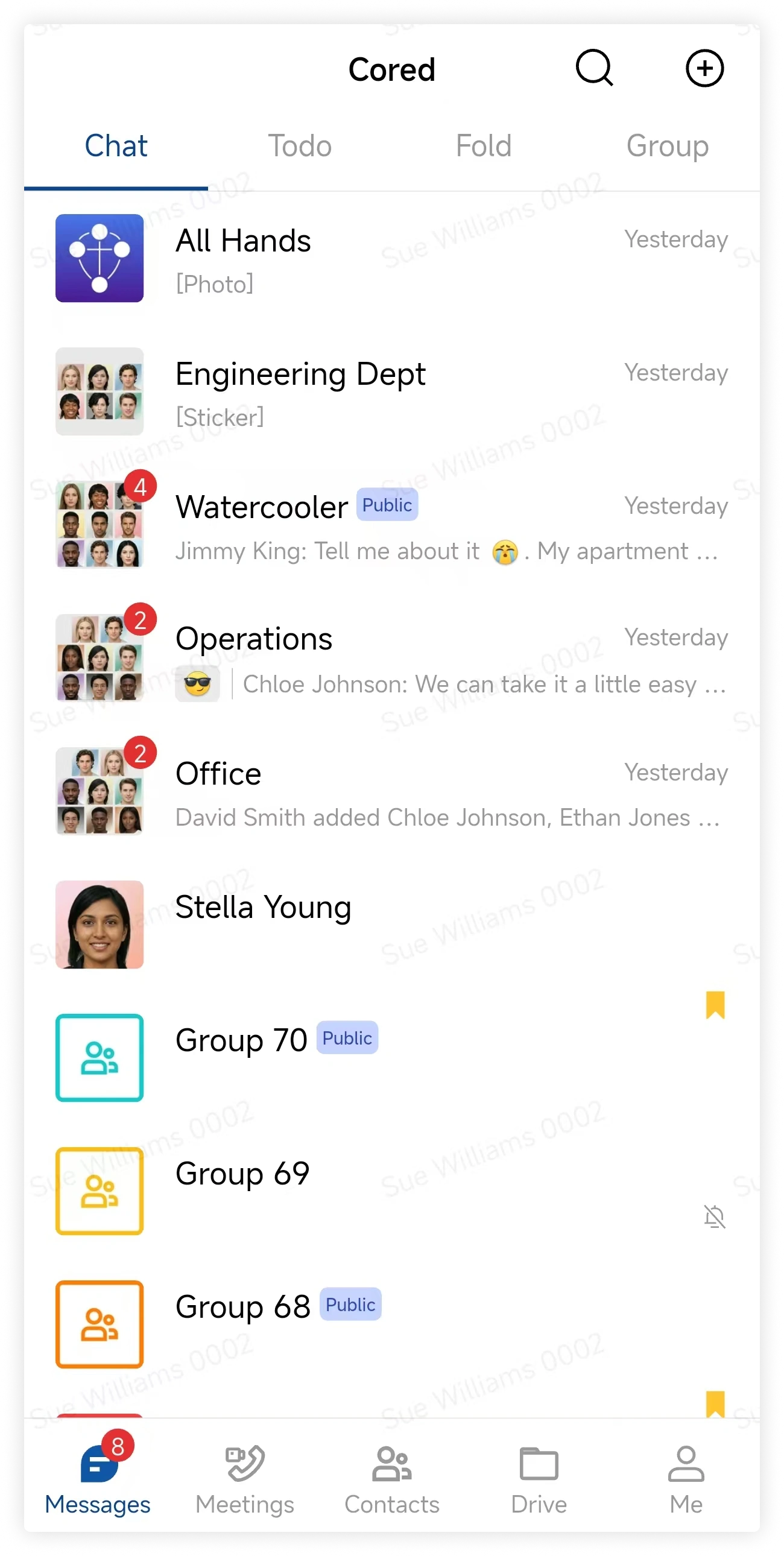
1.1 Chat list
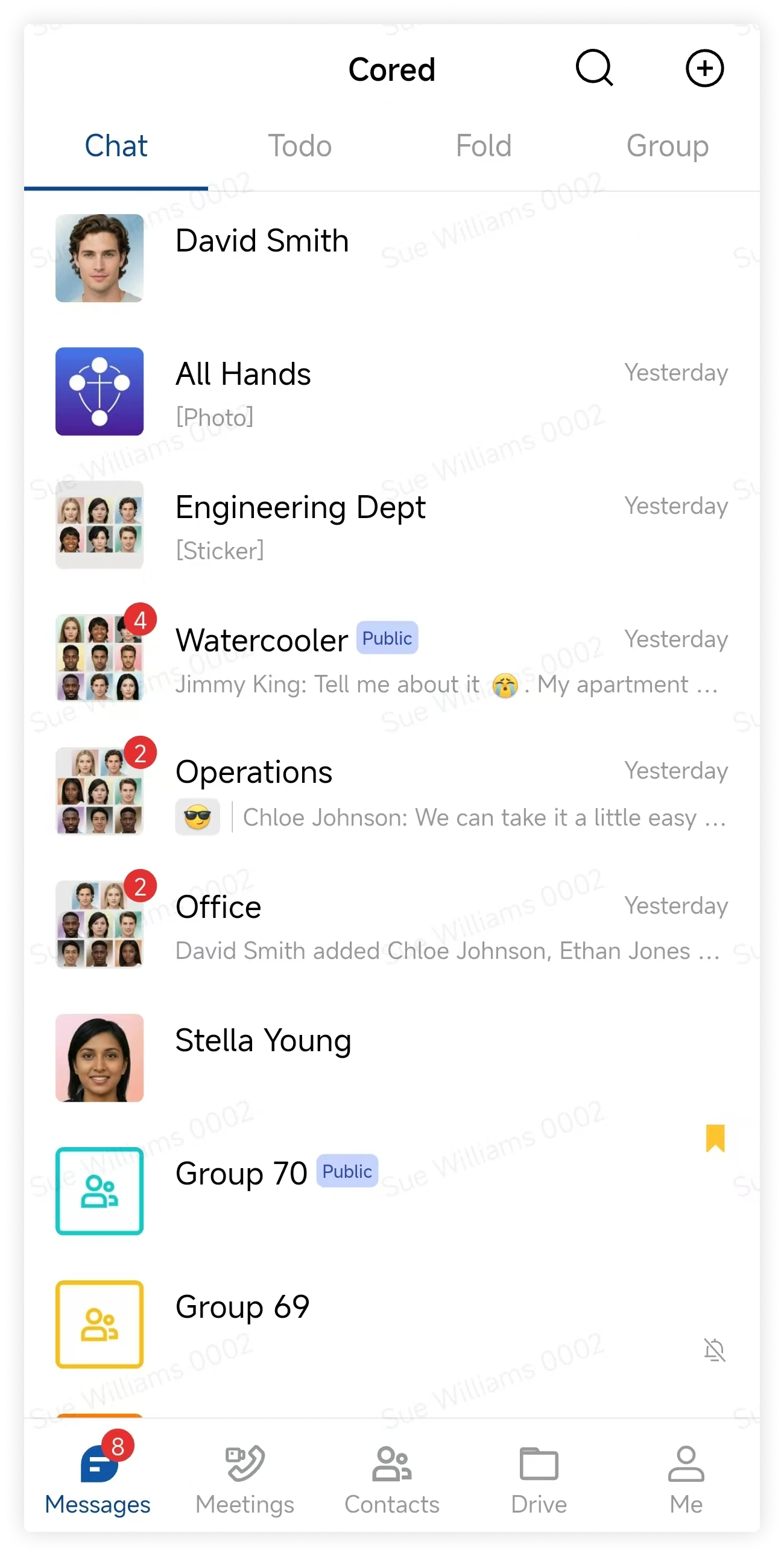
The chat list shows the most recently active conversations first. Tap a chat to open it.
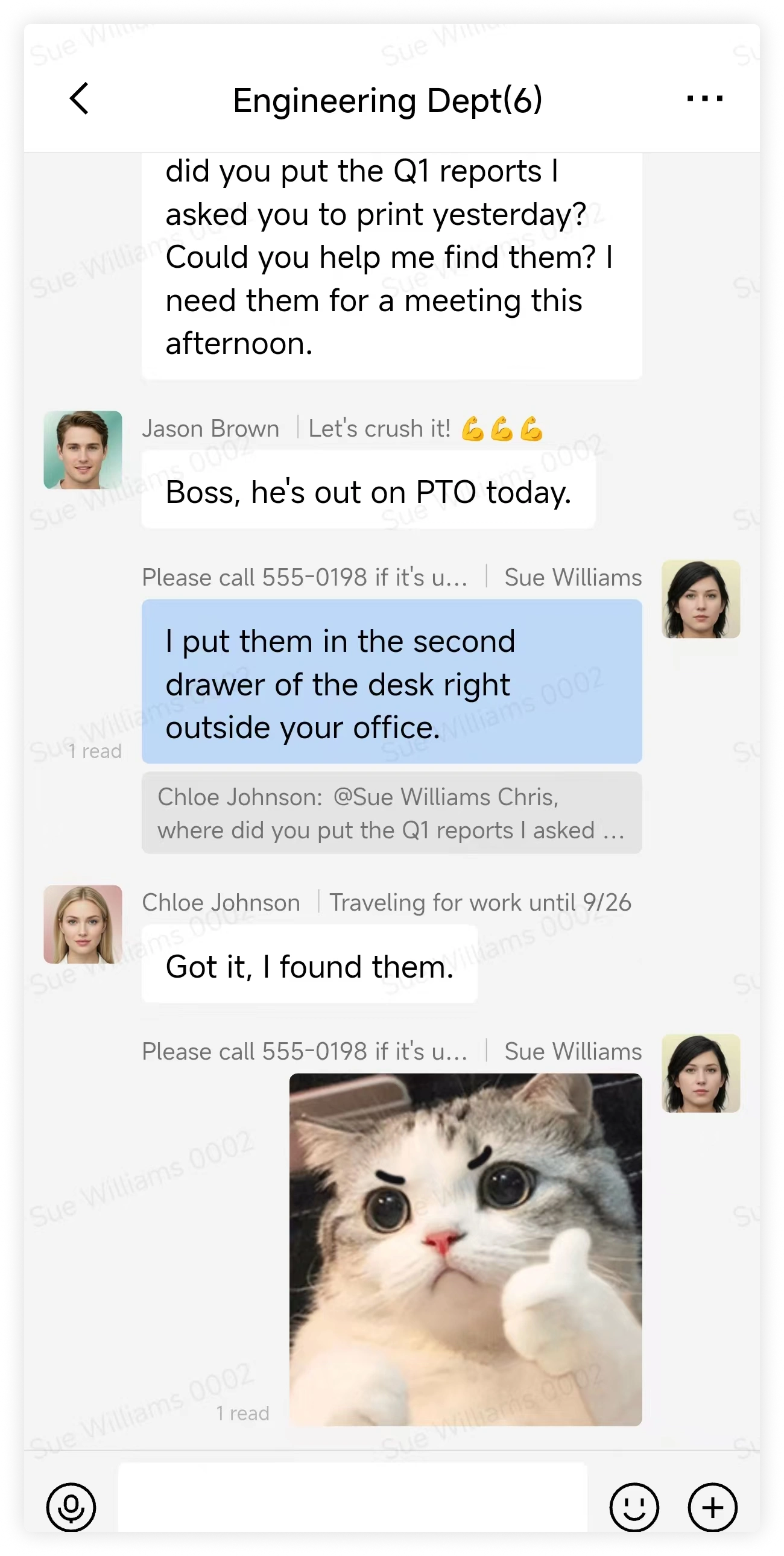
1.2 Conversation page
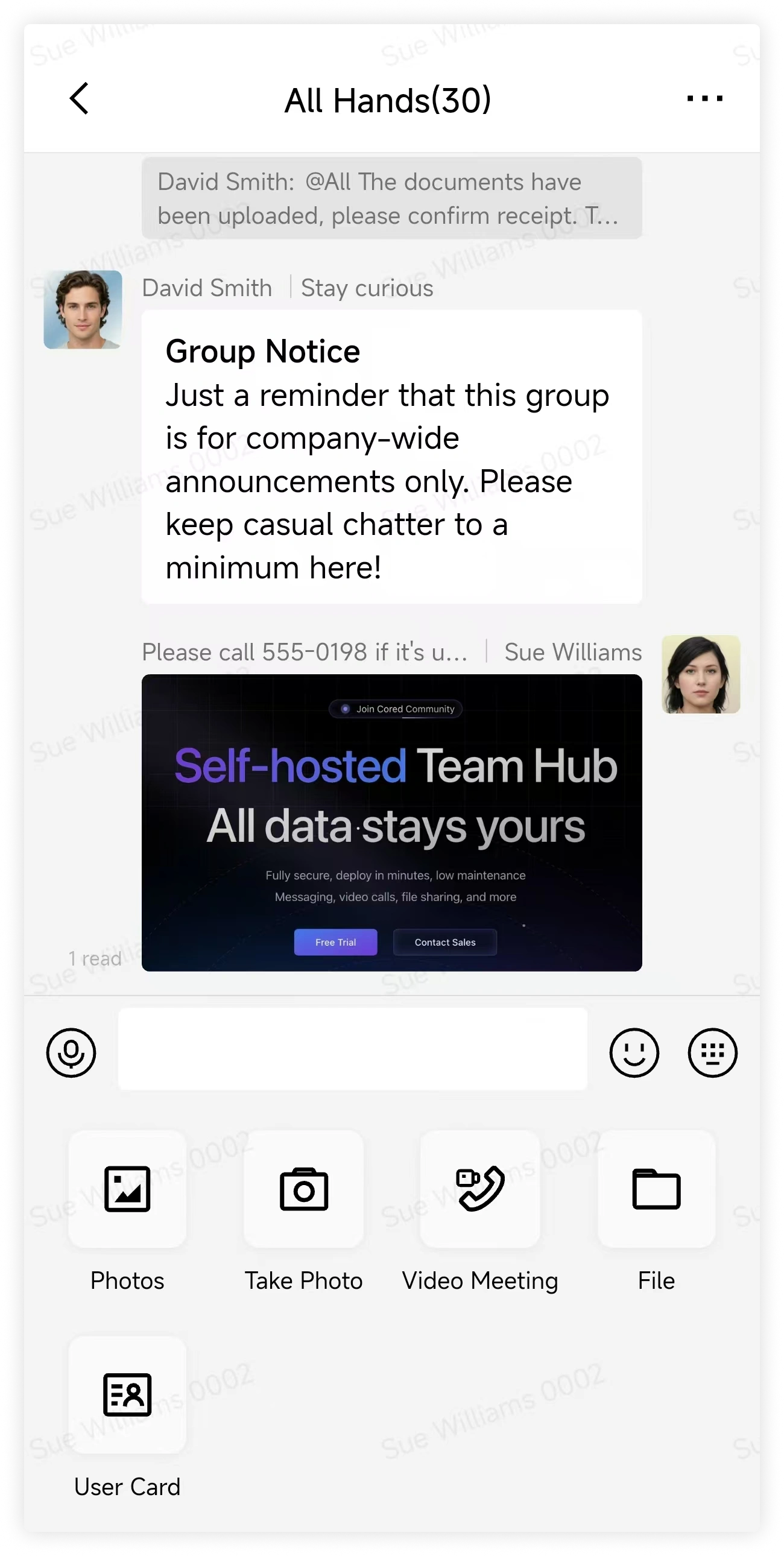
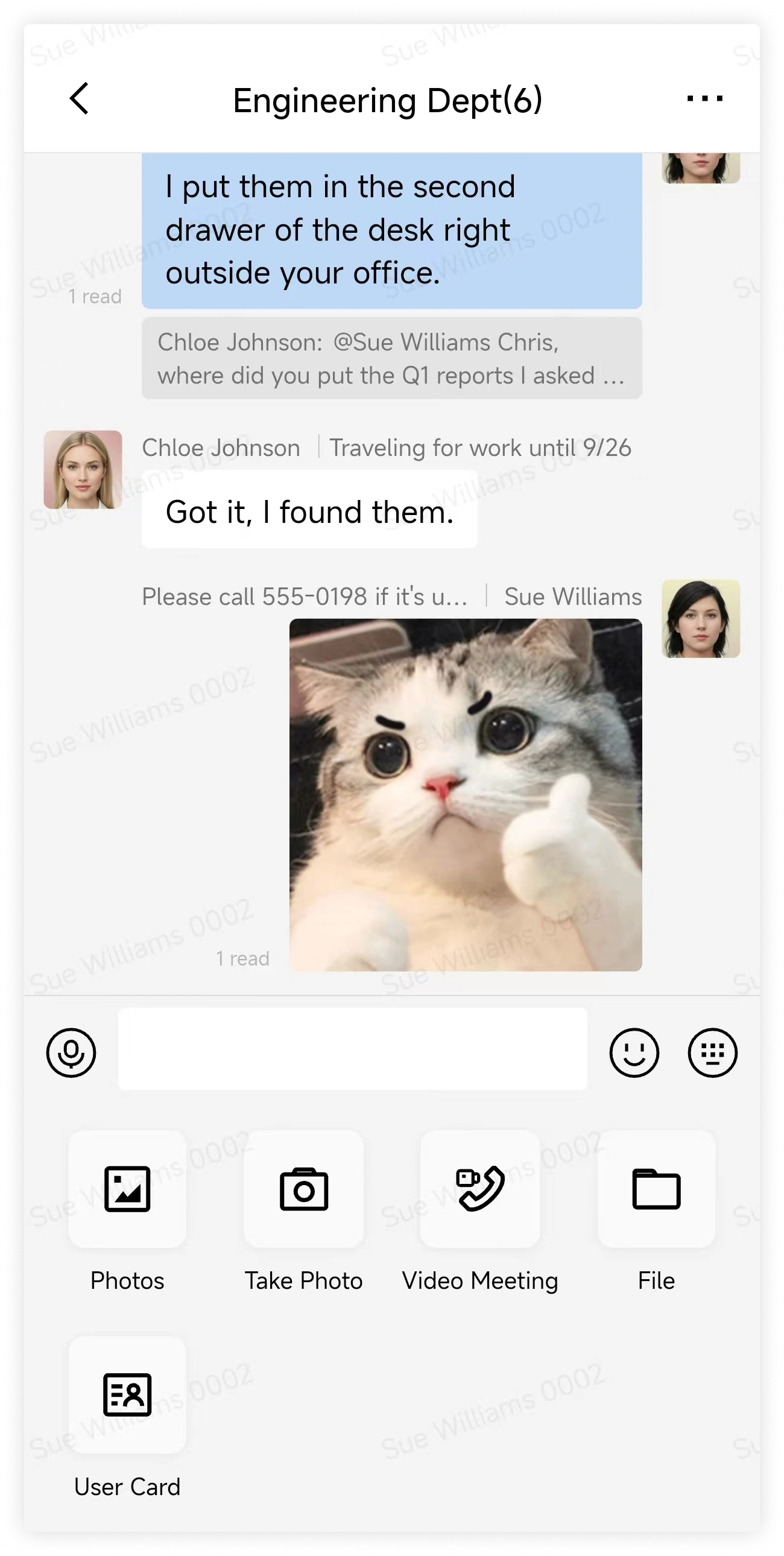
From a conversation, you can send text, images, videos, voice messages, and files, and check message read status.
1.3 Chat details page
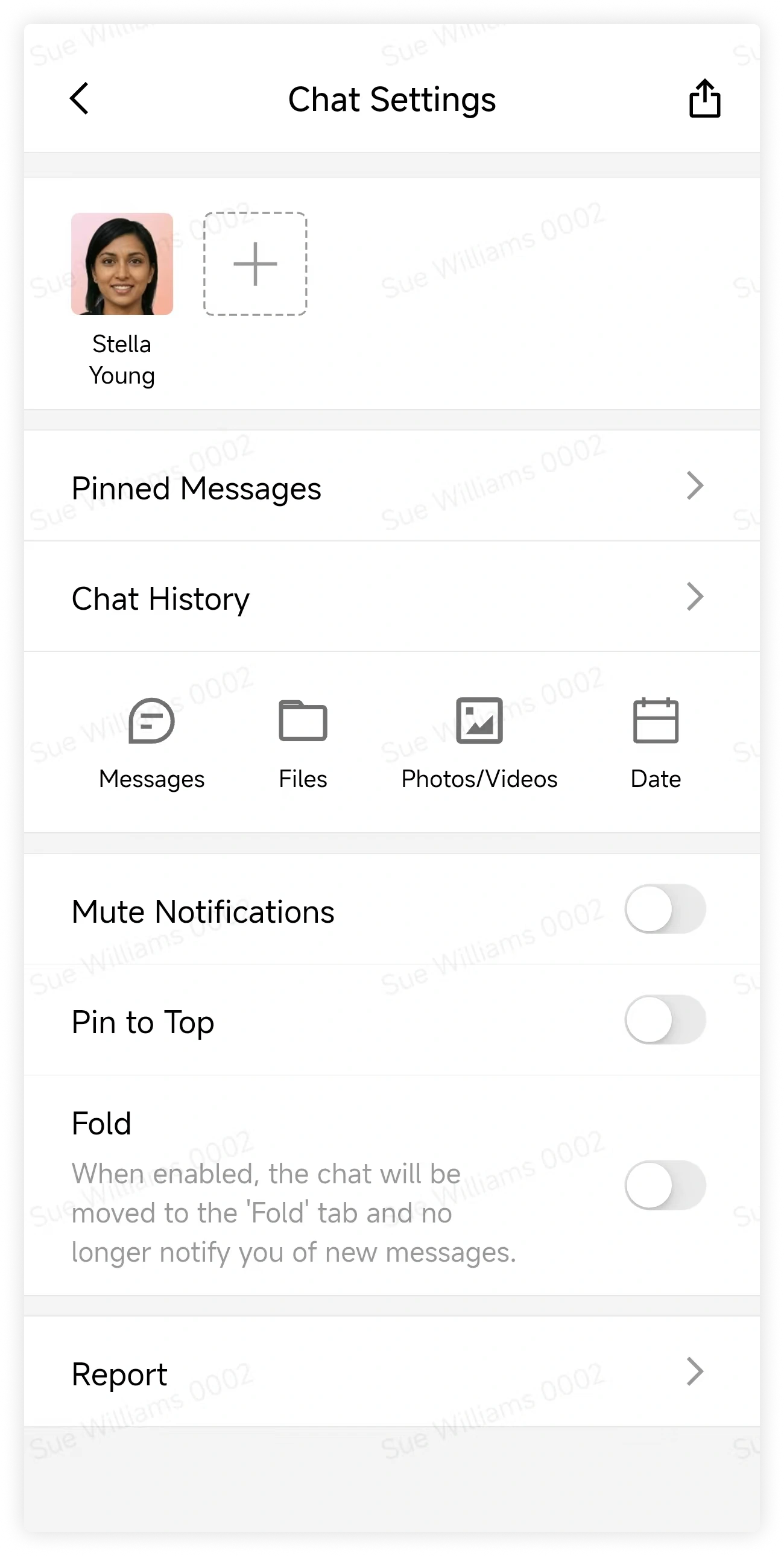
Private-chat details include the coworker's profile, important messages, message history, content filters, notification options, and shortcuts for sharing the contact or creating a group.
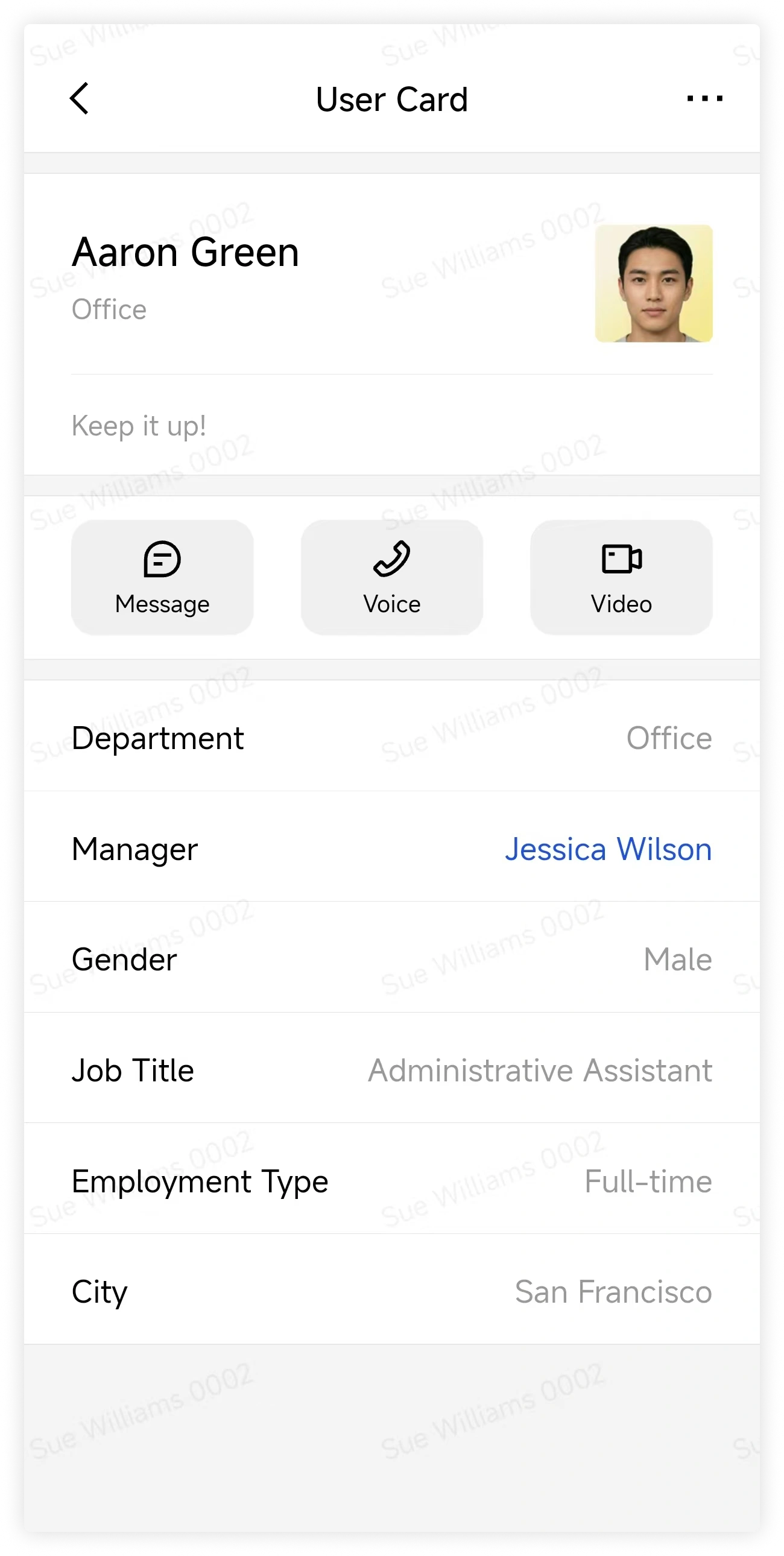
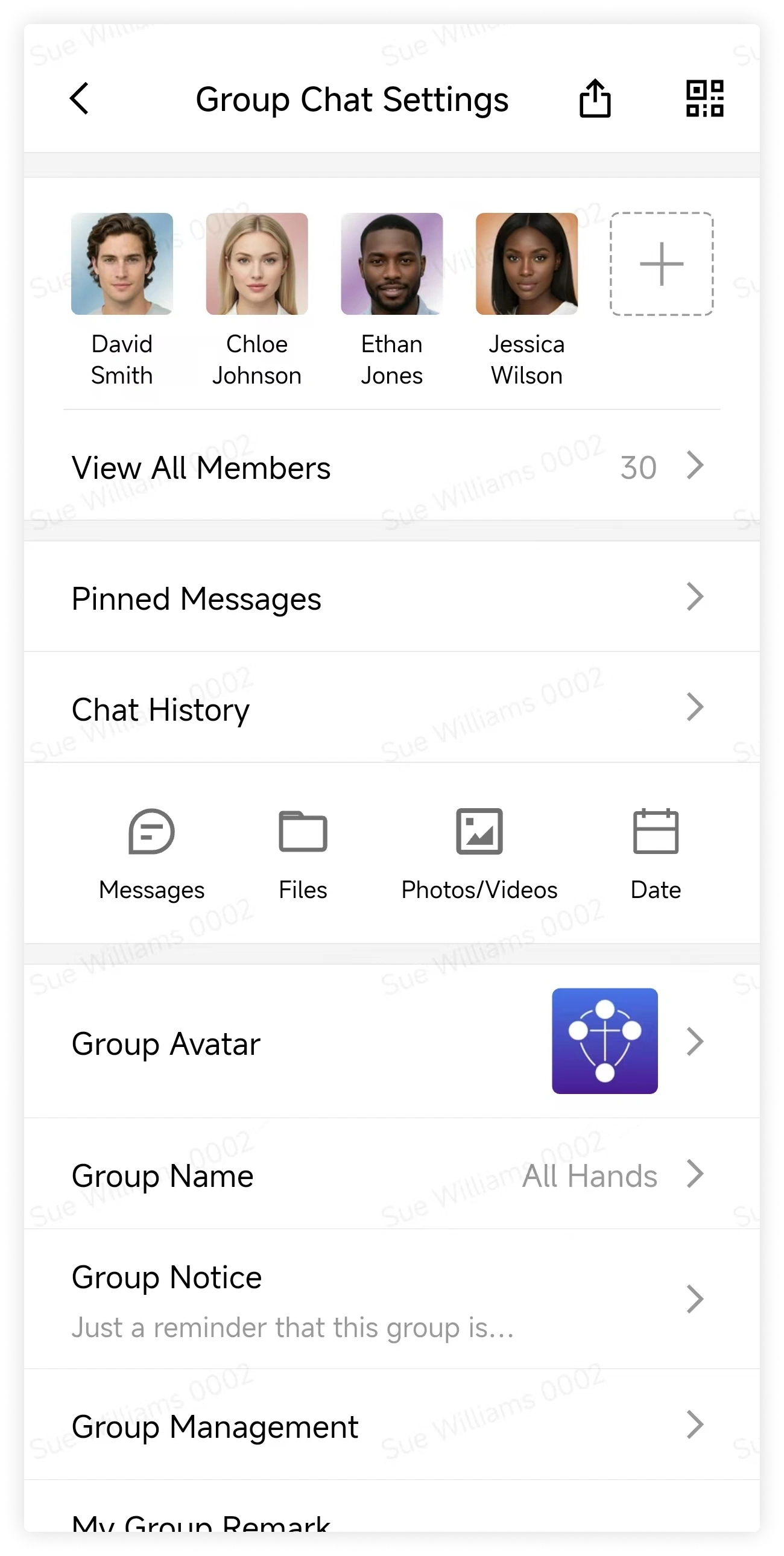
Group-chat details include the group QR code, group profile and announcement, member list, and display options.
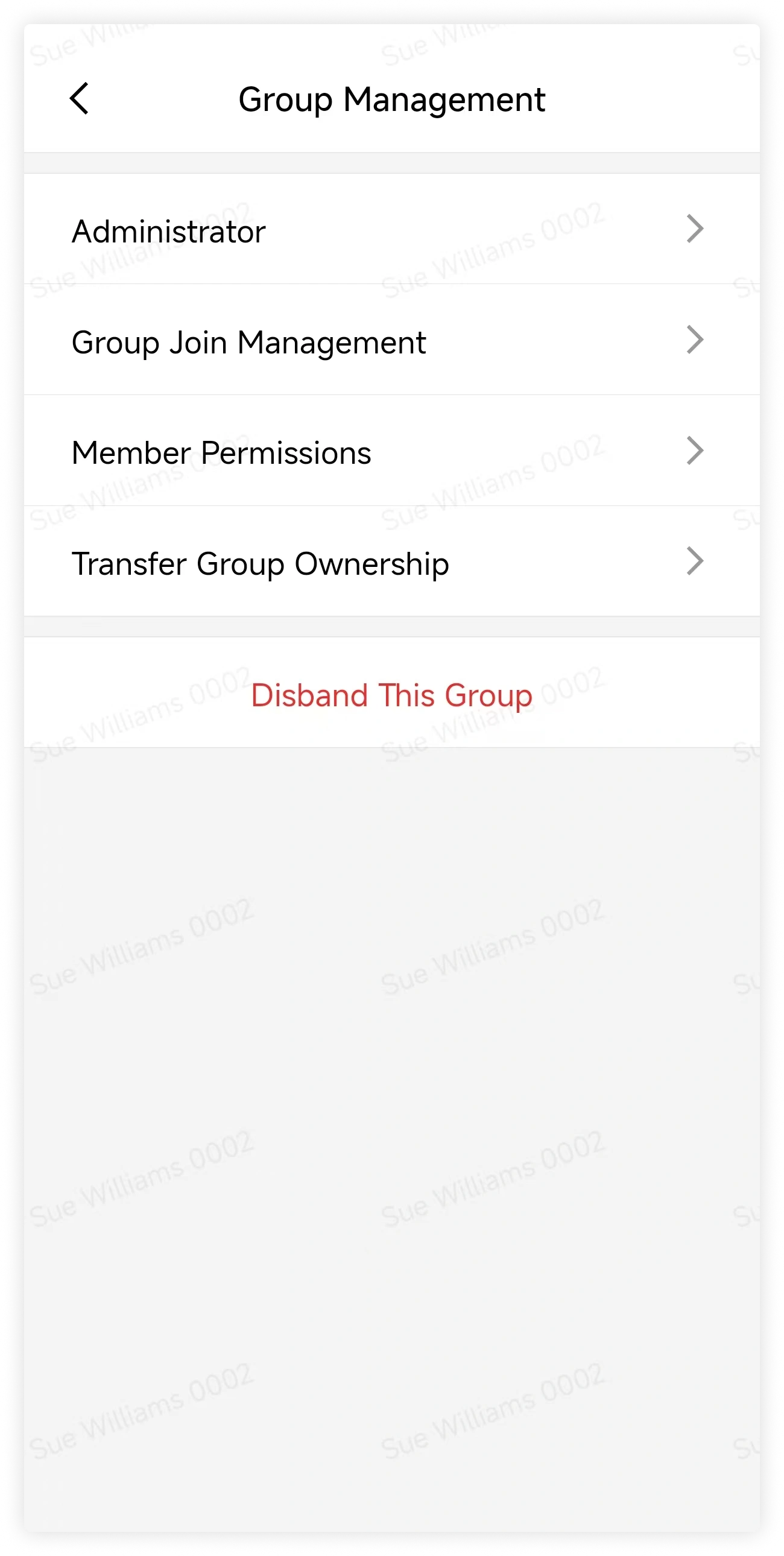
Group owners and administrators can manage join rules and member permissions. Only the owner can transfer ownership or dissolve the group.
2. Start a private chat
Tap an existing private conversation in the chat list.
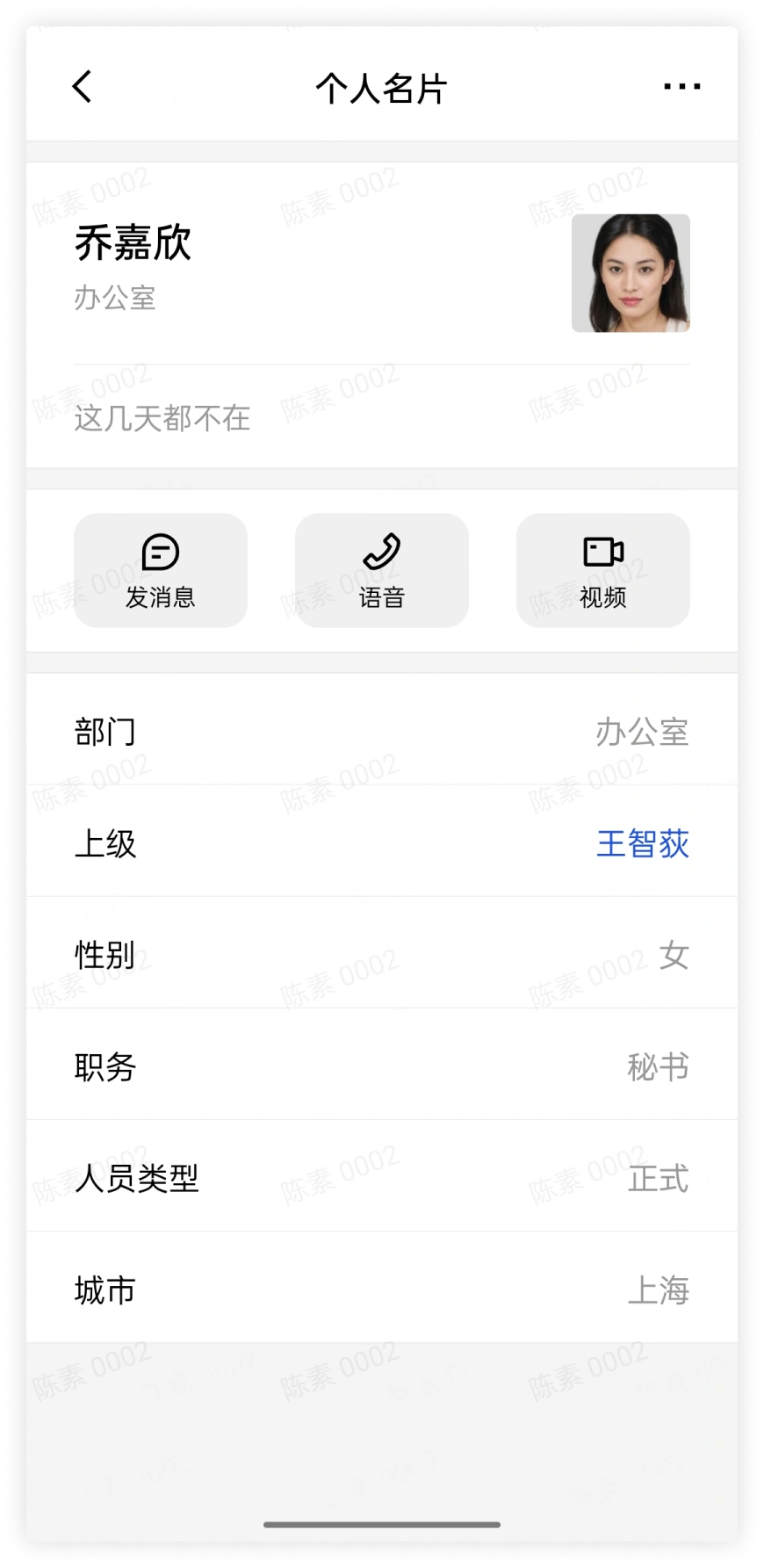
In Contacts, open a coworker's profile and tap Send Message.
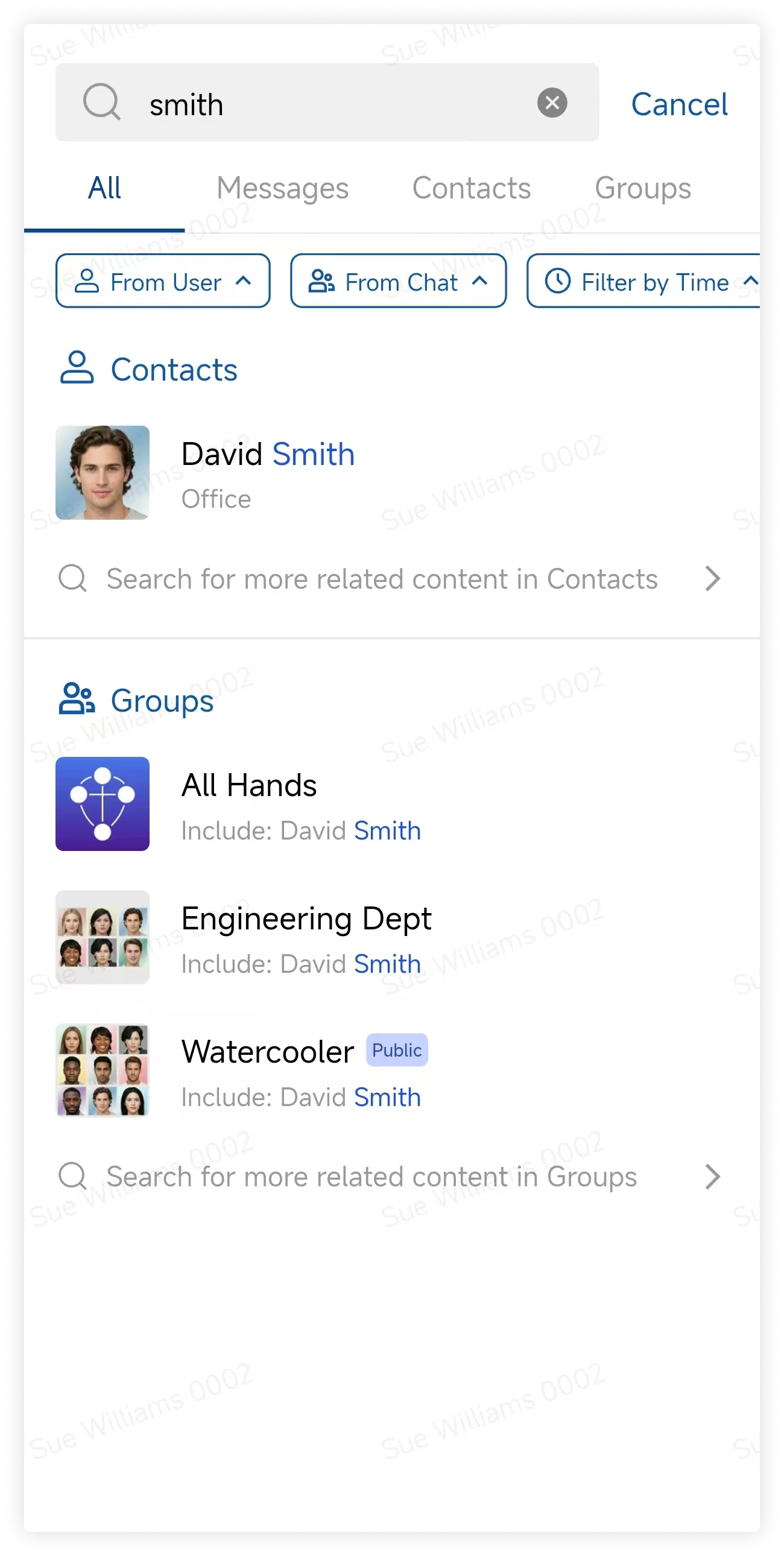
Search for a coworker, then tap the result to start a conversation.
3. Start a group chat
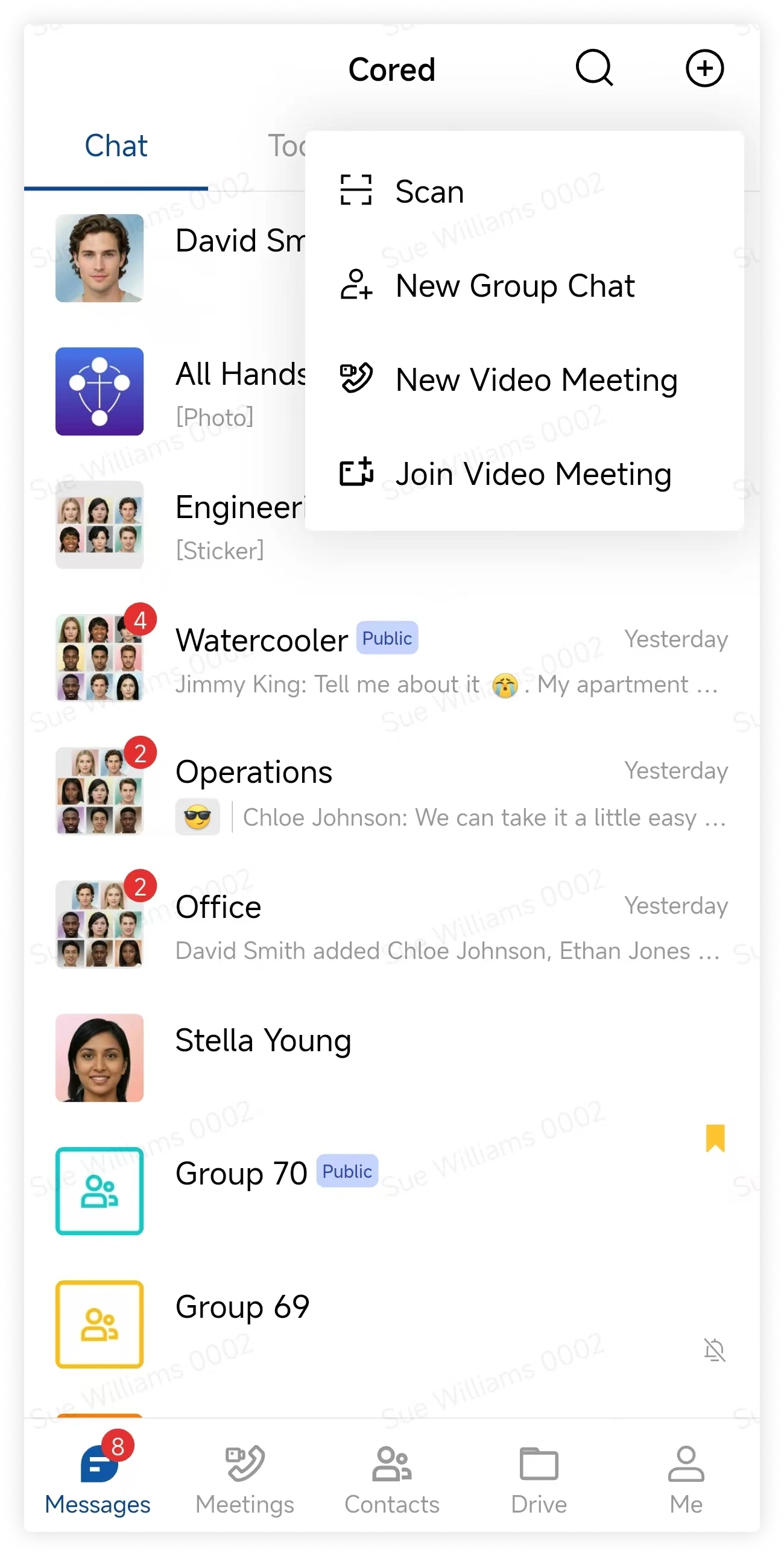
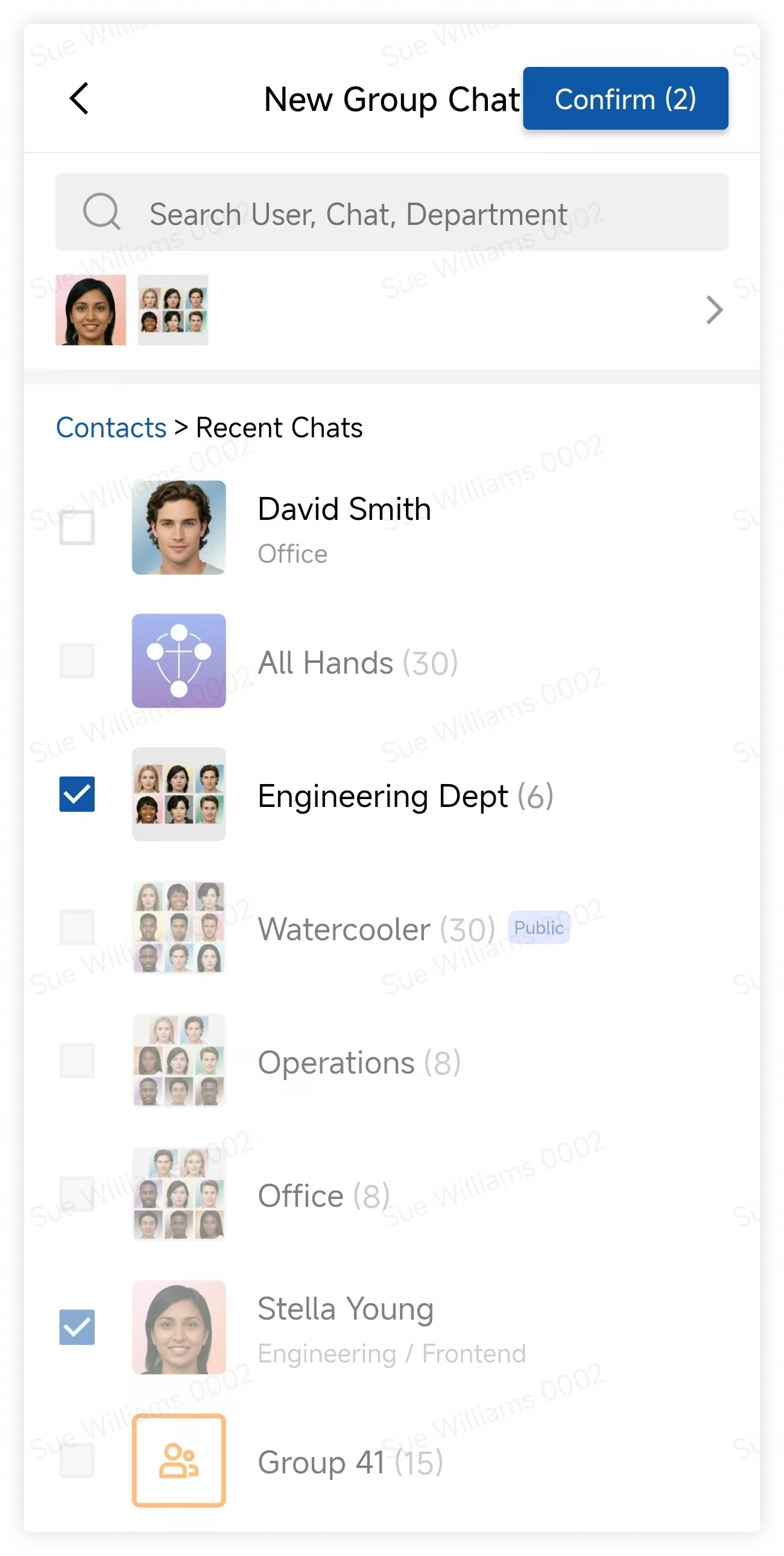
On the Messages page, tap the plus button, select Start Group Chat, choose members, and confirm.
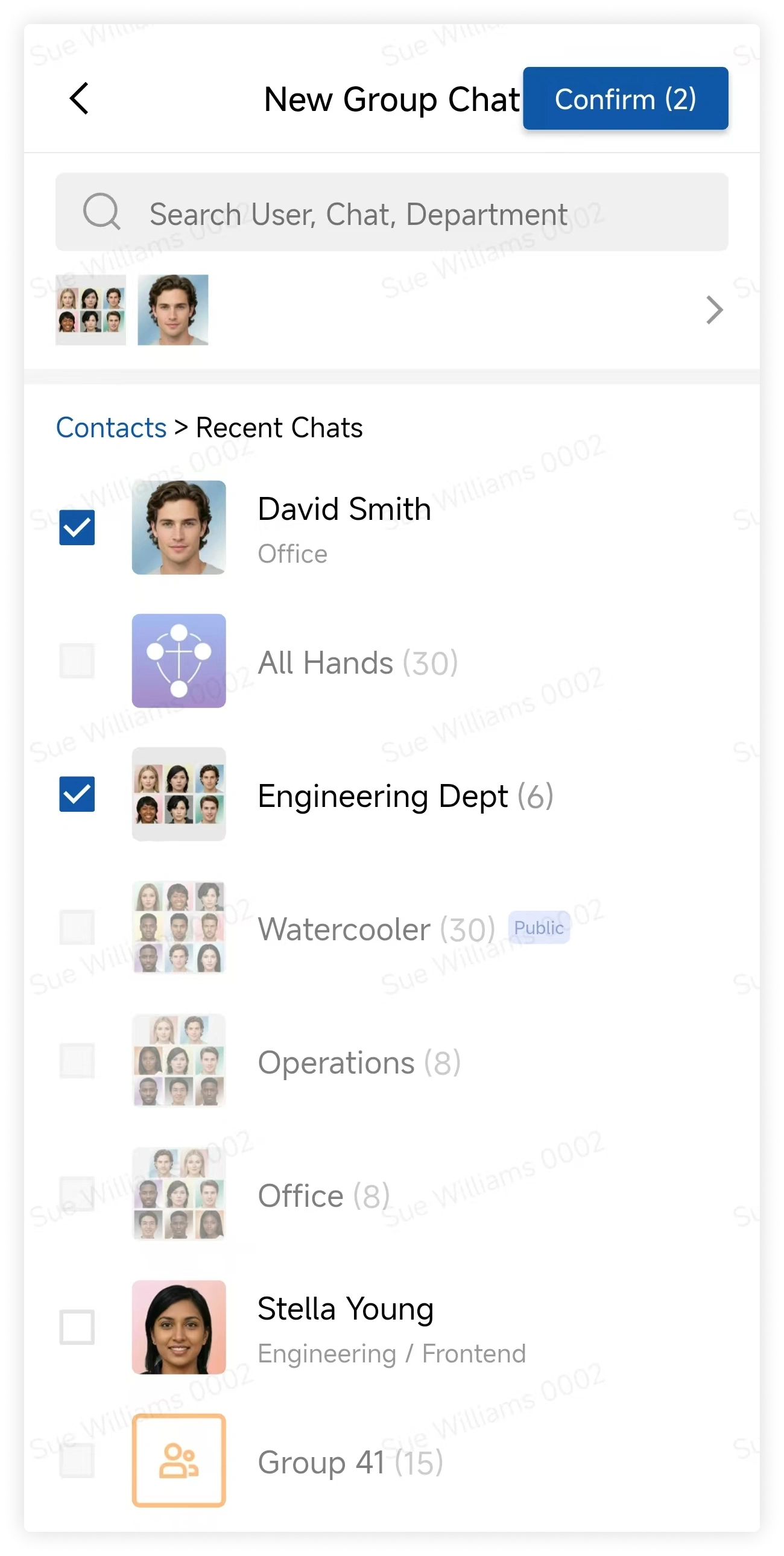
In a private conversation, tap More, tap the plus button next to the coworker's avatar, select members, and confirm.
4. Send files
Tap the plus button beside the message box, select File, and choose the file to send.