
Add Group Admins
Overview
The group owner can add or remove group administrators and control which actions require an owner or administrator.
Steps
Desktop
-
Click More Group Info > Group Management > Admins.
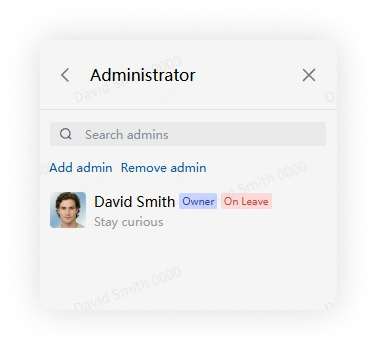
-
Click Add Admin, select members, and confirm.
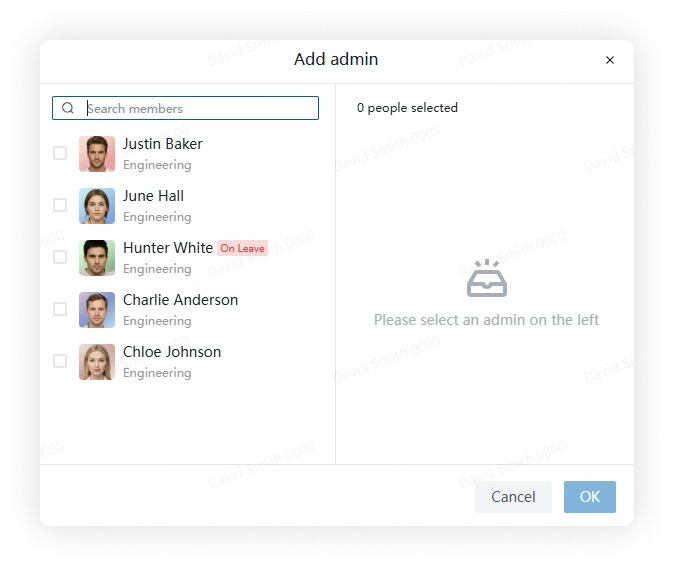
-
Open Member Operation Permissions to choose which actions are limited to the owner and administrators, such as editing group information or managing important messages.
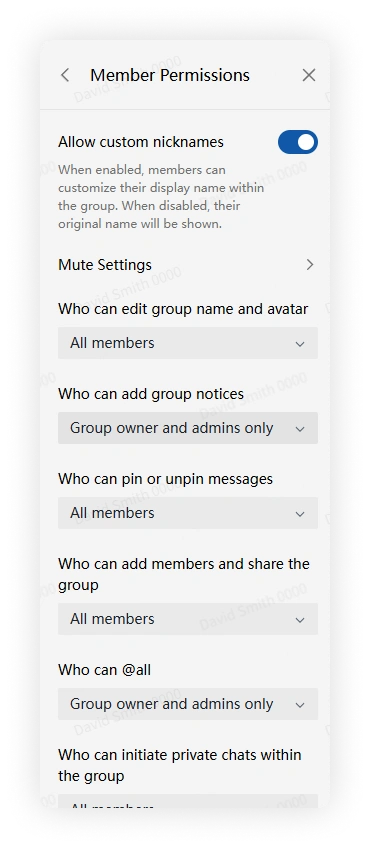
-
To remove an administrator, return to Group Management > Admins and click Remove Admin.
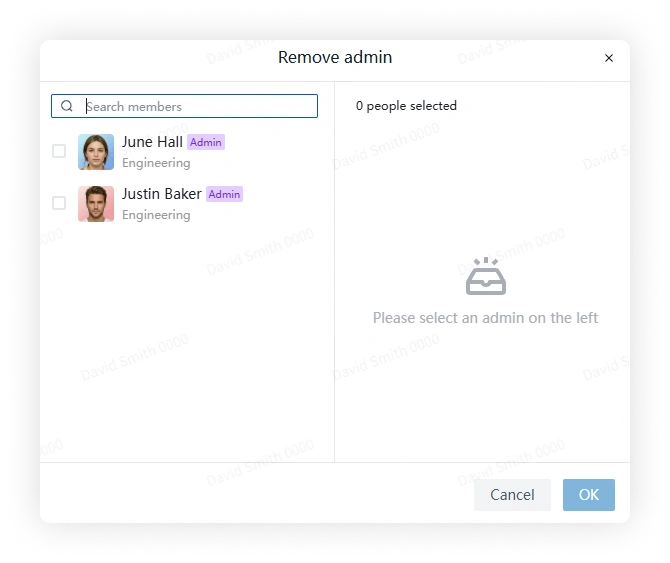
Mobile
-
Tap More Group Info > Group Management > Admins.
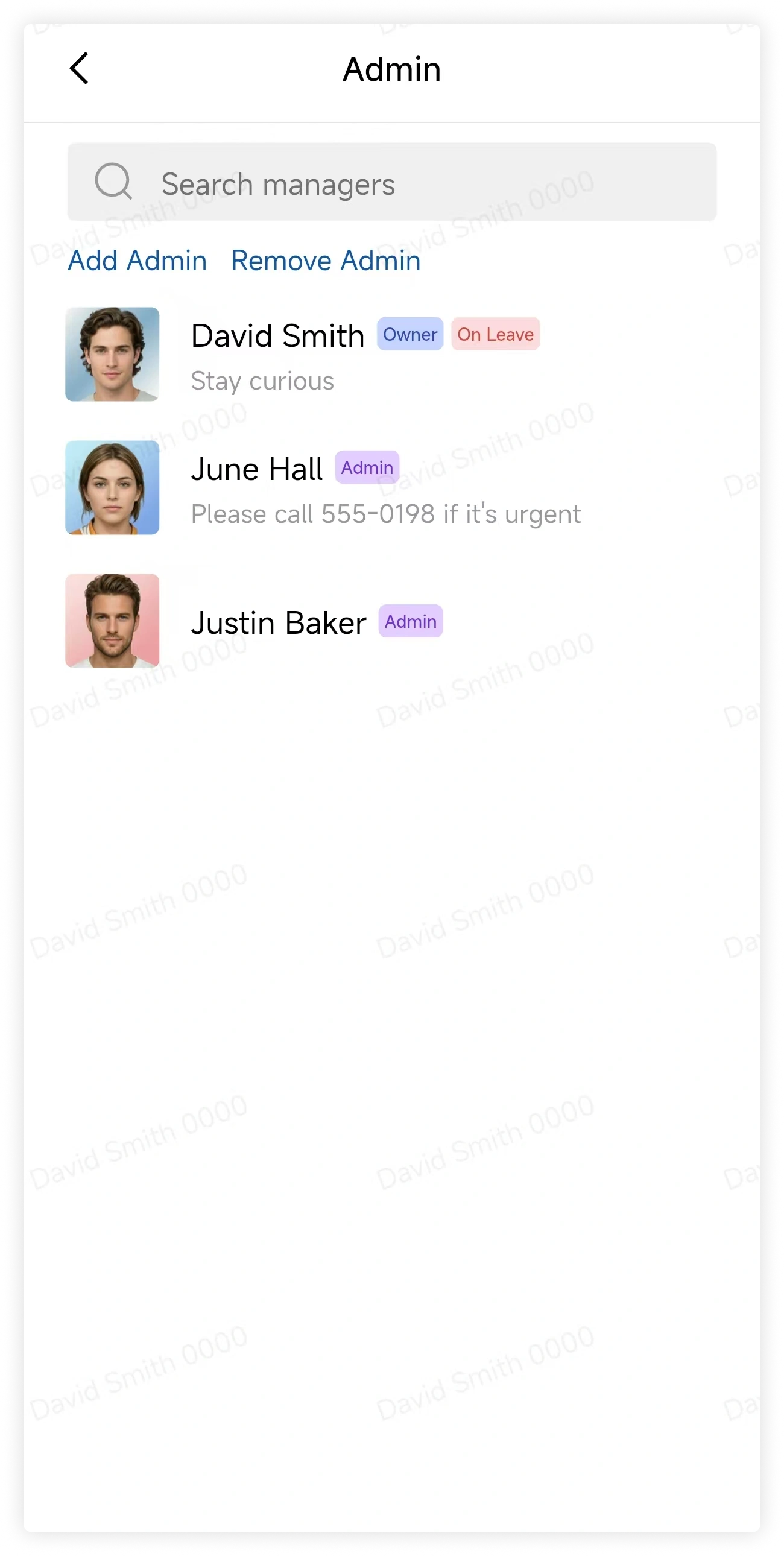
-
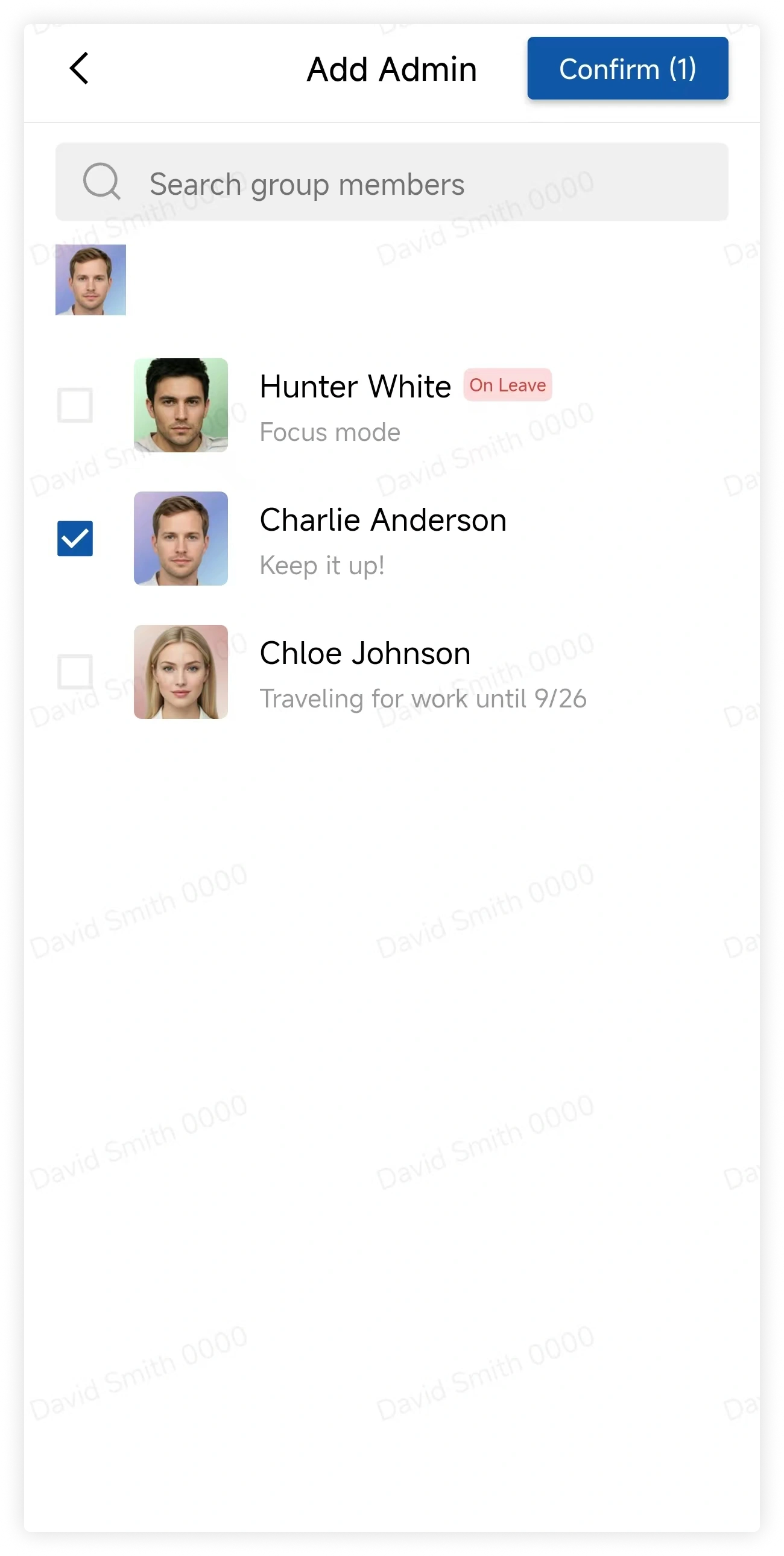
Tap Add Admin, select members, and confirm.
-
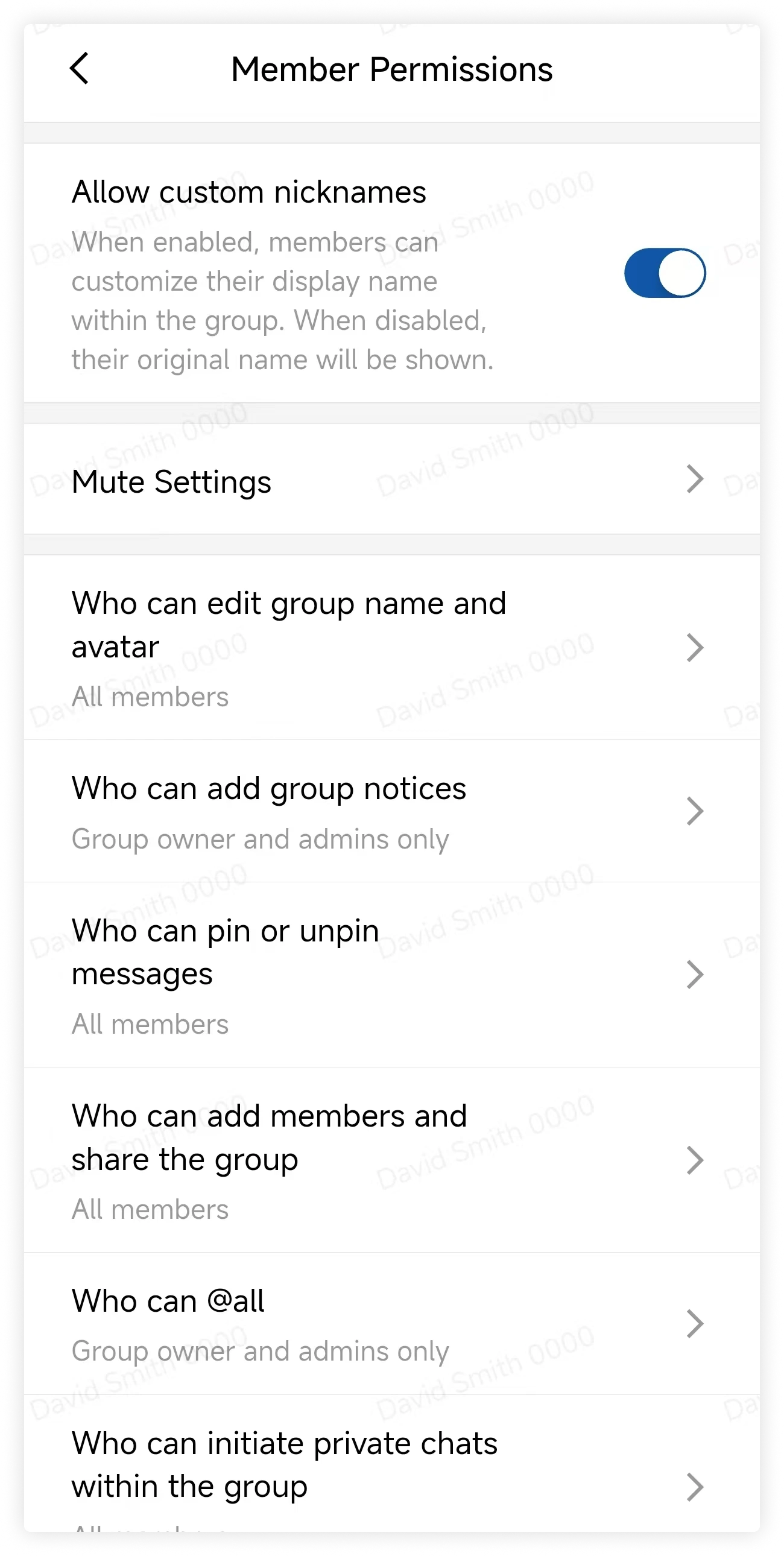
Open Member Operation Permissions to choose which actions are limited to the owner and administrators.
-
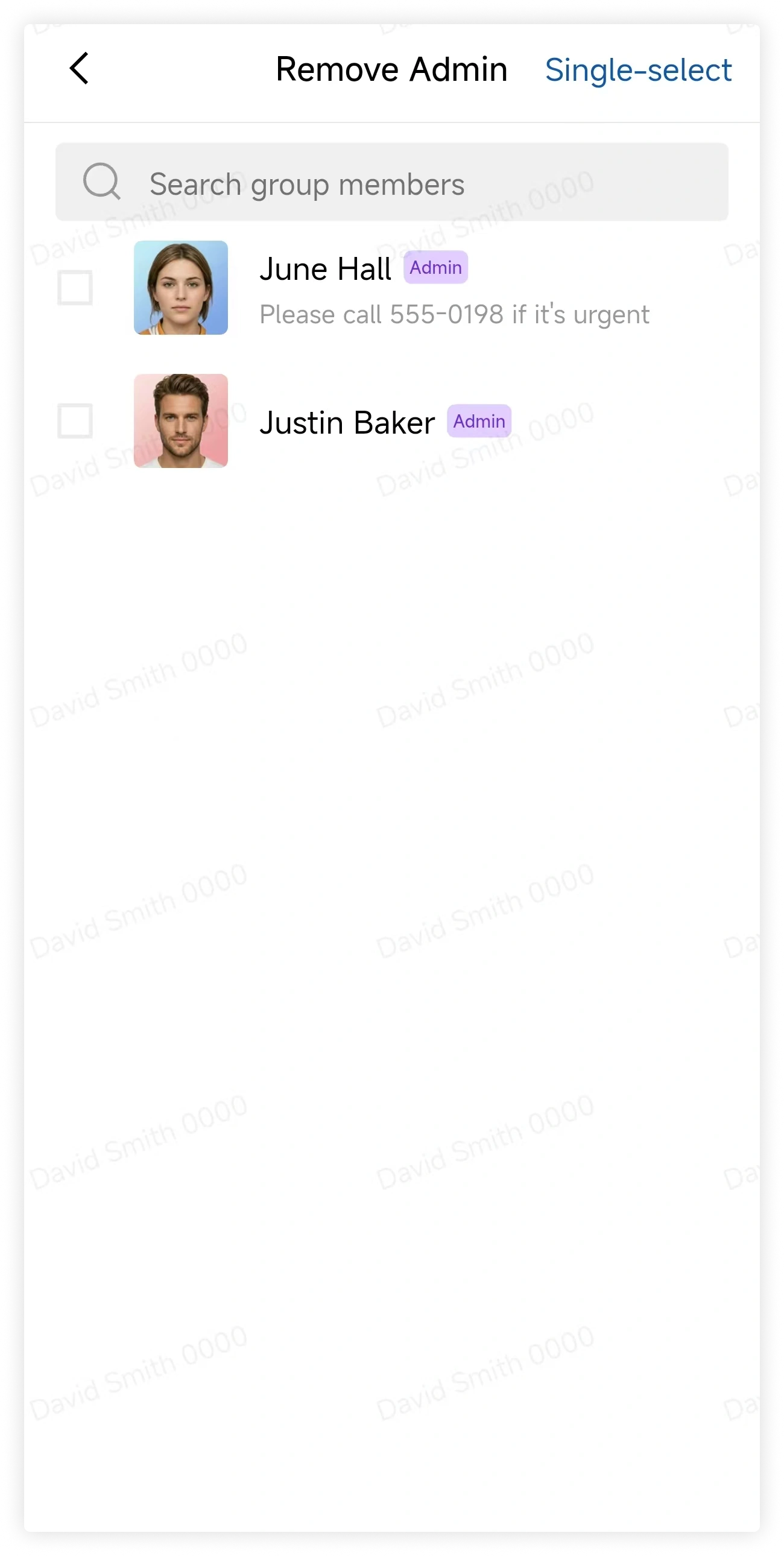
To remove an administrator, return to Group Management > Admins and tap Remove Admin.
FAQ
What's the difference between owner and admin permissions?
Group administrators can perform most management tasks. Only the owner can:
- Add or remove administrators
- Transfer ownership
- Dissolve the group
How many admins can a group have?
The interface does not show a fixed limit.
How can I identify the group owner and administrators?
Open the group member list. Role labels appear beside the owner and administrators.