
React to Messages with Emoji
Overview
Use an emoji reaction to respond without adding another message to the conversation.
Steps
Desktop
-
Hover over a message. Click the thumbs-up button to add the default reaction, or keep the pointer over the button to open the full emoji panel.
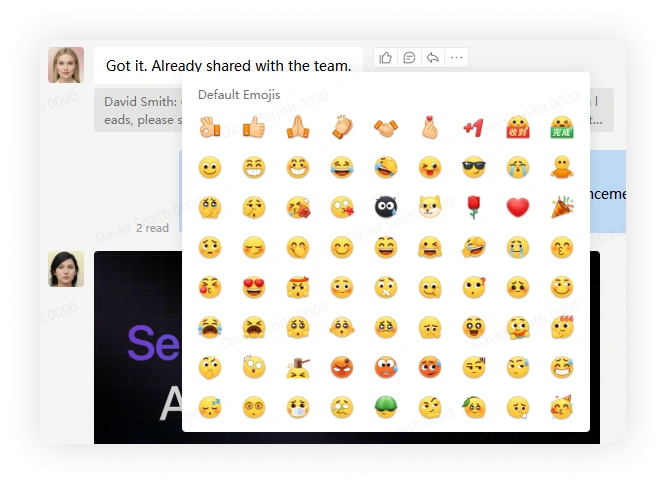
-
View the reactions shown below the message. Everyone in the conversation can see them.
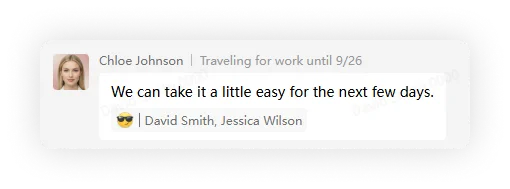
-
Click a name beside a reaction count to open that person's profile.
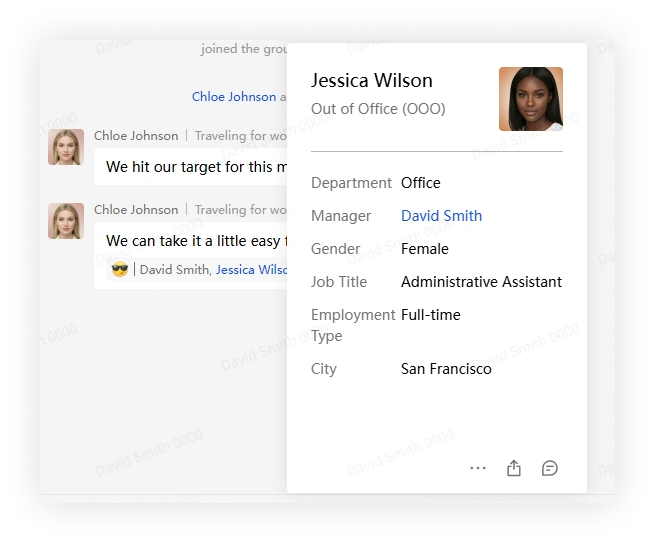
-
To remove your reaction, select the same emoji again or click your reaction below the message. Removing a reaction does not create a message or notify other members.
Mobile
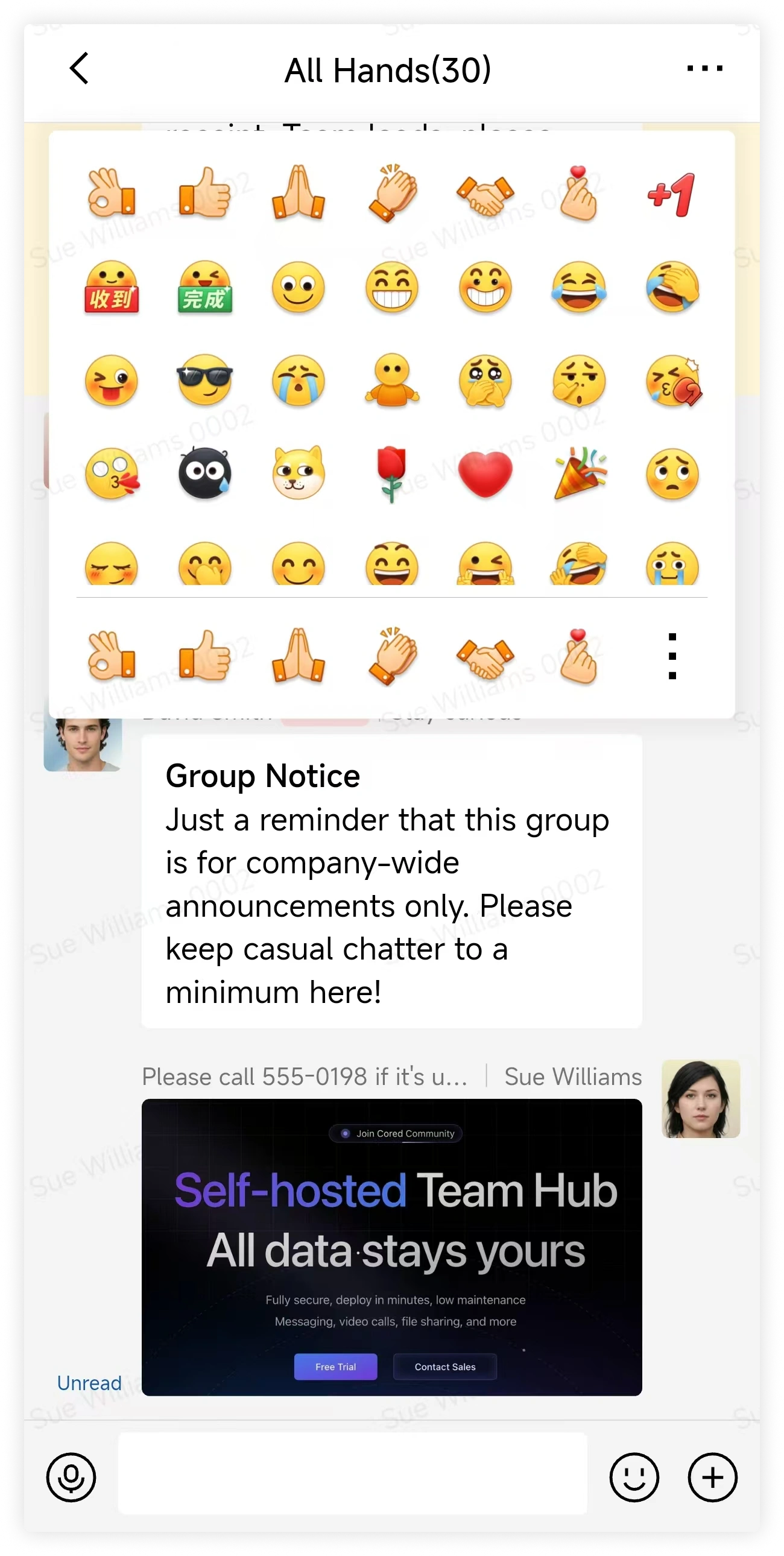
- Long-press a message and tap a recently used emoji.
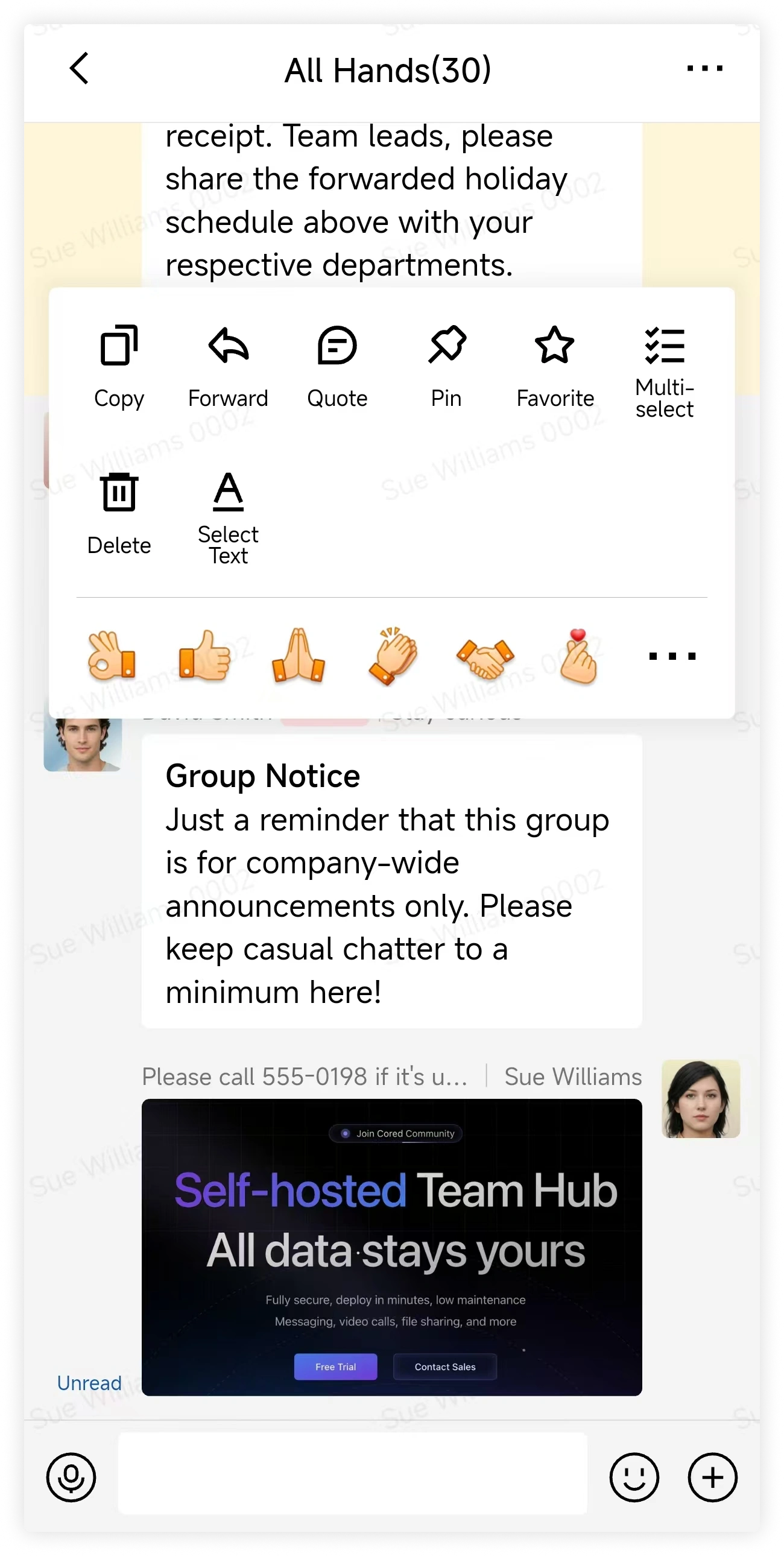
To choose another emoji, tap More in the reaction menu.
-
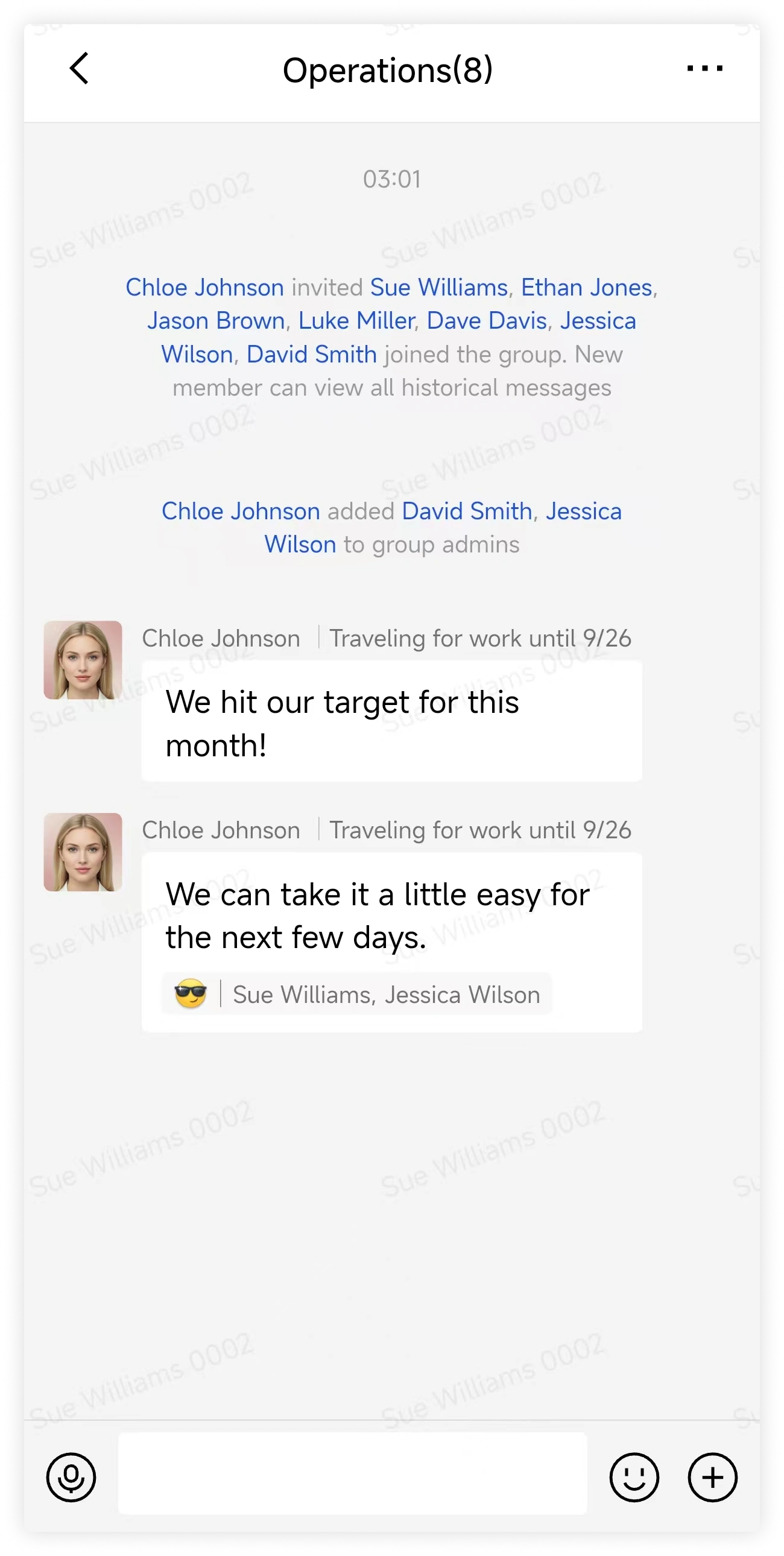
View the reactions shown below the message. Everyone in the conversation can see them.
-
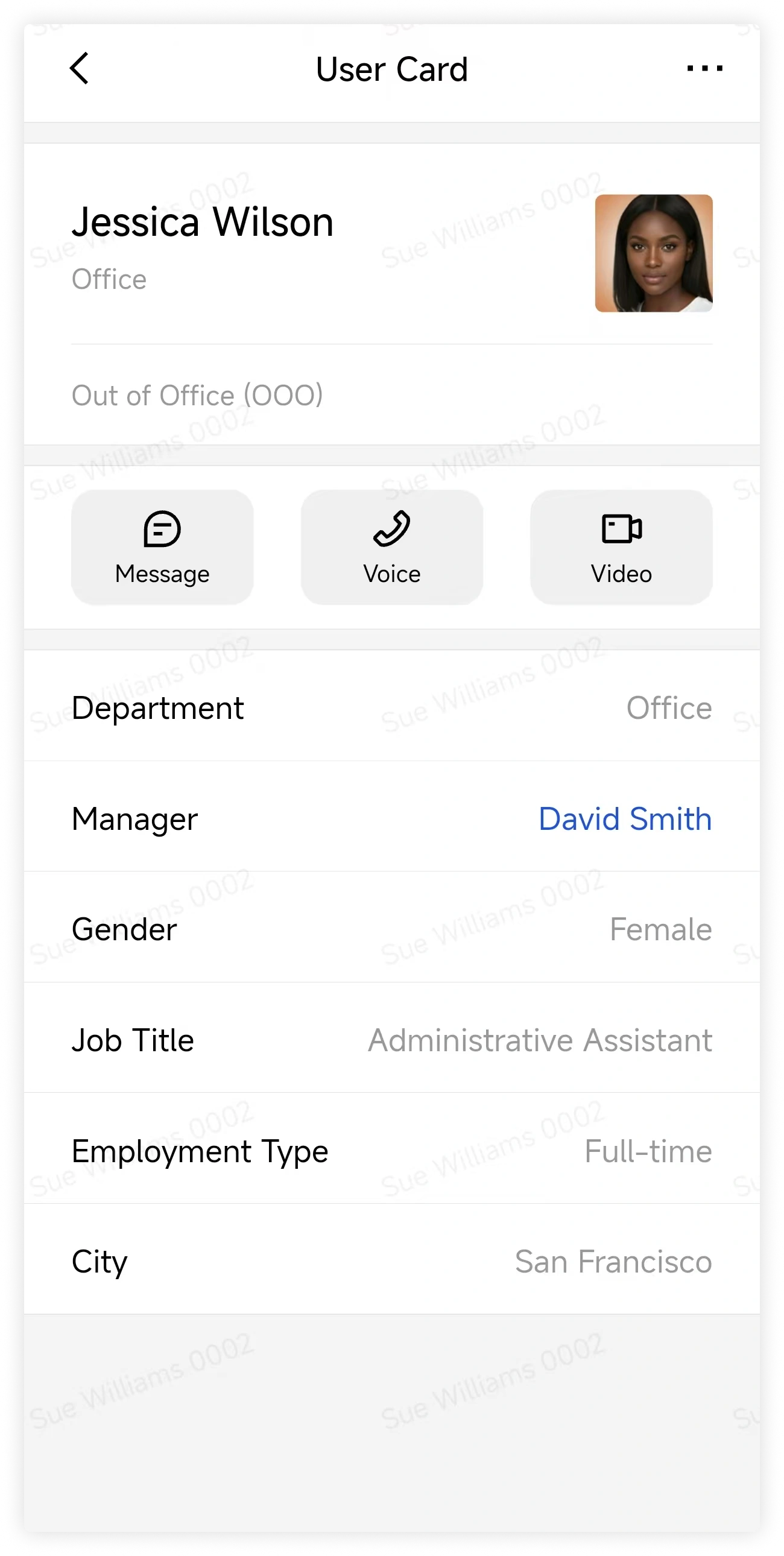
Tap a name beside a reaction count to open that person's profile.
-
To remove your reaction, select the same emoji again or tap your reaction below the message. Removing a reaction does not create a message or notify other members.