
Create a Group Chat
Overview
Create a group when a conversation needs more than two people. Any organization member can create a standard group chat.
Steps
Desktop
-
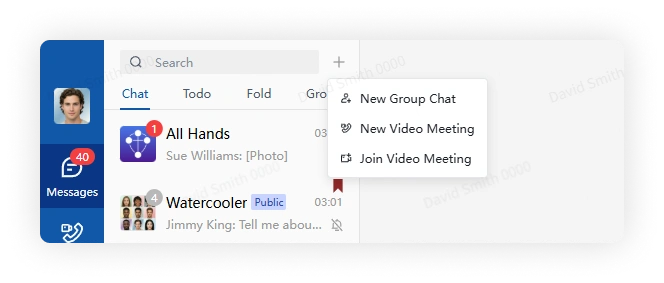
Click the plus button beside search and select Start Group Chat.
-
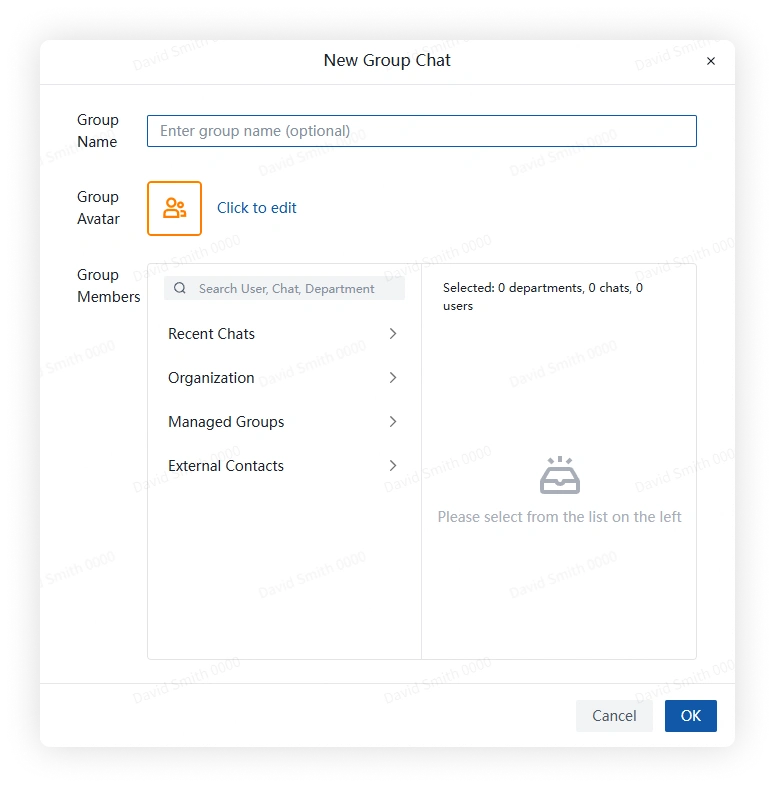
Optionally enter a group name and choose an avatar.
-
Add members in any of these ways:
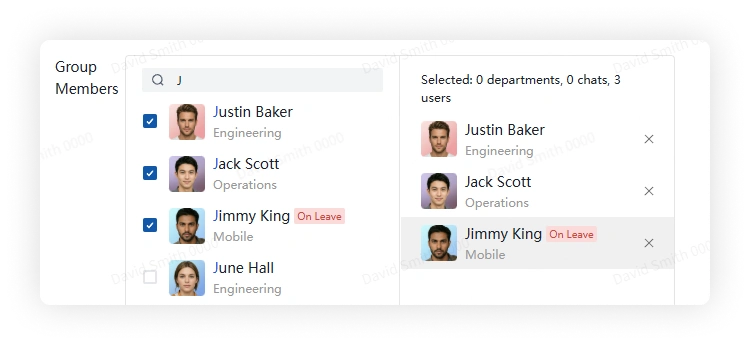
- Search Contacts.
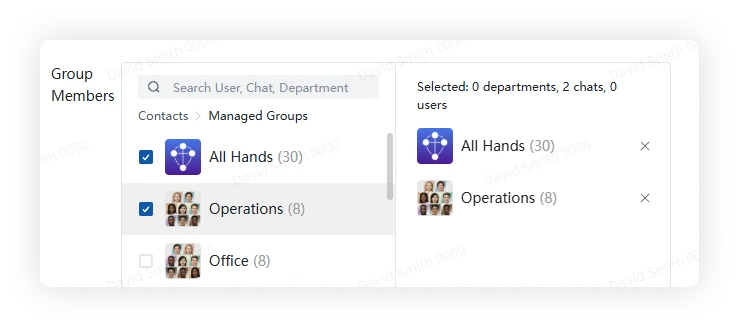
- If you own or administer another group, open Managed Groups and select that group to add its members.
- Select a department visible to your account to add its members.
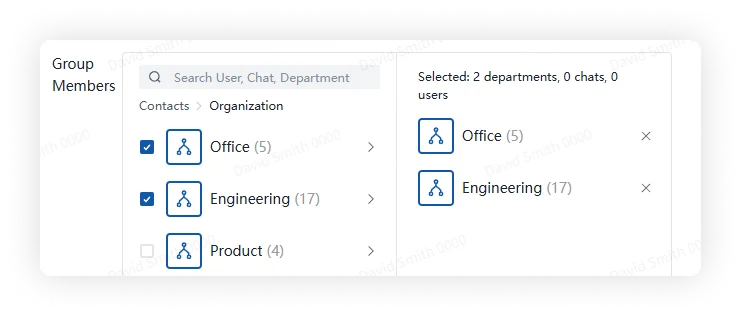
- Click Create.
Create from a private chat (Desktop)
You can turn a private conversation into a group without leaving the conversation.
-
Open the private conversation and click Create Group Chat.
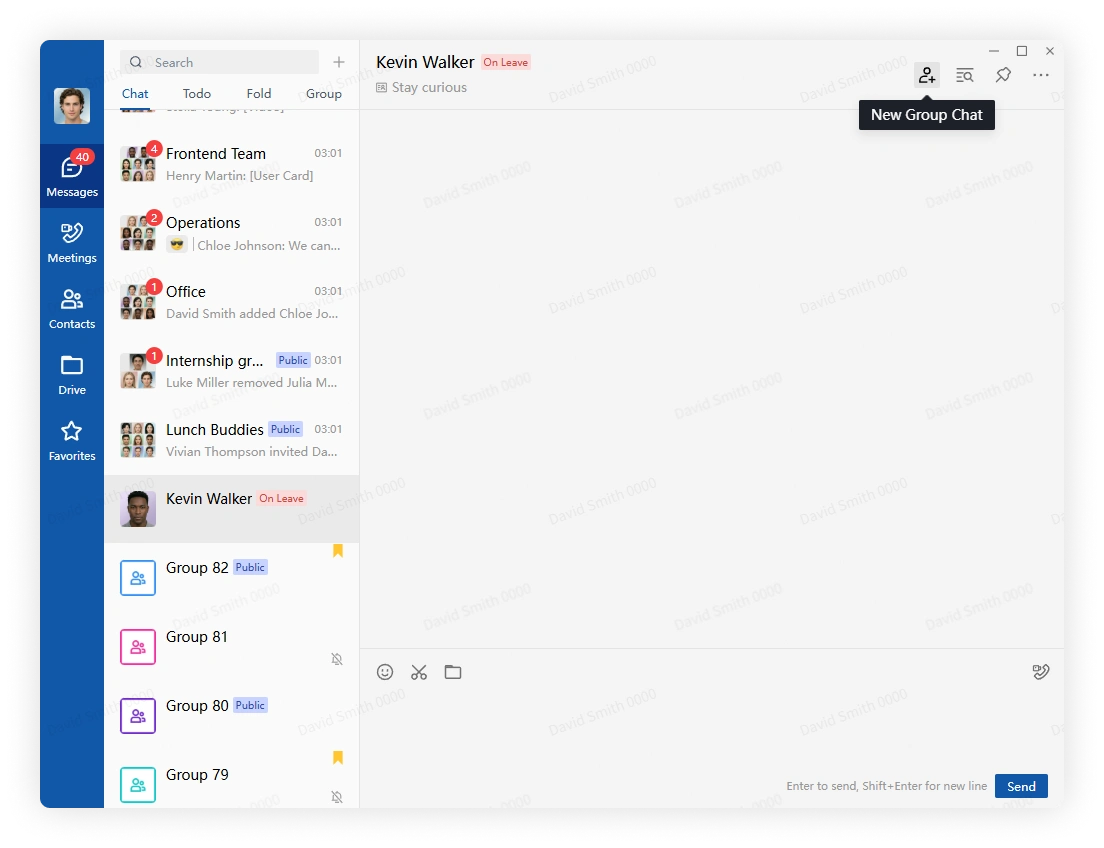
-
Optionally enter a group name and choose an avatar.
-
Add members in any of these ways:
- Search Contacts.
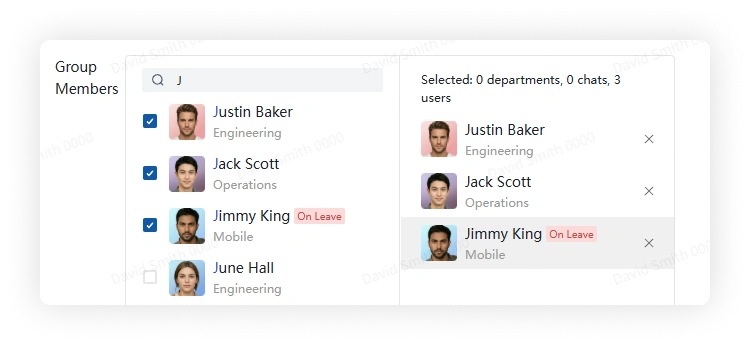
- Select a group under Managed Groups.
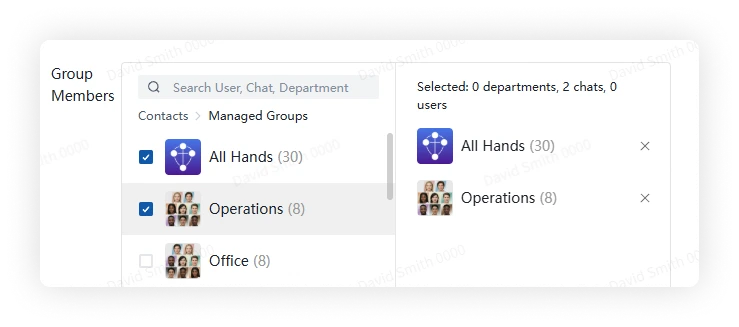
- Select a department visible to your account.
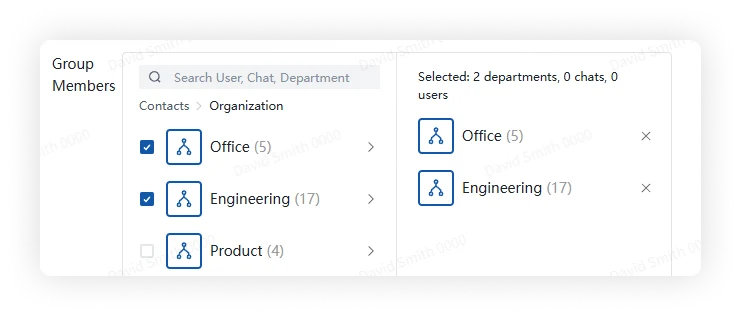
- Click Create.
Mobile
-
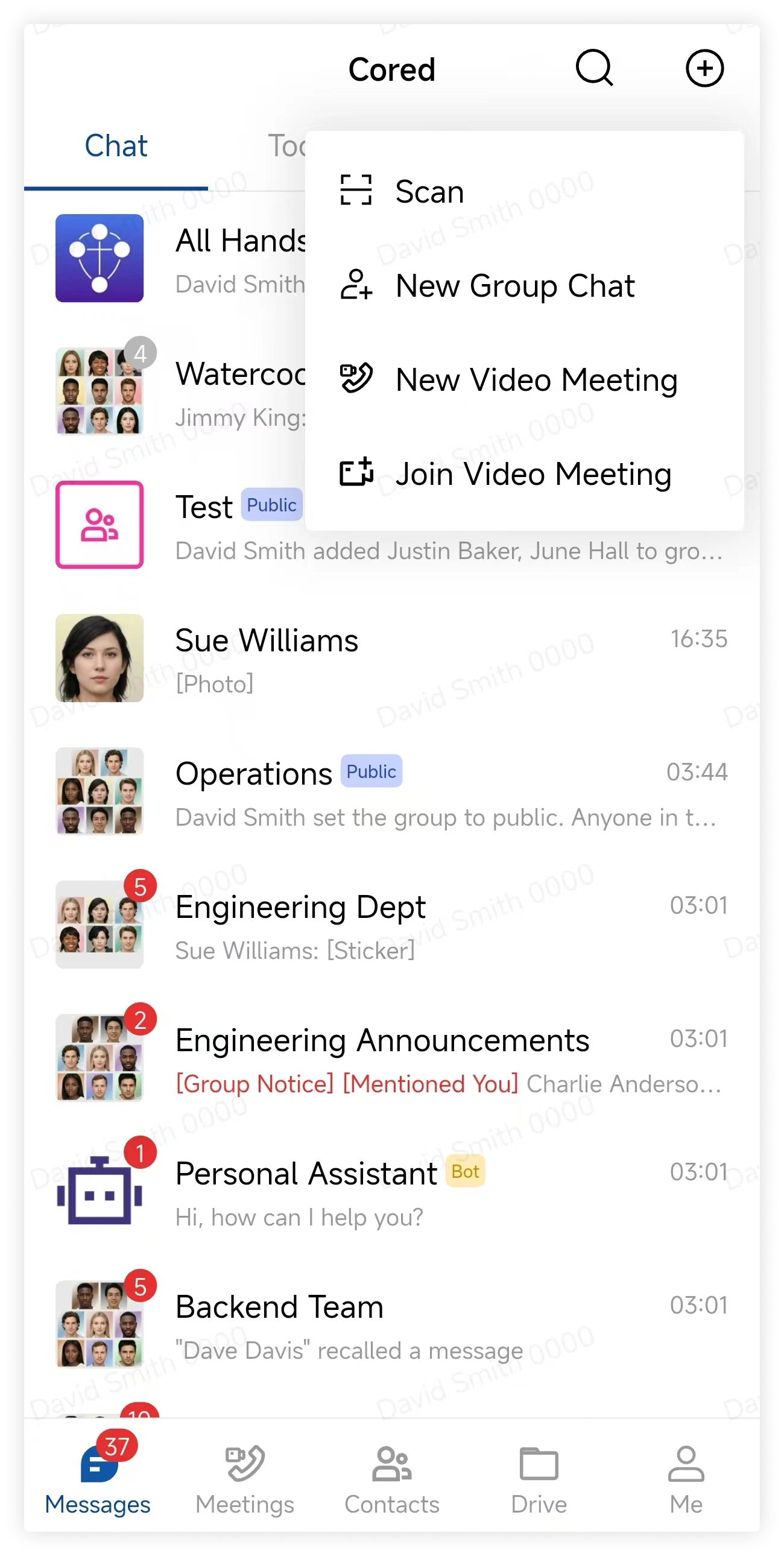
Tap the plus button, then select Start Group Chat.
-
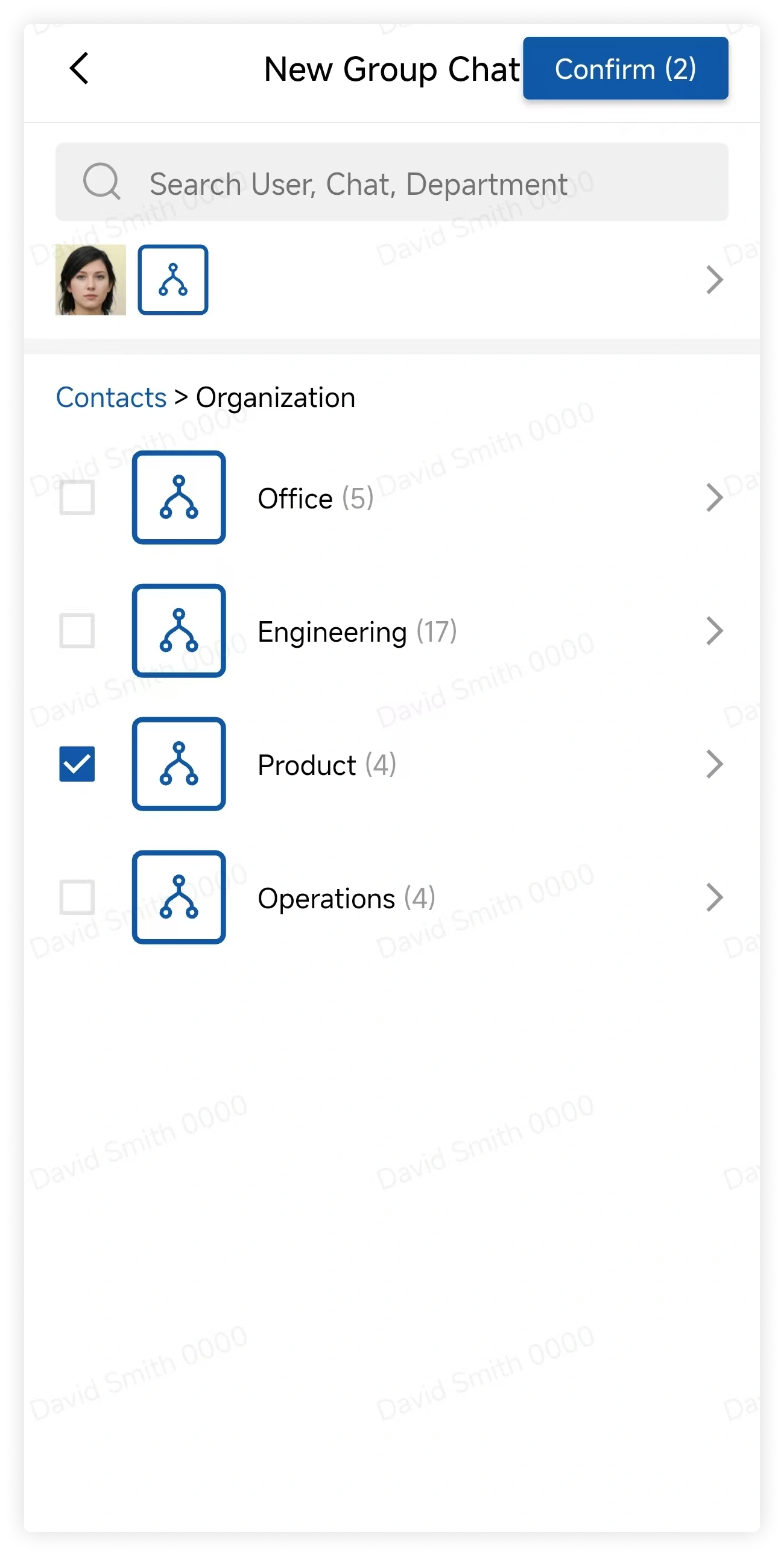
Add members in any of these ways:
- Search Contacts.
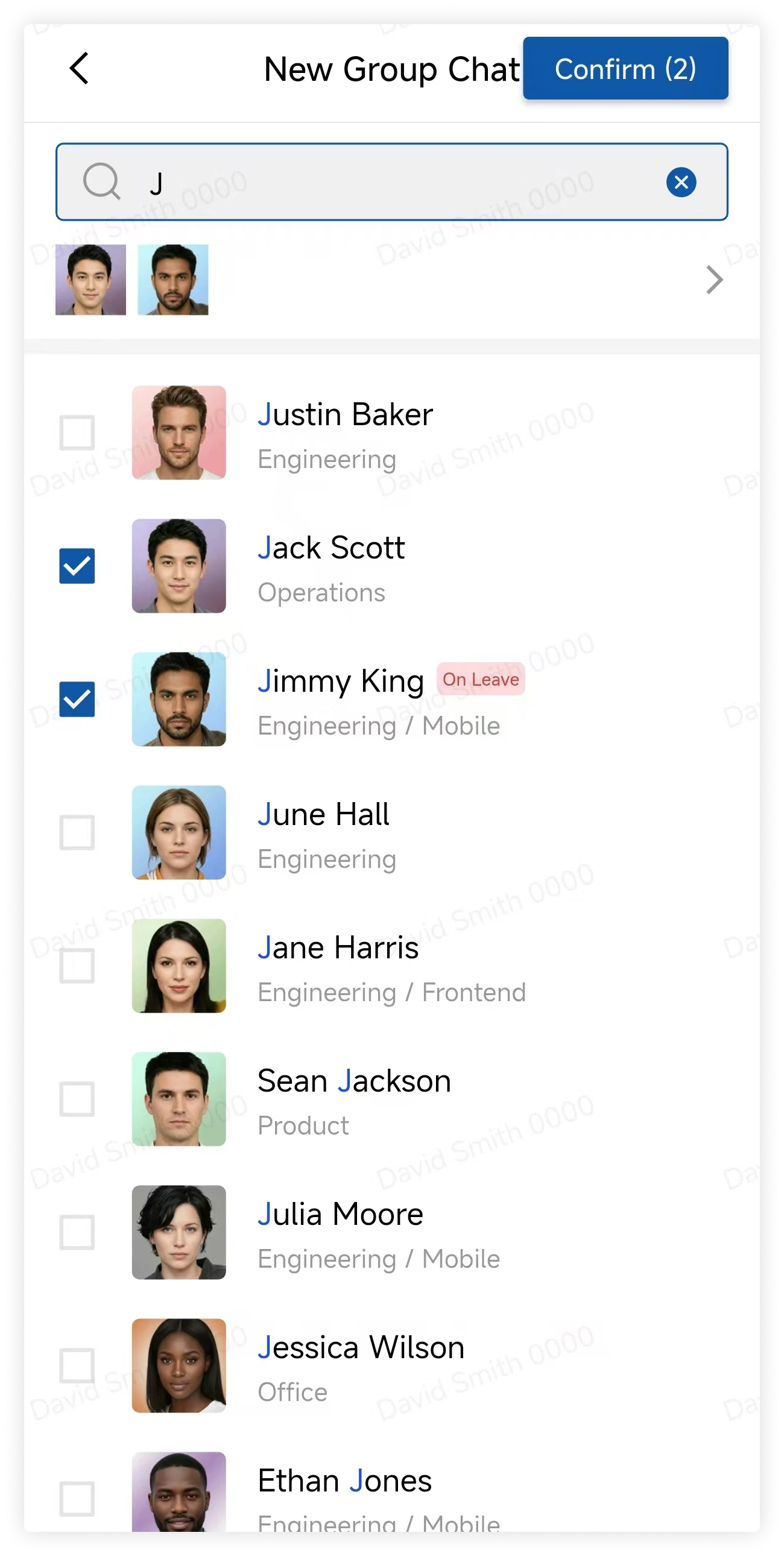
- Select a group under Managed Groups.
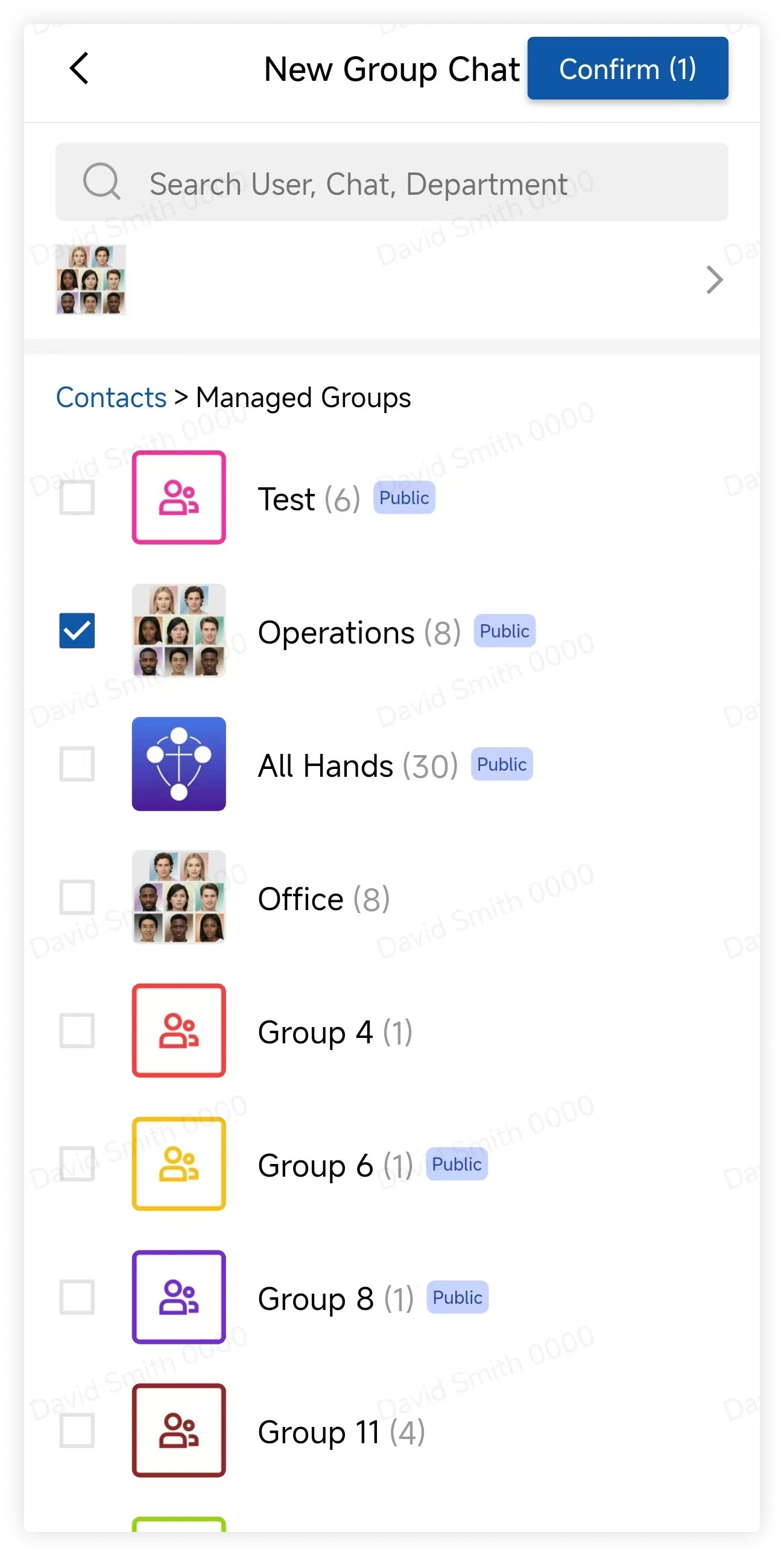
- Select a department visible to your account.
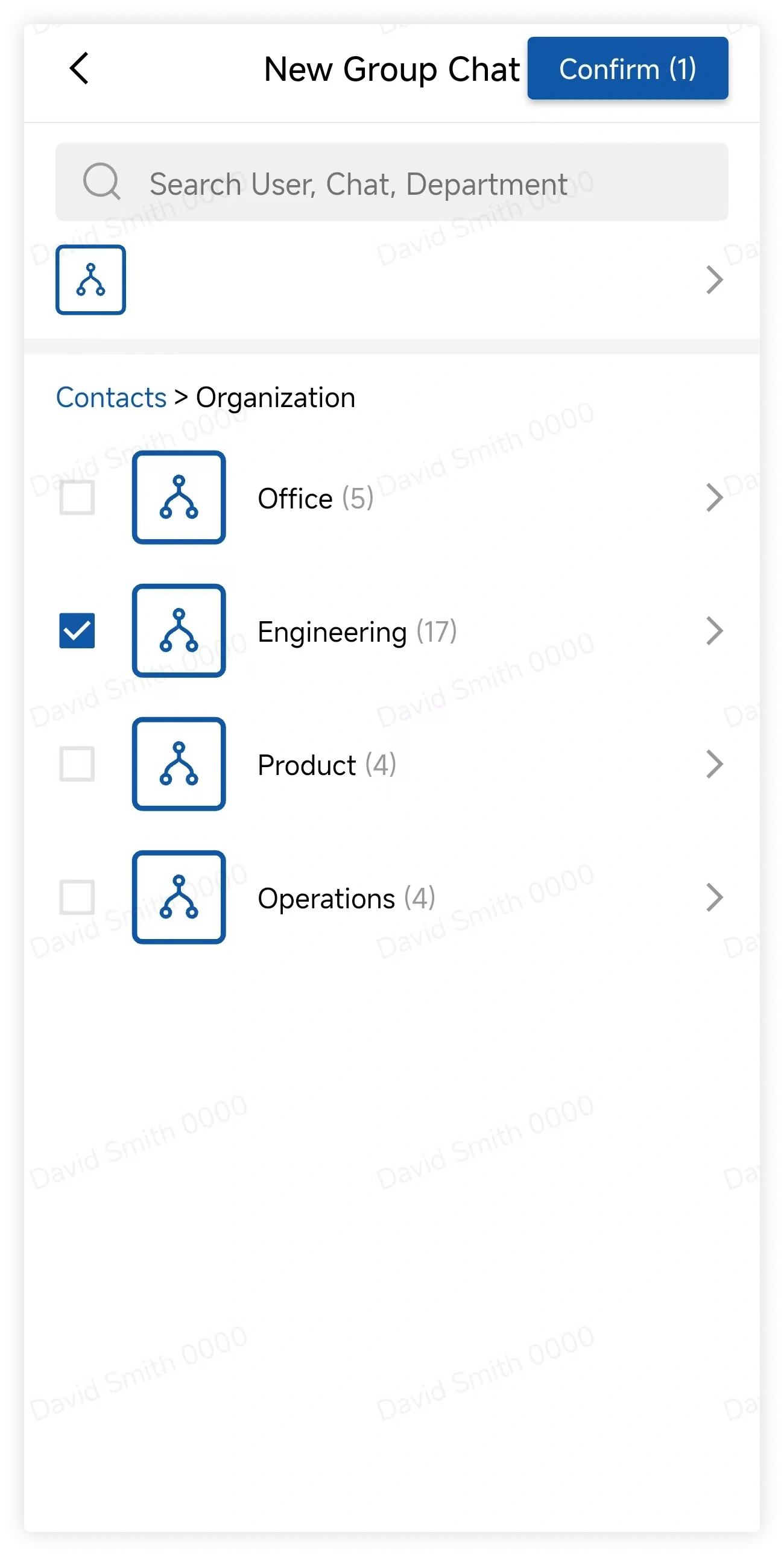
- Tap Confirm.
Create from a private chat (Mobile)
You can turn a private conversation into a group without leaving the conversation.
-
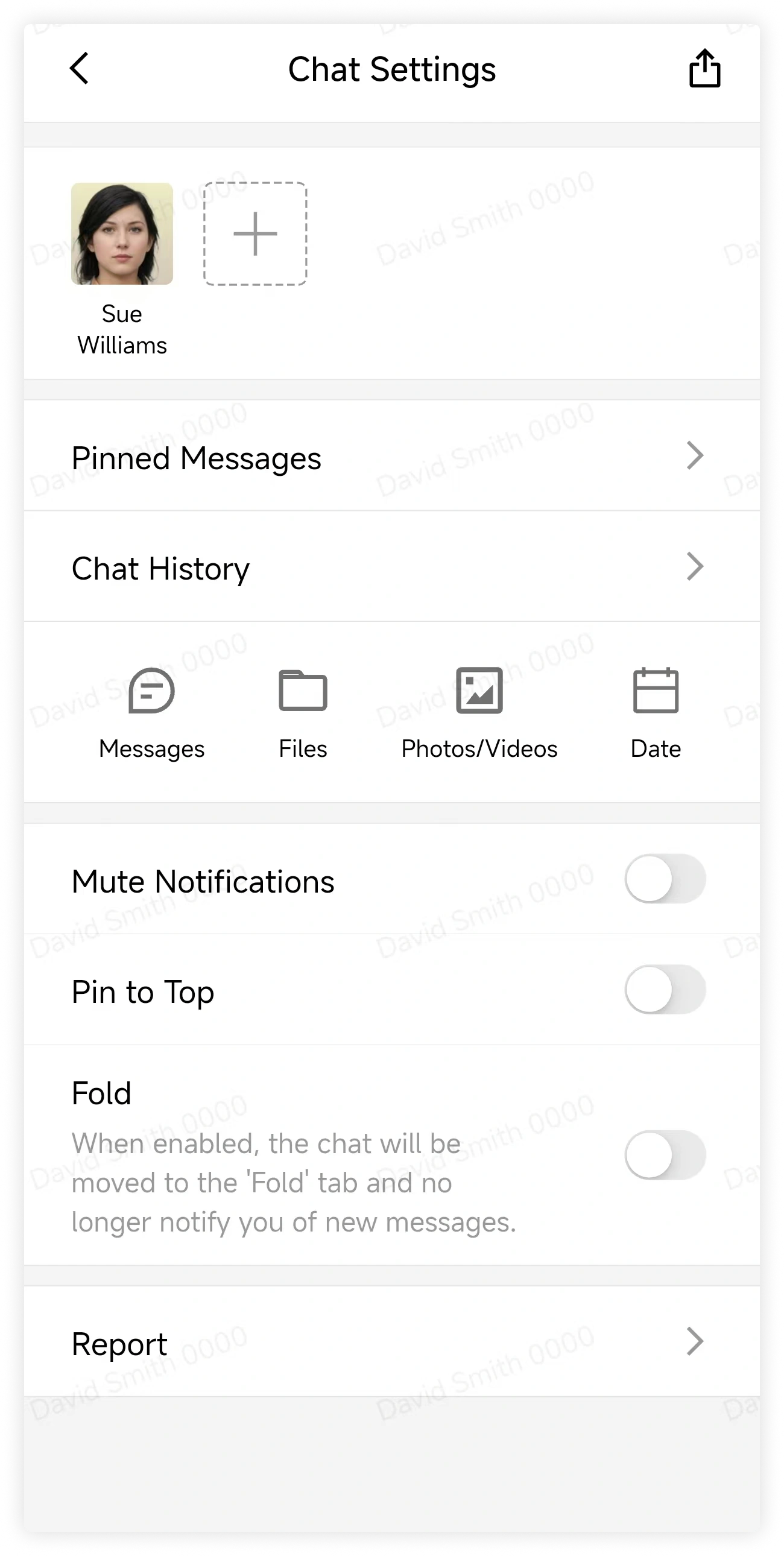
Open the private conversation, tap More, then tap the plus button beside the coworker's avatar.
-
Add members in any of these ways:
- Search Contacts.
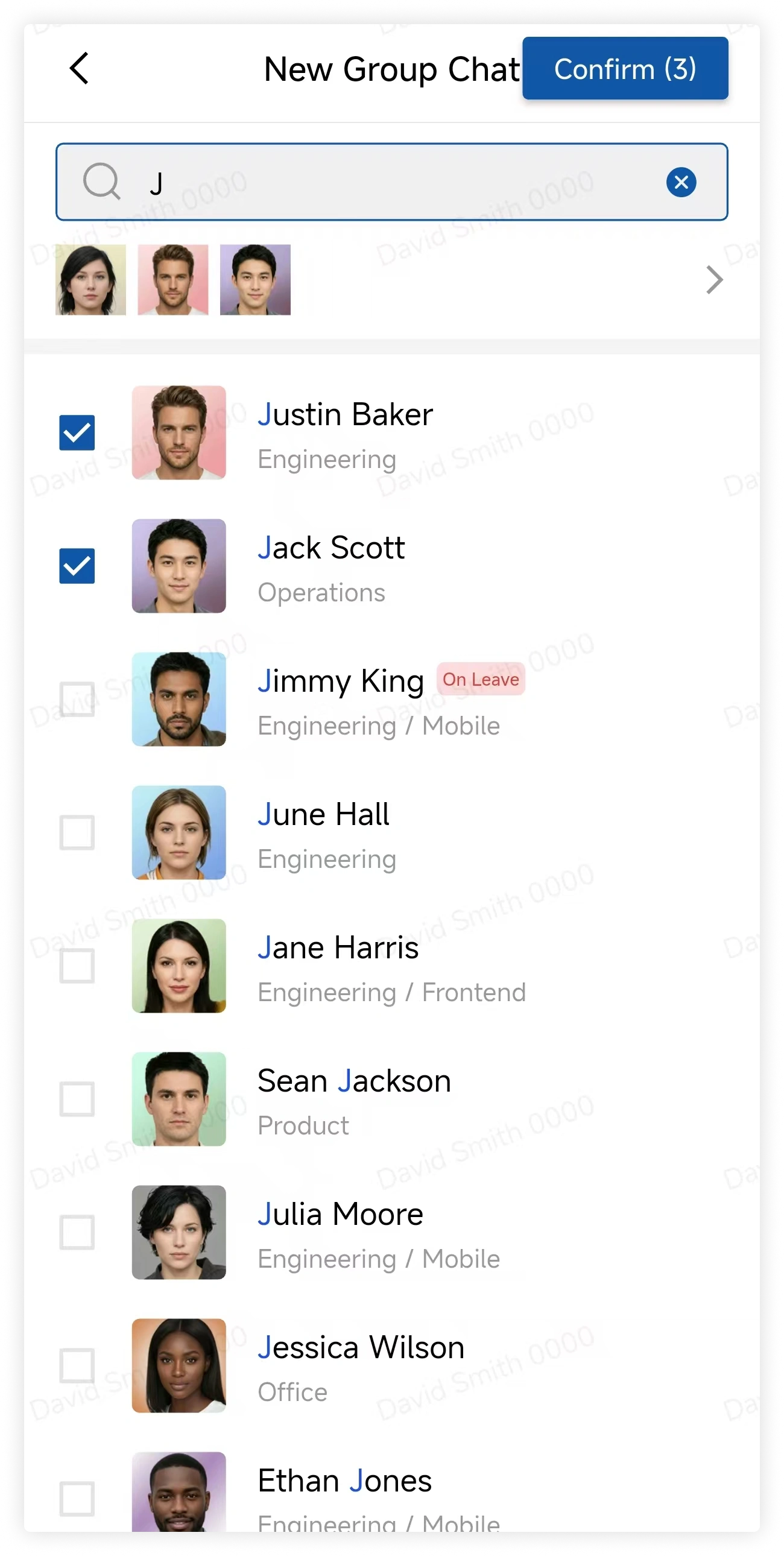
- Select a group under Managed Groups.
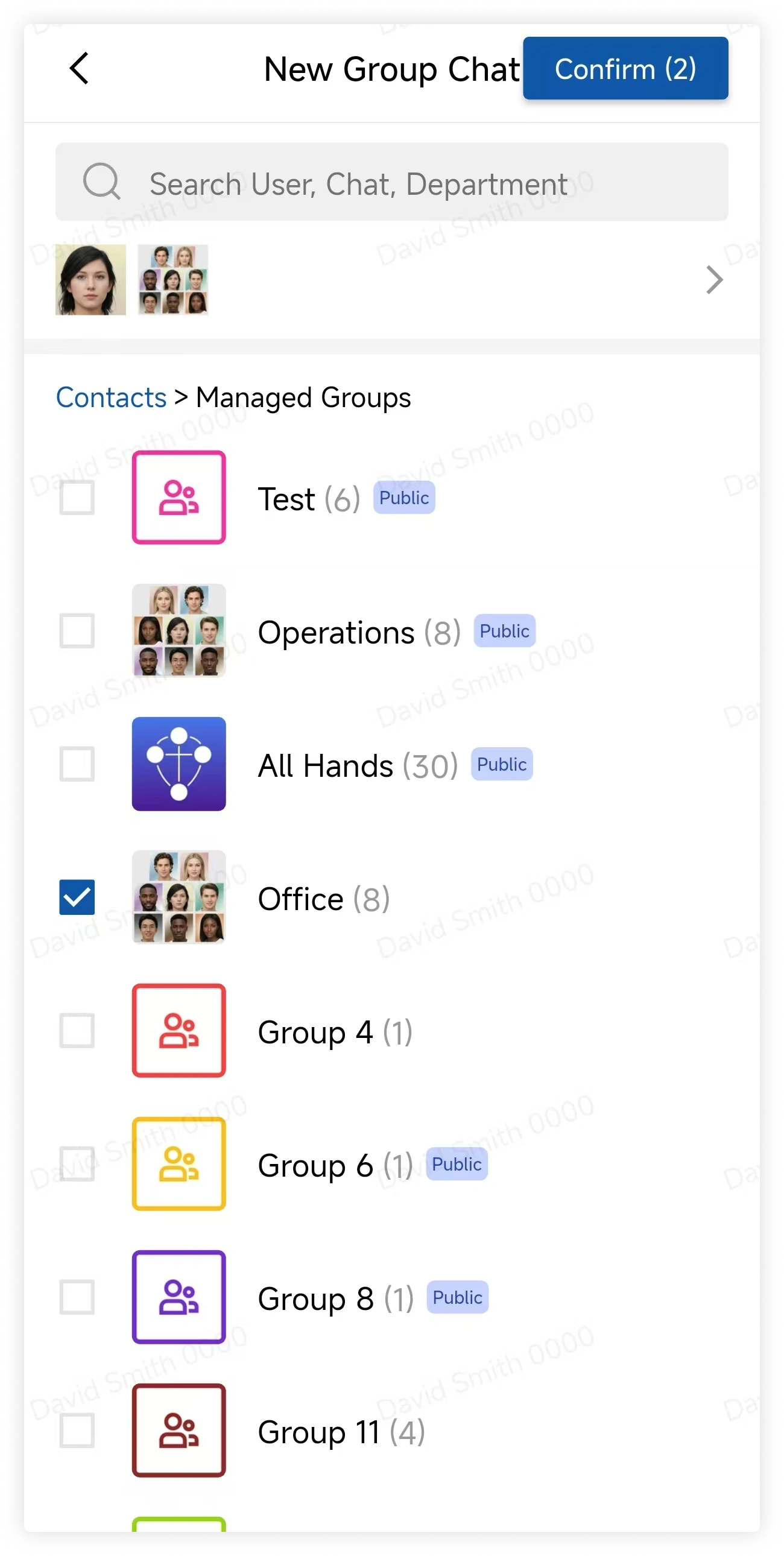
- Select a department visible to your account.
- Tap Confirm.
FAQ
Can non-admin users create groups by department?
Yes. You can select only departments visible to your account. The result is a standard group chat, not a department group.