Desktop Meeting Guide
1. Create or join a meeting
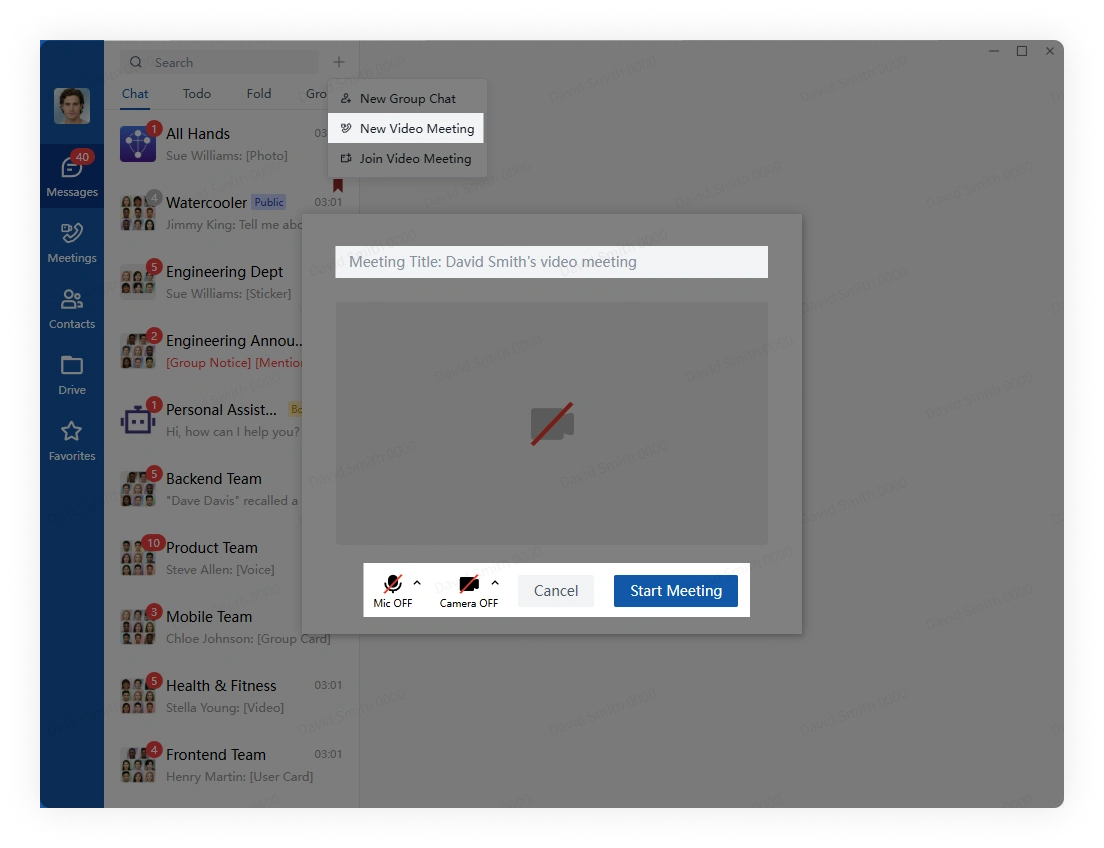
Click the plus button beside search, select Start Meeting, choose the camera and microphone settings, enter a title, and click Start.
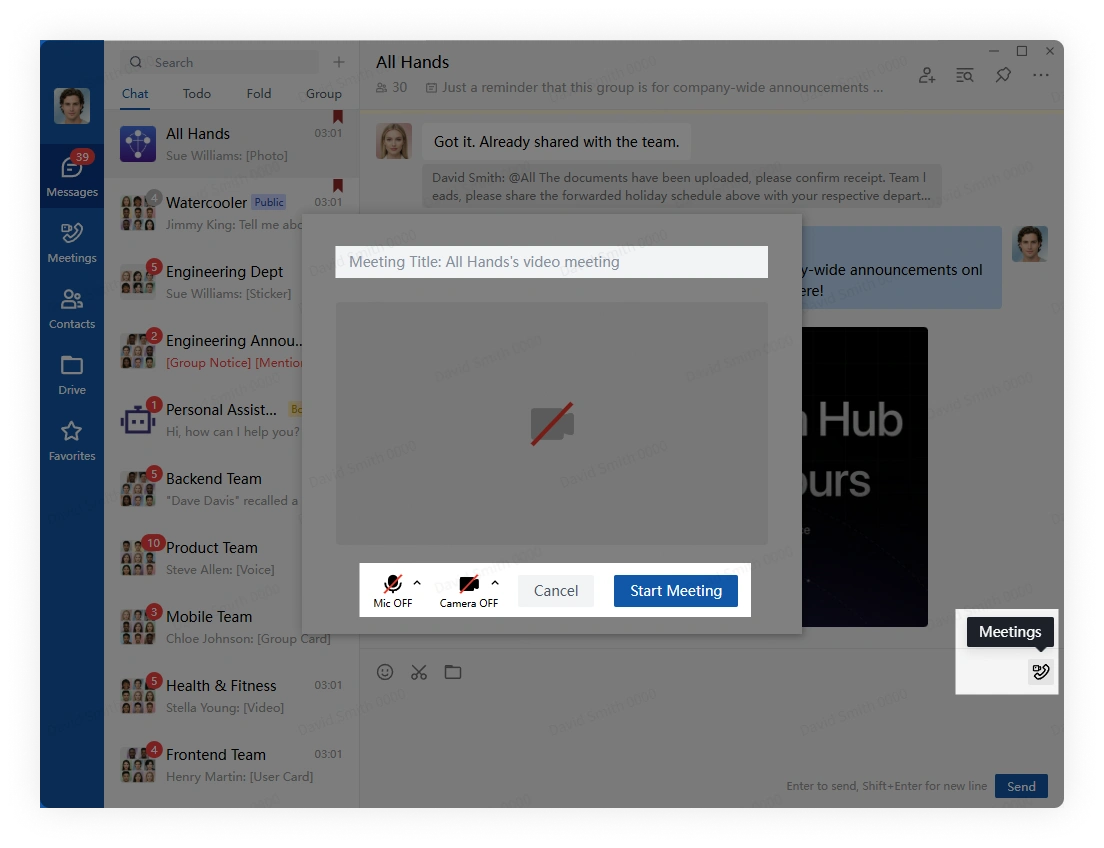
In a group conversation, click the meeting button beside the message box, configure the meeting, and click Start.
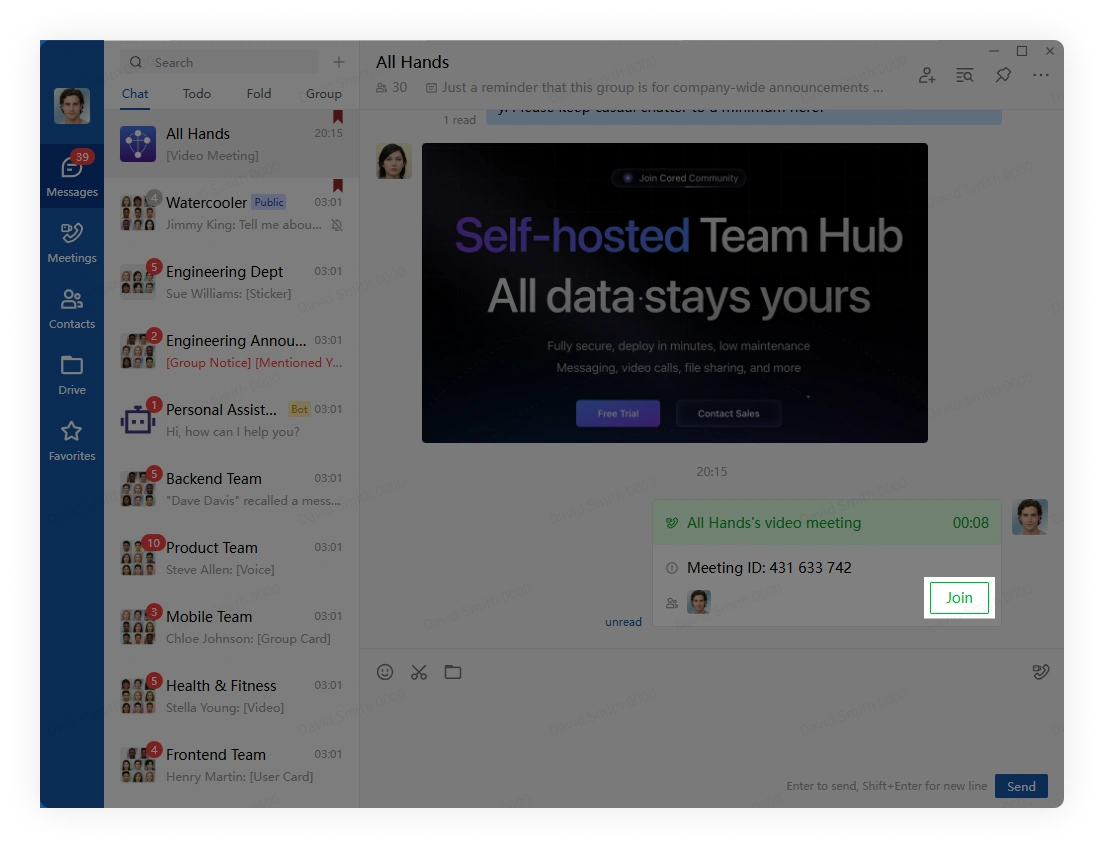
When another member starts a meeting, click Join in the conversation.
2. Turn microphone and camera on or off
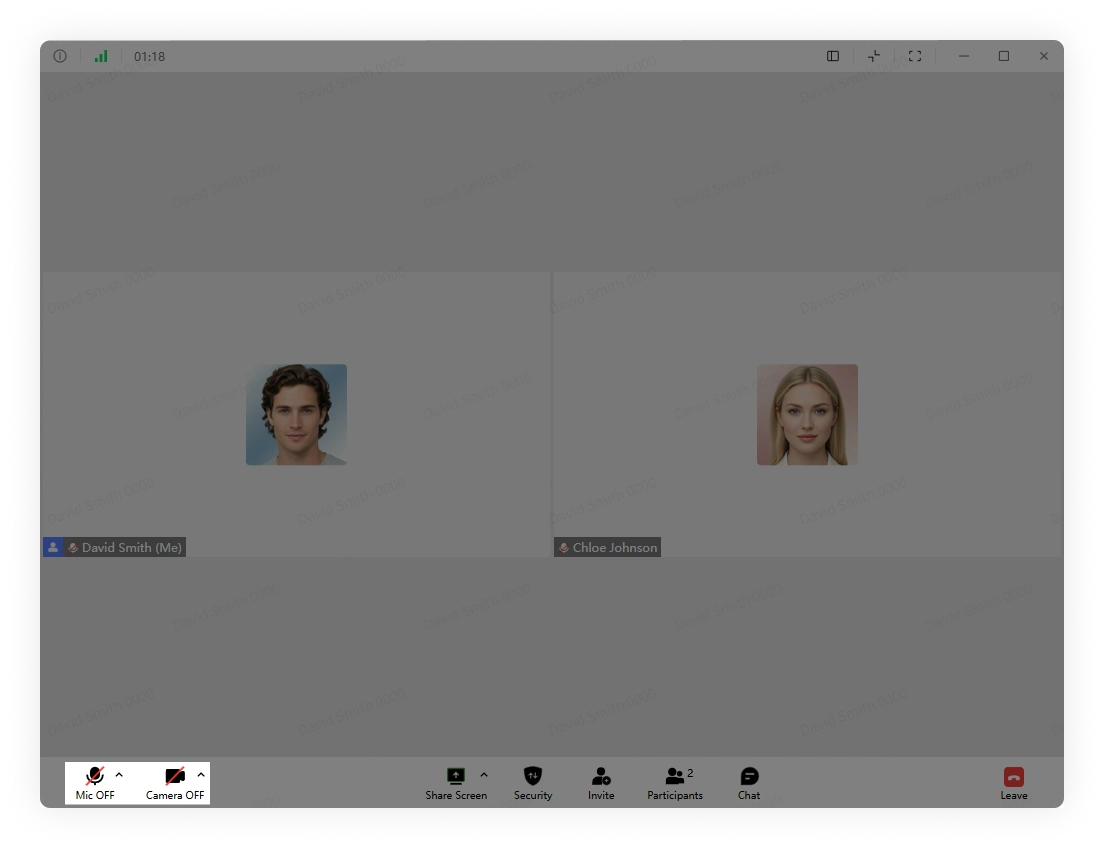
Use the controls in the lower-left corner of the meeting window to turn your microphone and camera on or off.
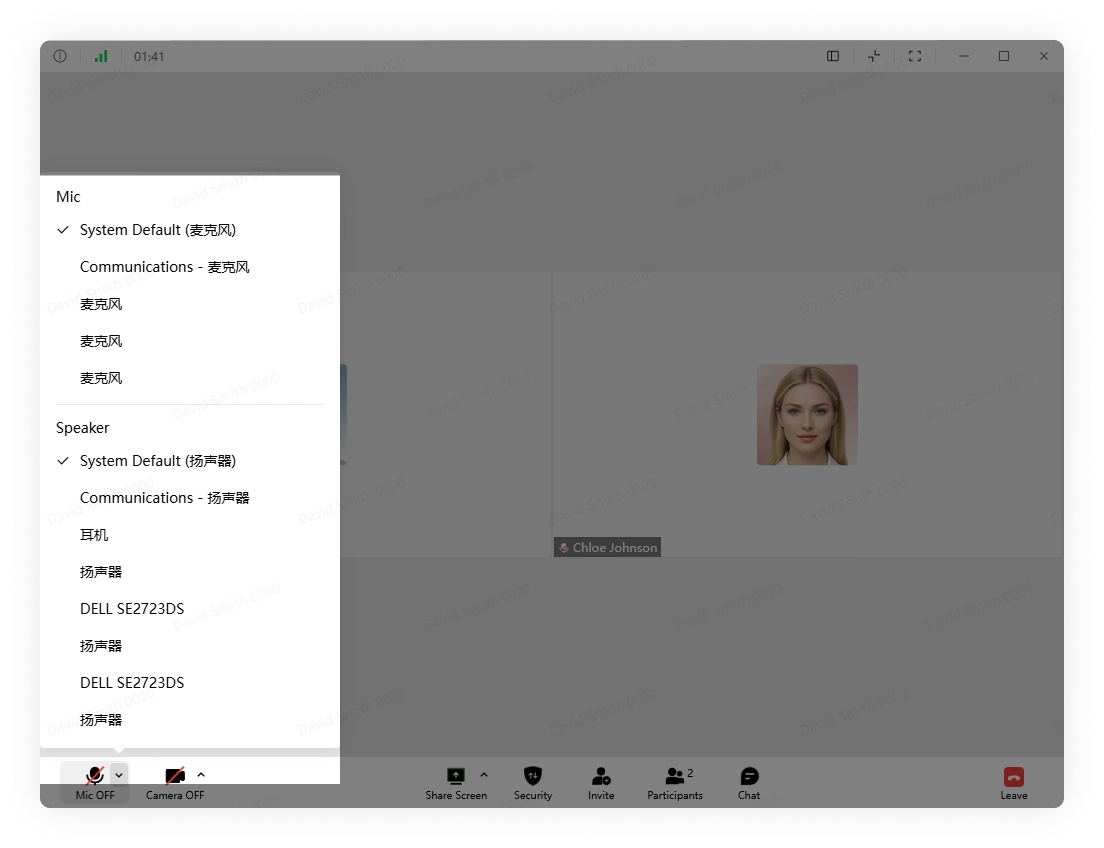
Click the arrow beside a control to choose the input or output device.
3. Share screen in a meeting
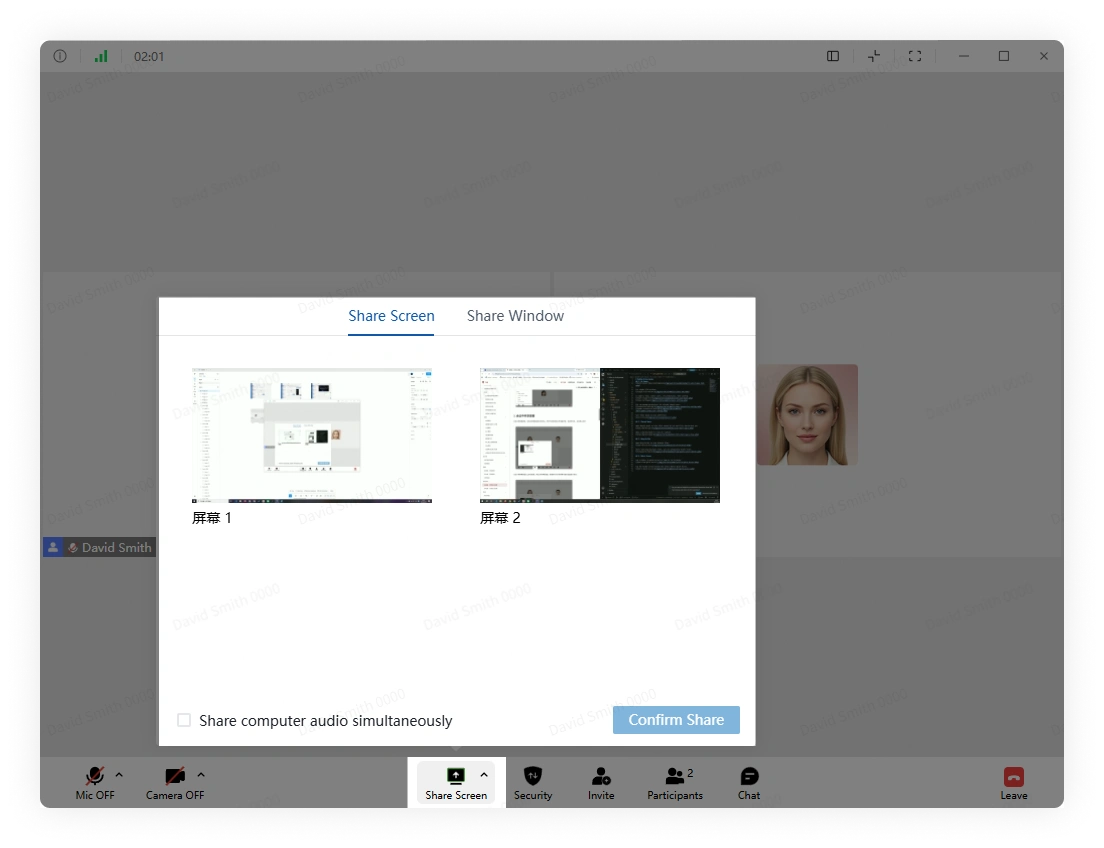
Click Share Screen, choose a screen or window, decide whether to share system audio, and confirm.
Open the screen-sharing settings to control who can share.
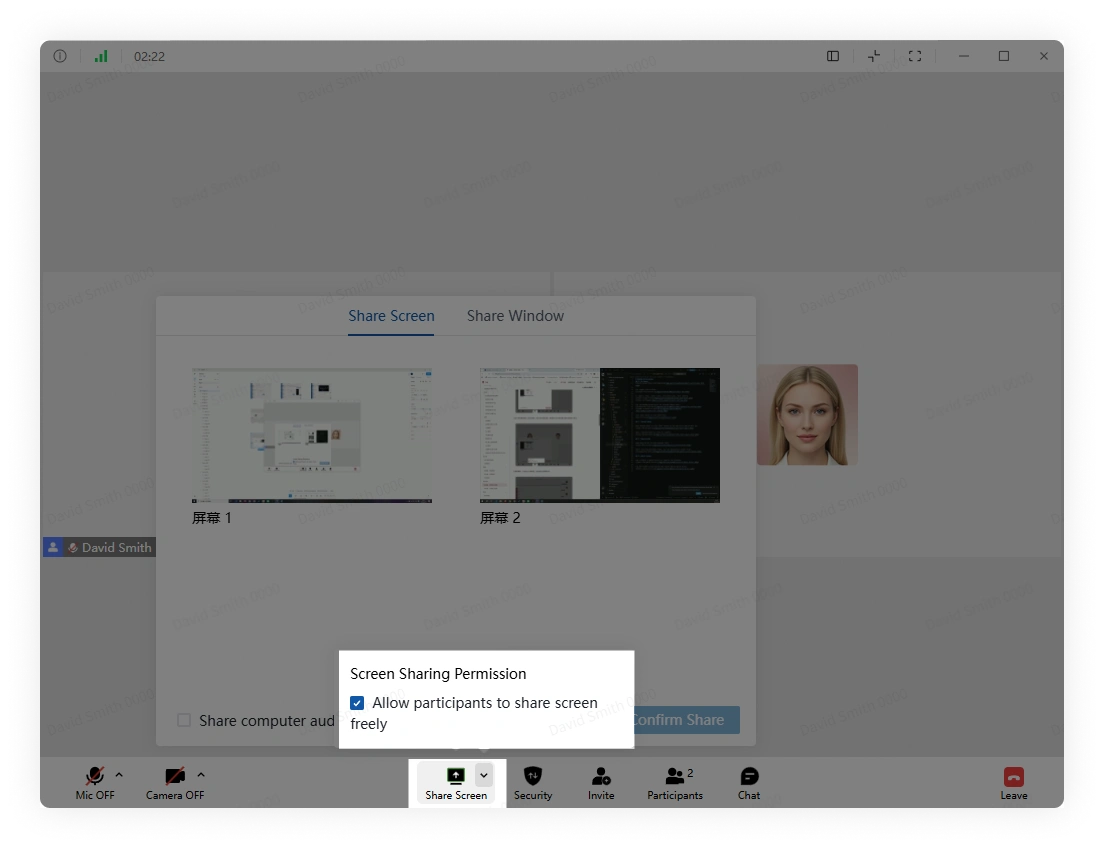
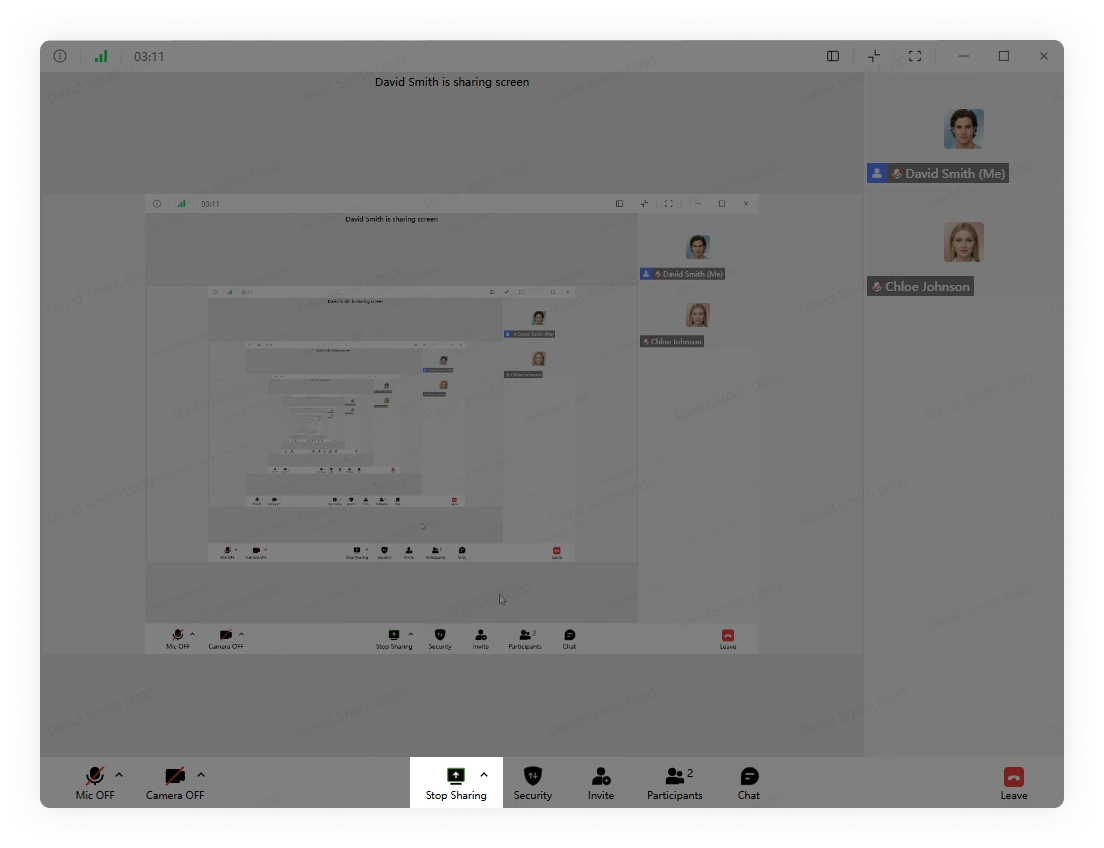
Click Stop Sharing when you finish.
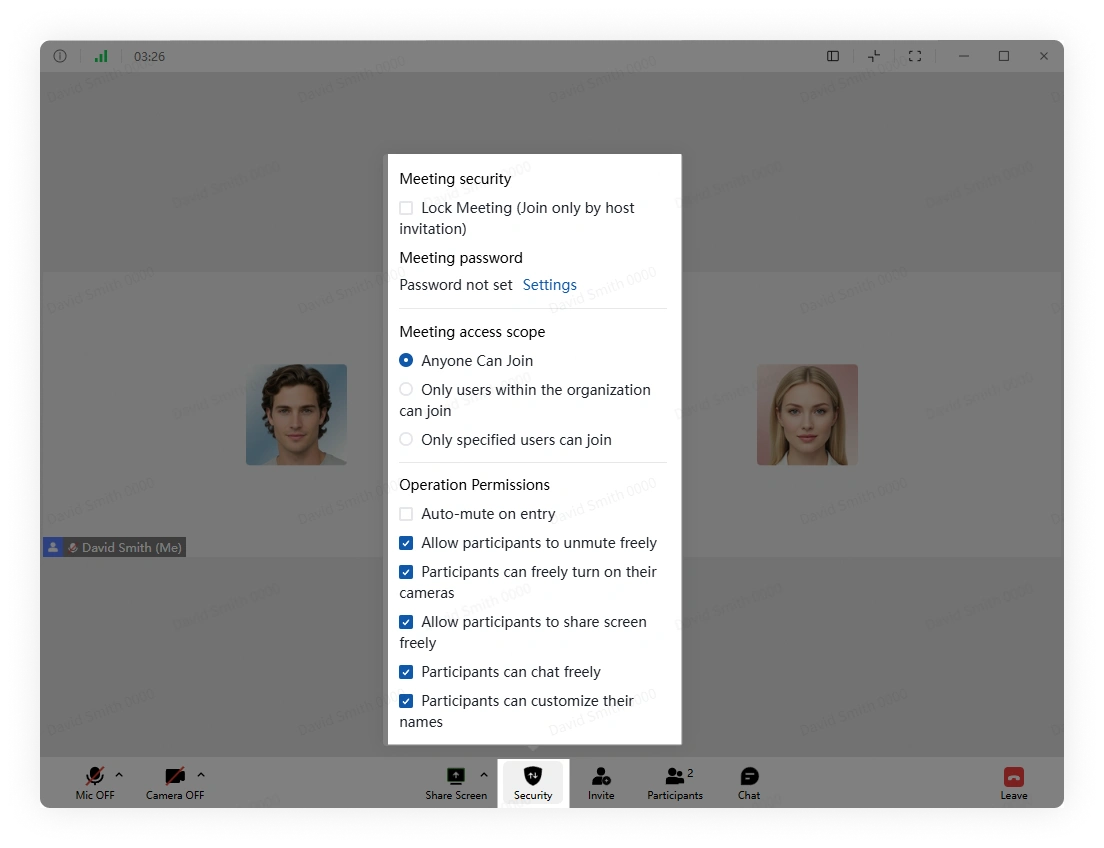
4. Meeting security settings
Click Security to review the controls available for the current meeting.
5. Invite participants
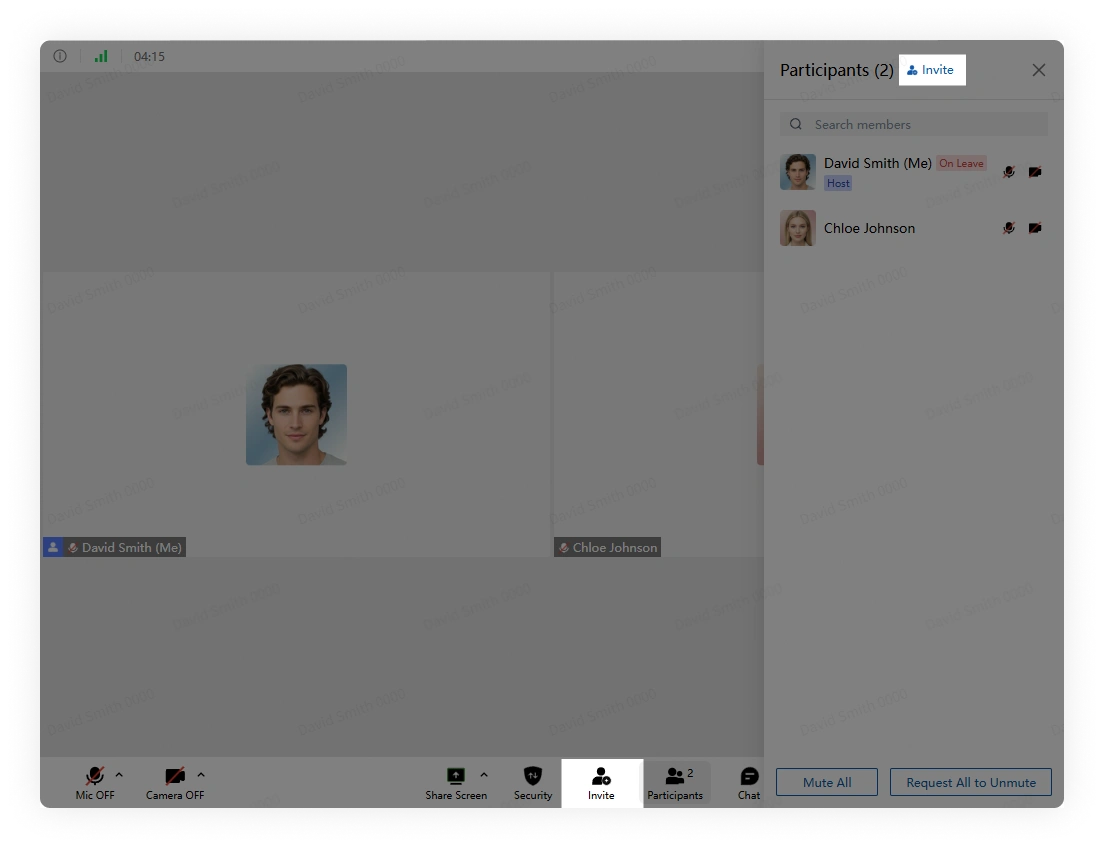
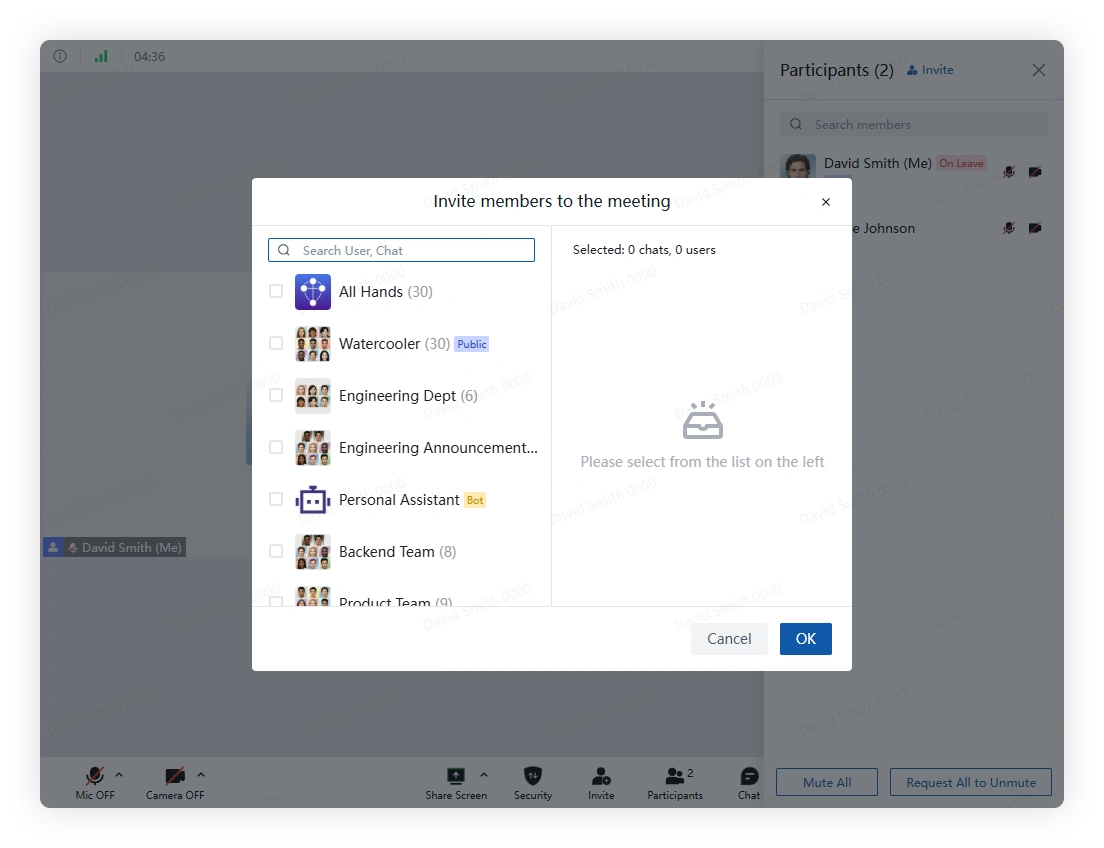
Click Invite in the meeting toolbar, select participants, and confirm.
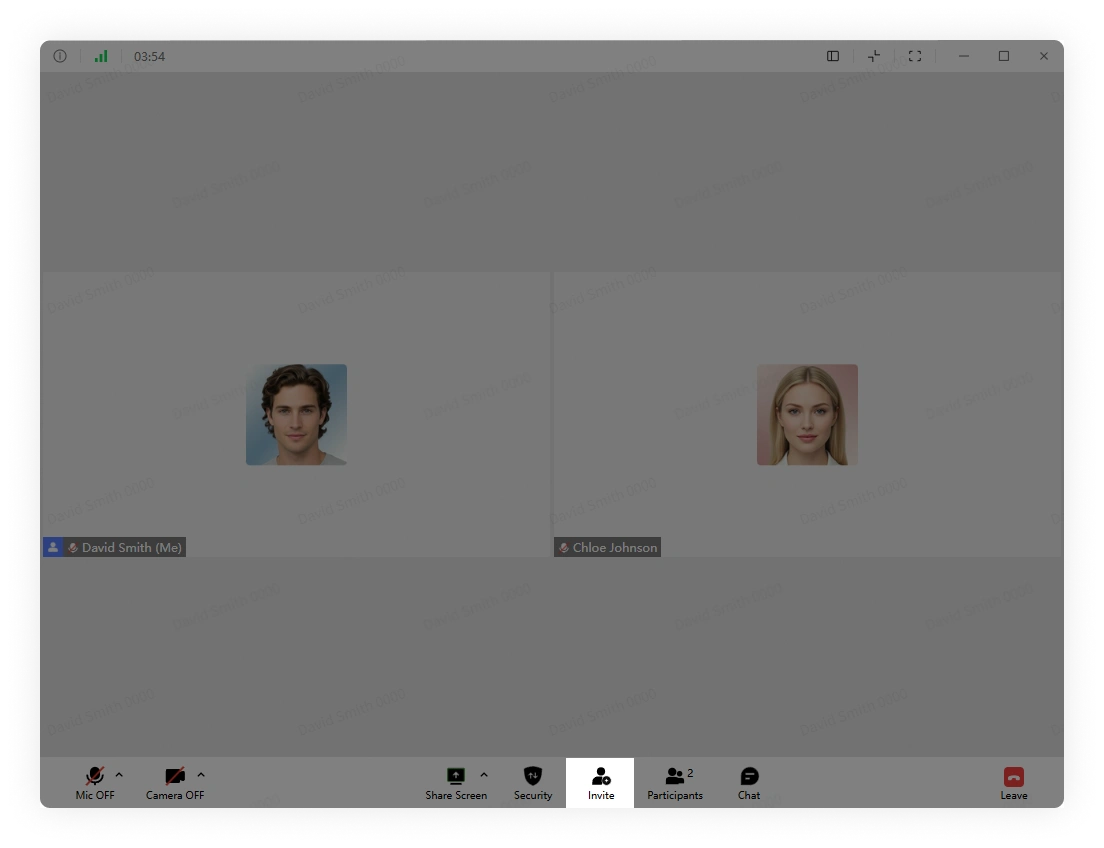
You can also invite members from the participant panel.
6. Manage participants
In the participant panel, select a participant to view the available management actions.
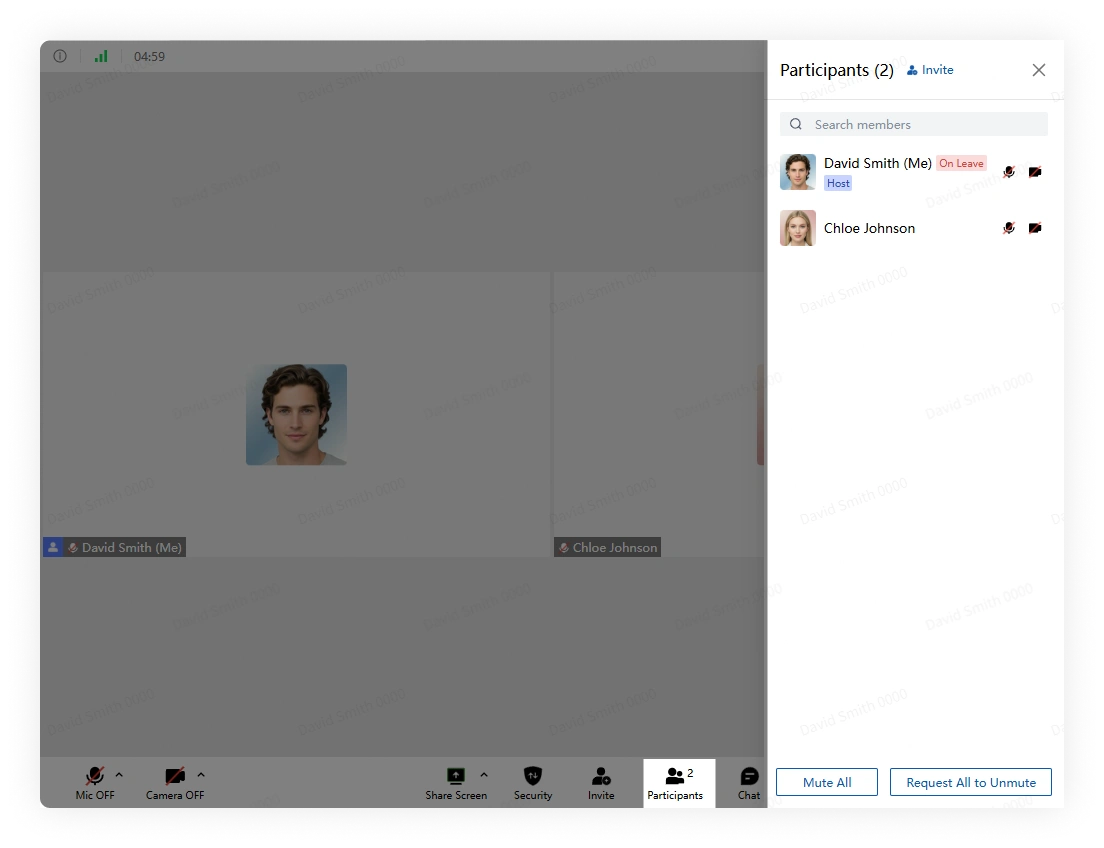
You can also invite users from the same panel.
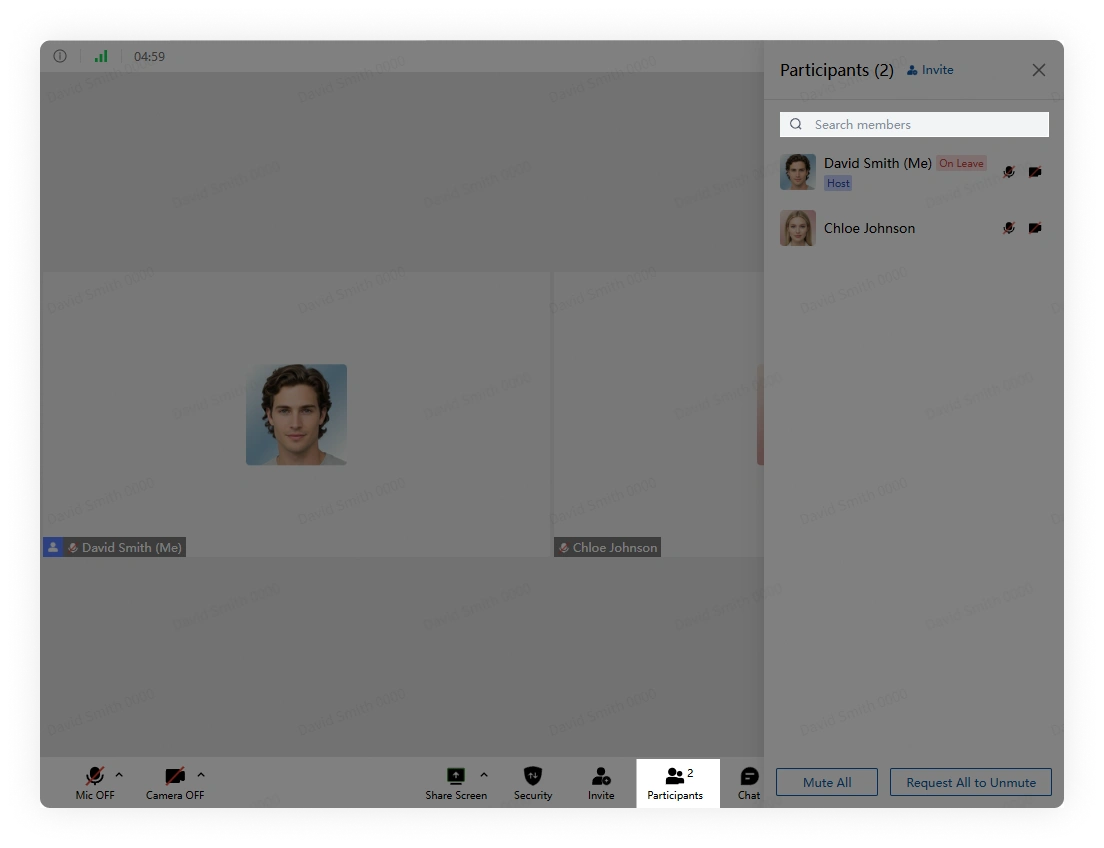
Use the search box to find a participant by name or abbreviation.
7. Meeting chat
Click Chat, enter a message in the side panel, and press Enter to send it.
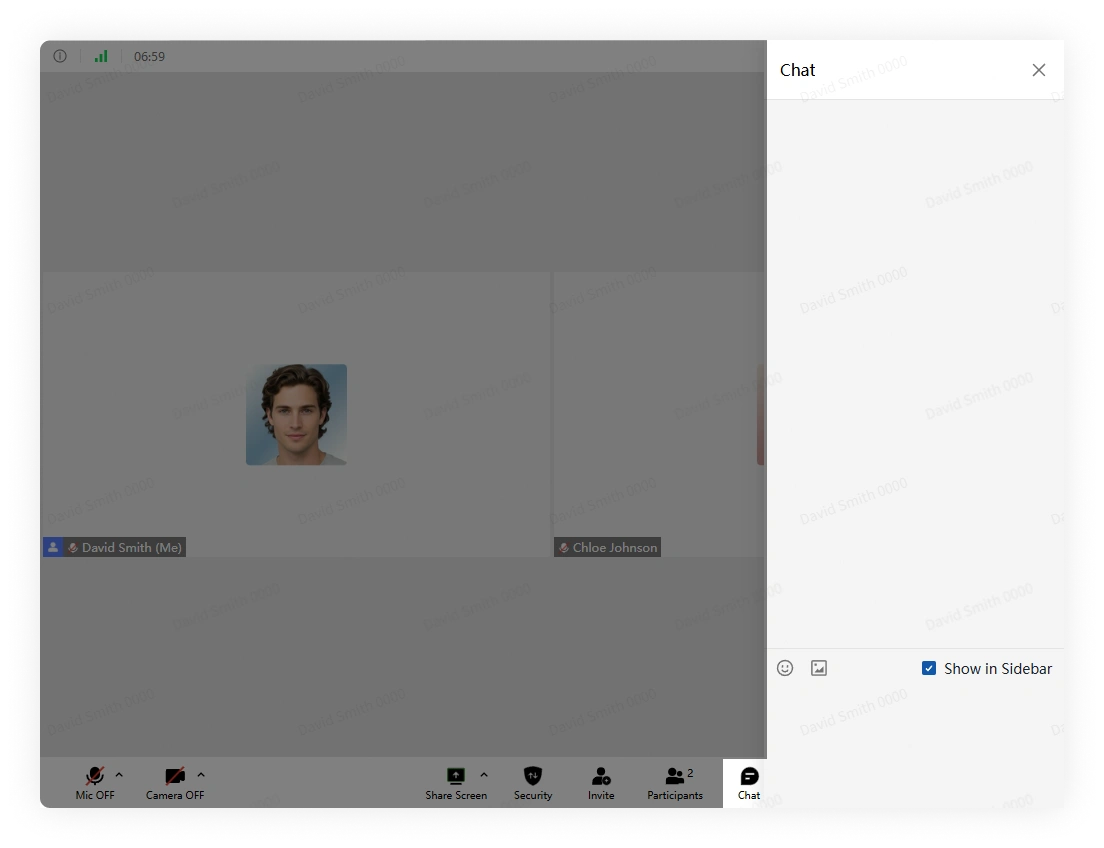
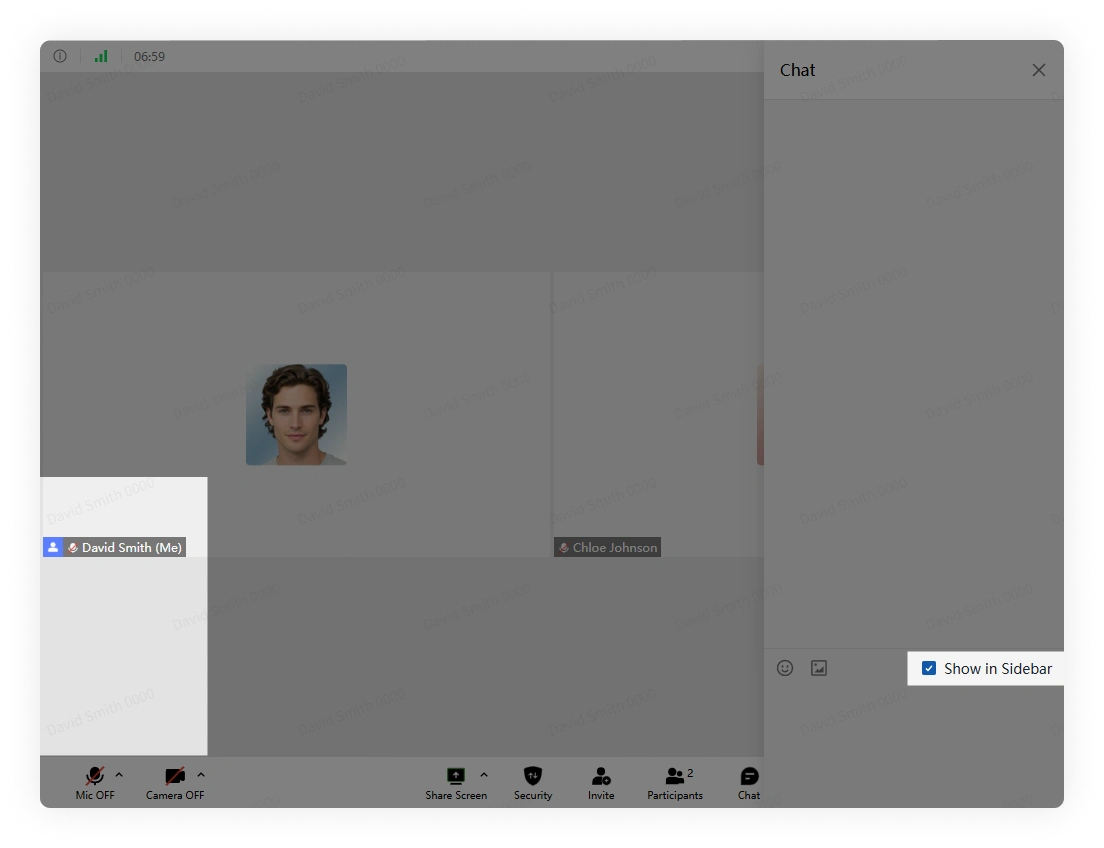
Use the panel control to show or hide meeting chat.
8. Leave or end meeting
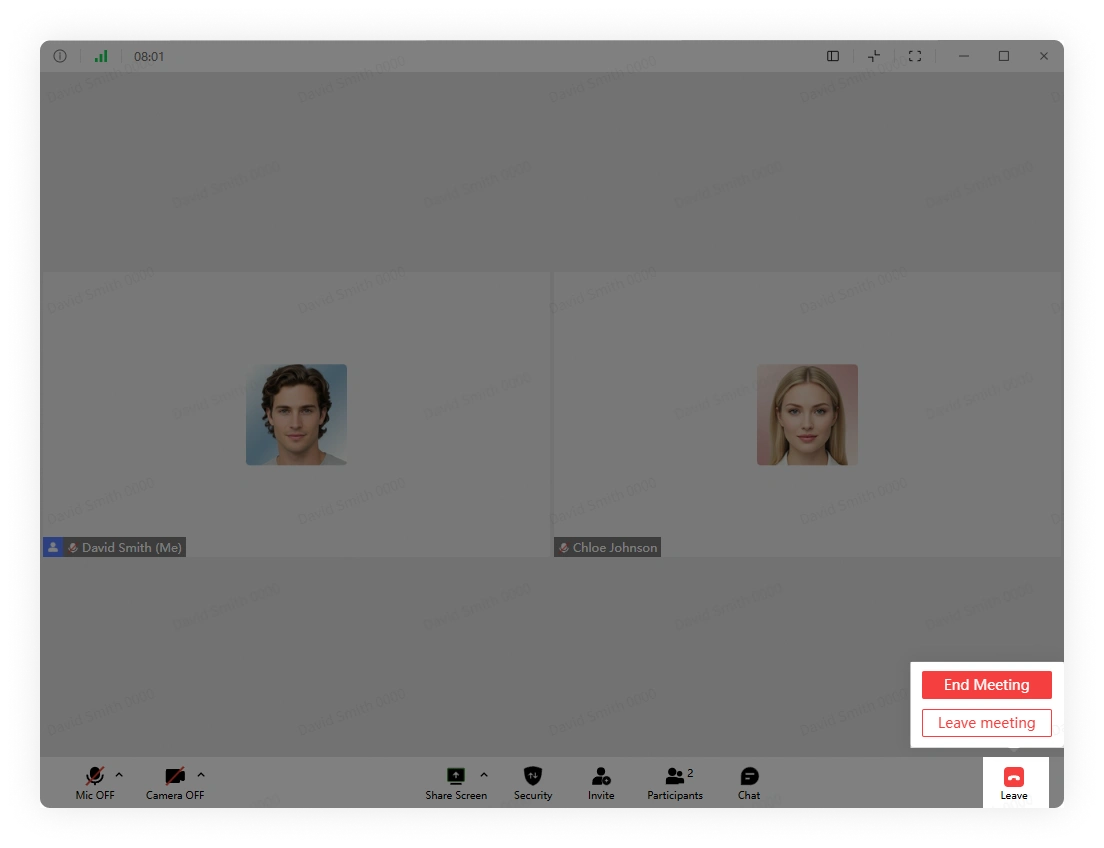
Click Leave in the lower-right corner, then choose:
- Leave Meeting to leave without ending the meeting for others.
- End Meeting to end the meeting for every participant.