Mobile Drive Guide
1. My Space
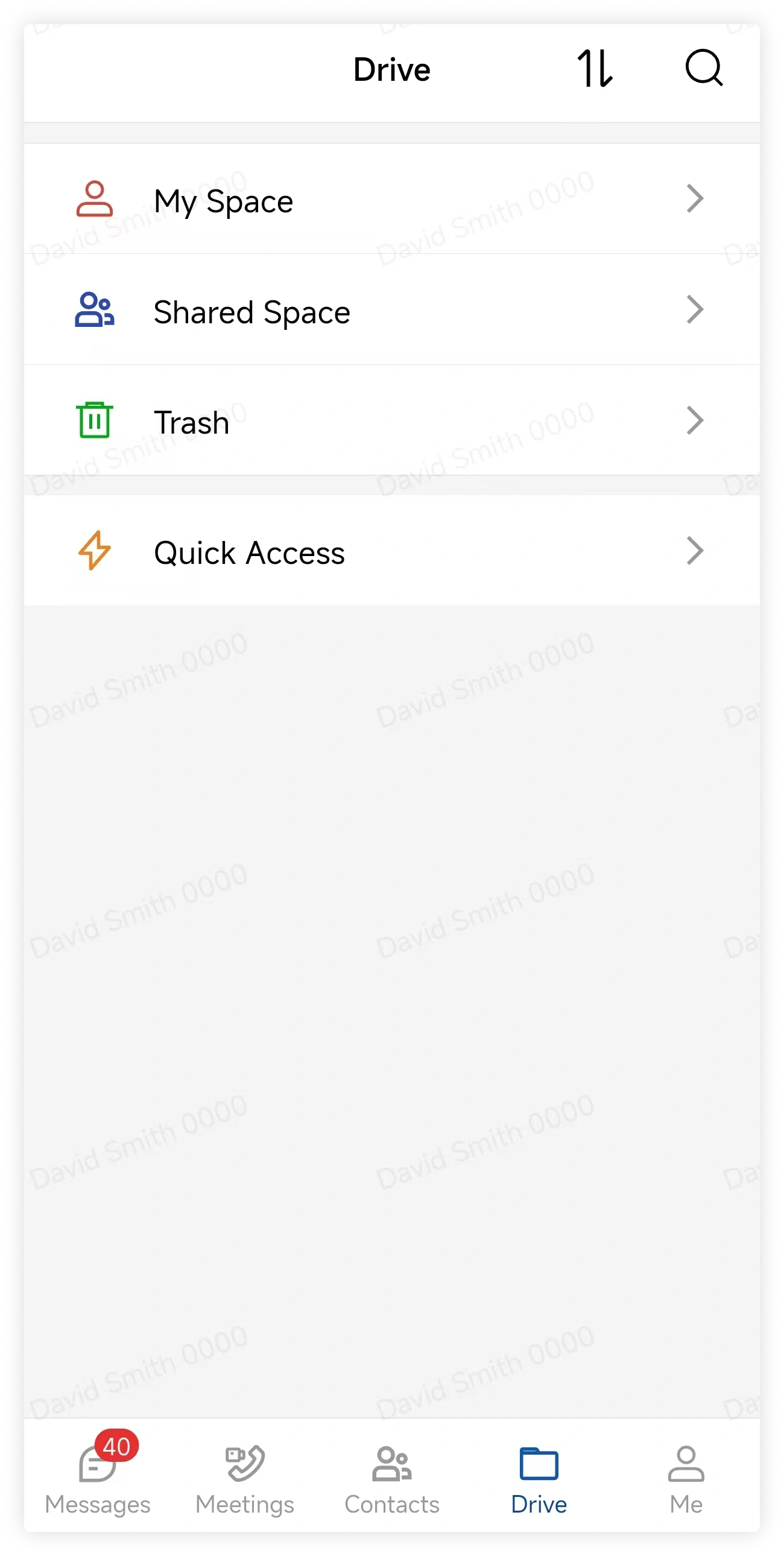
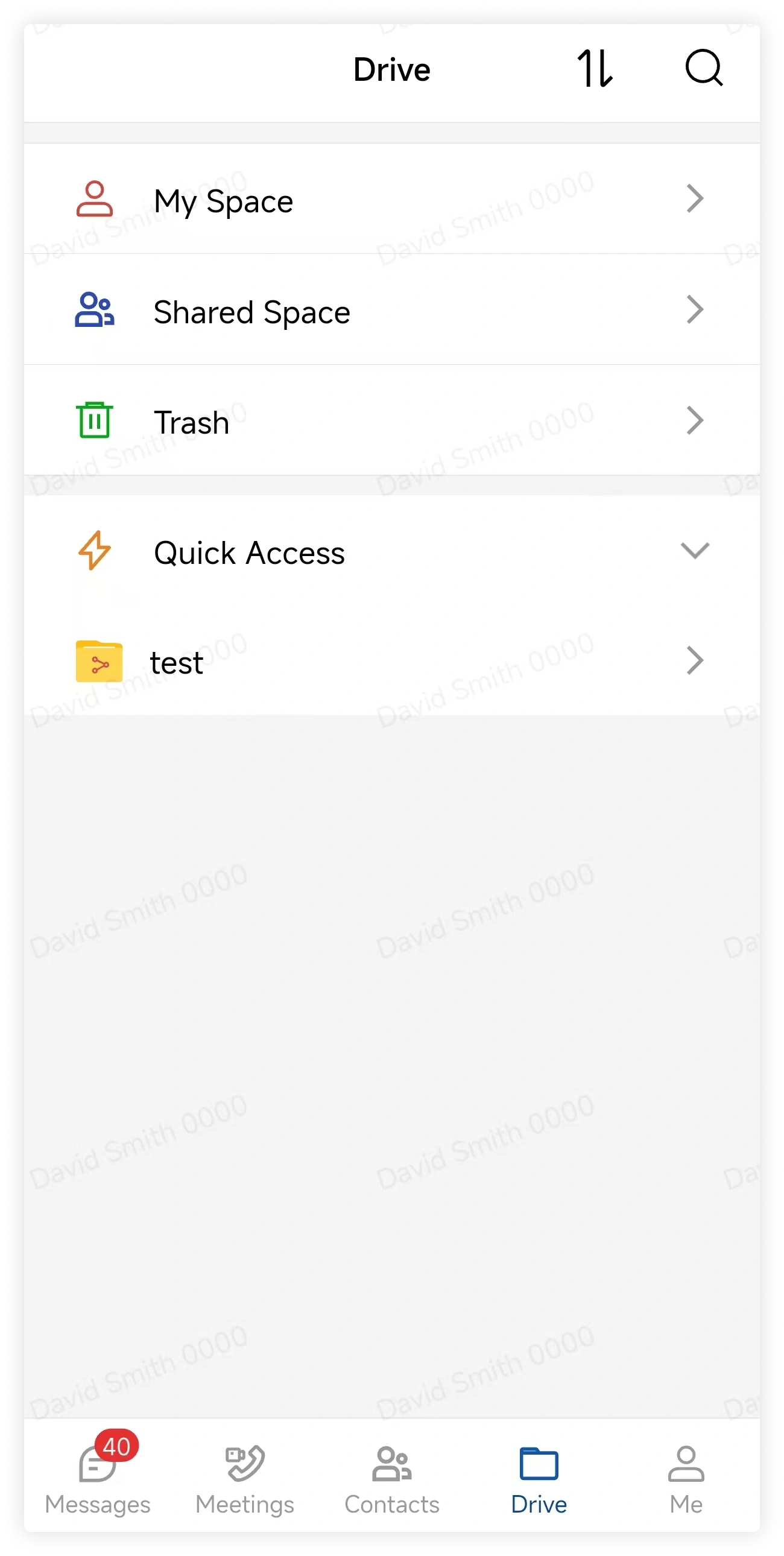
Tap Drive in the feature bar. Drive opens to My Space.
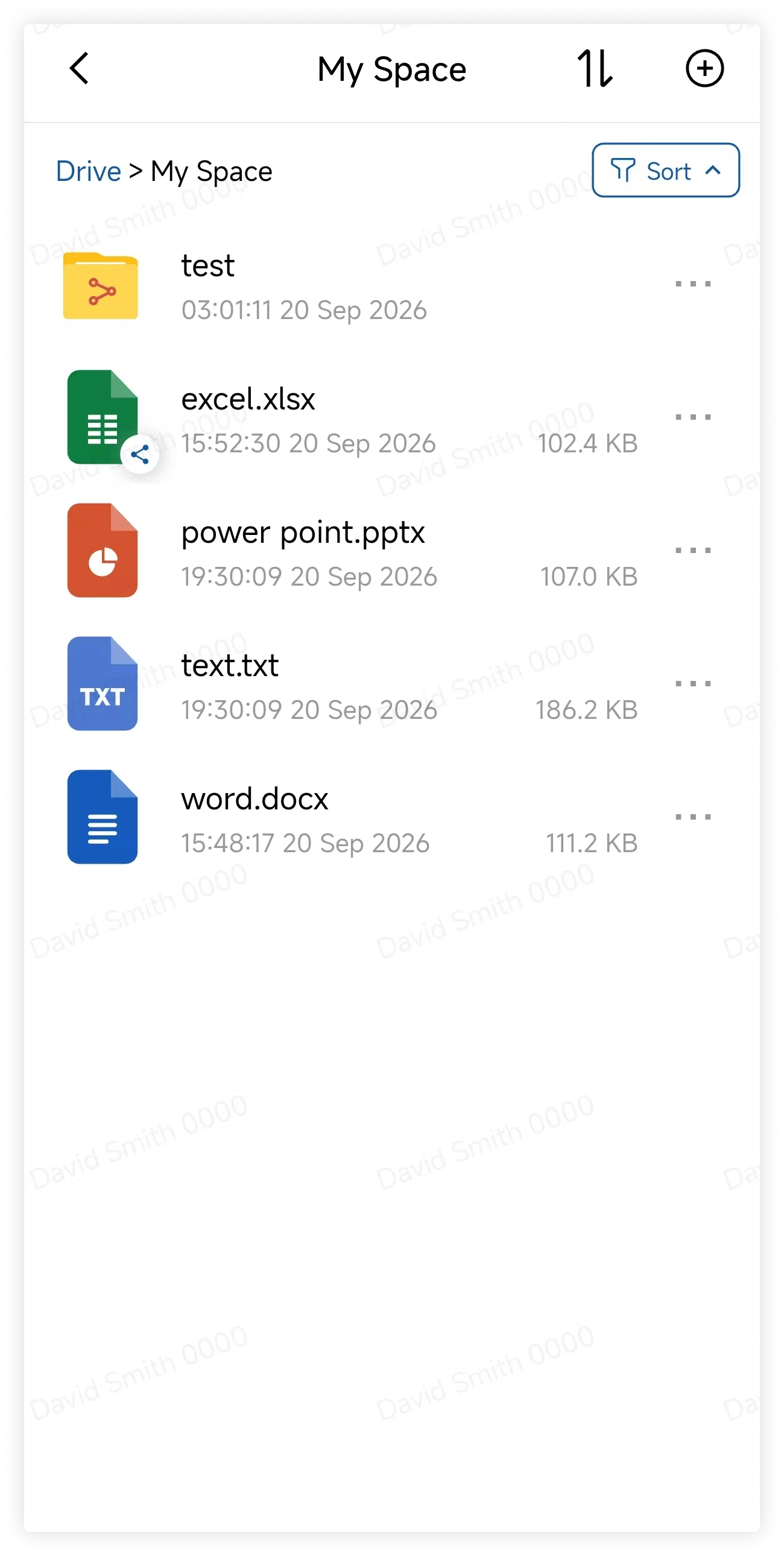
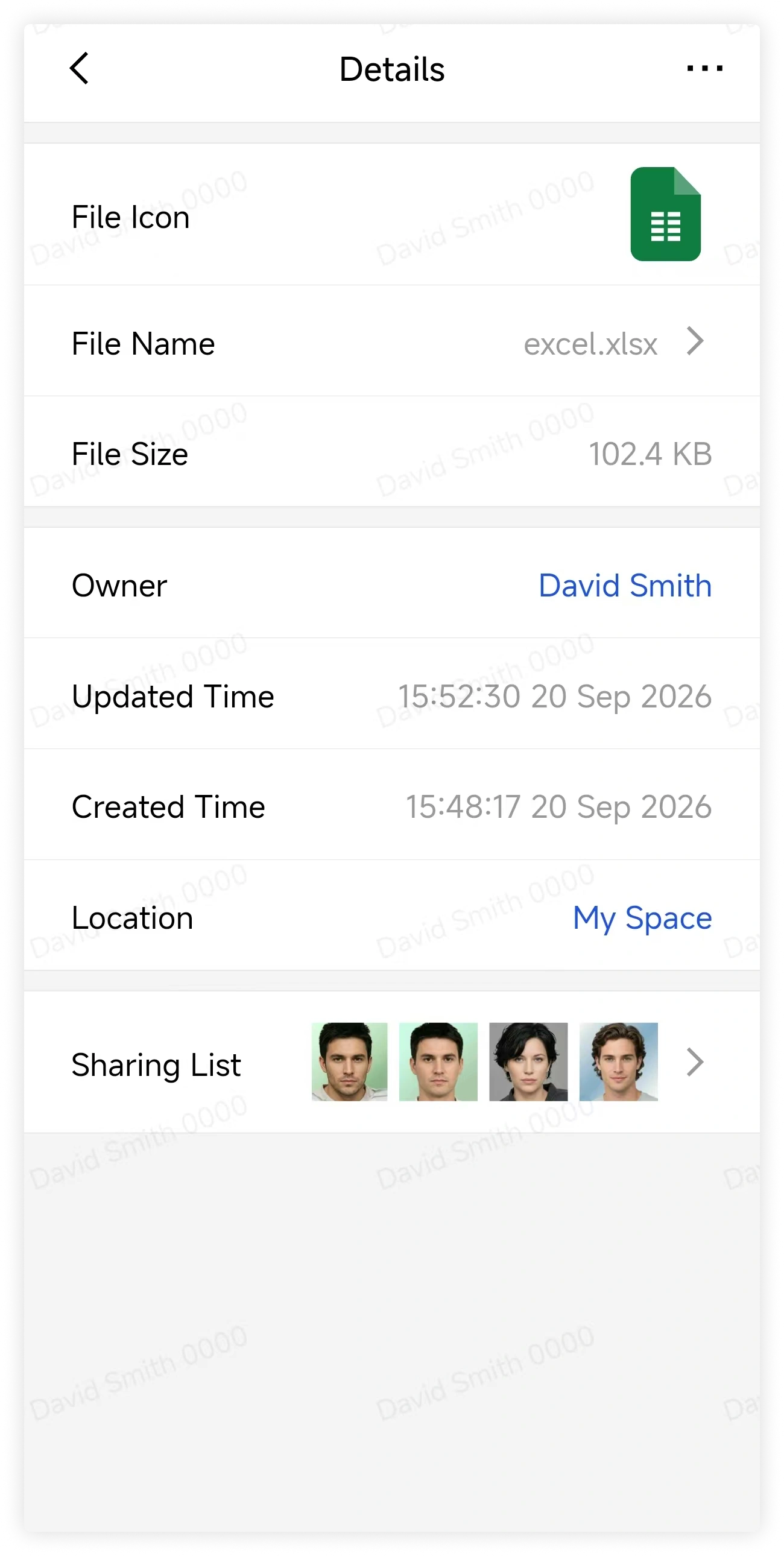
My Space contains the files and folders you upload. Tap a file to view its details.
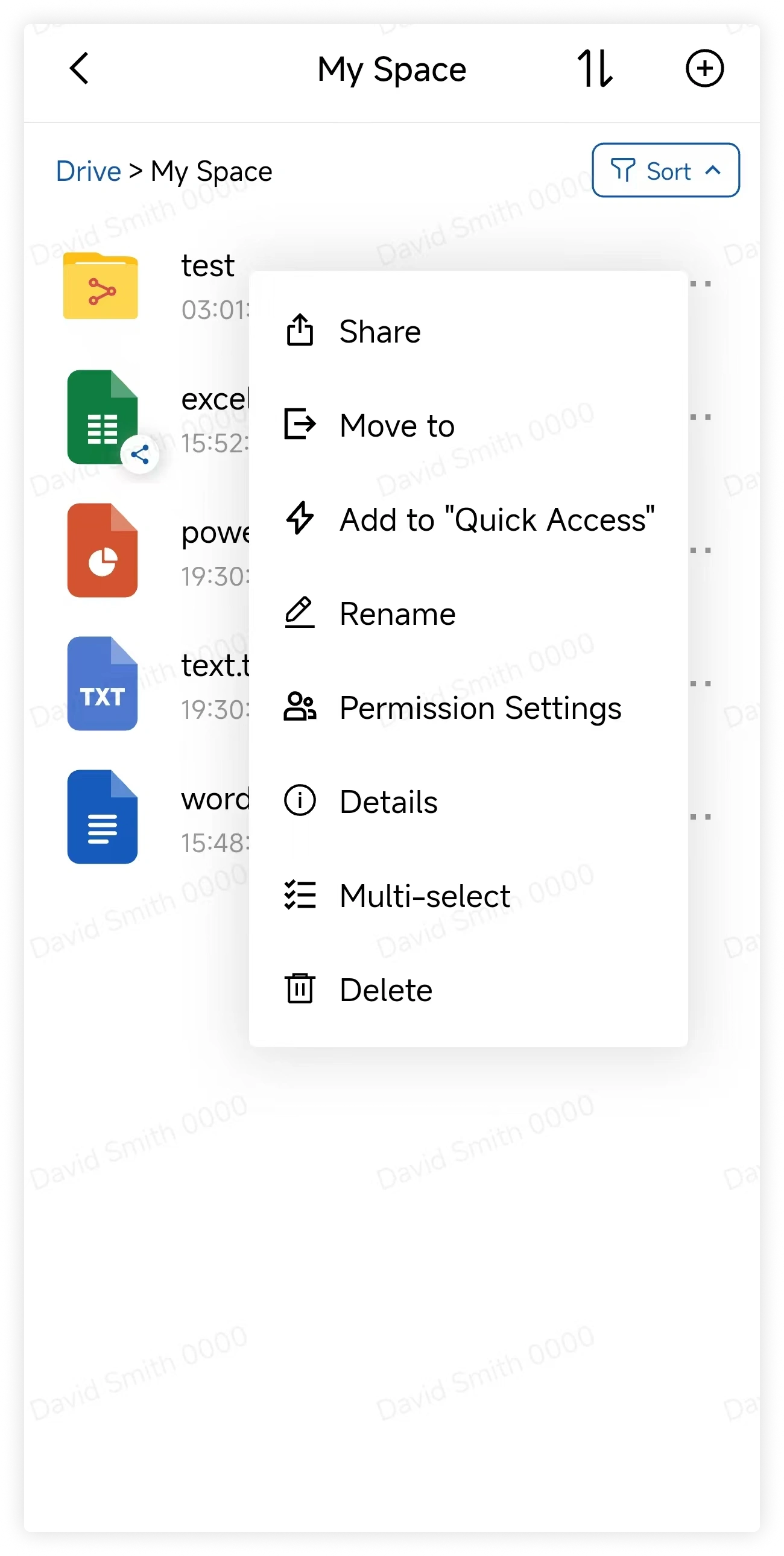
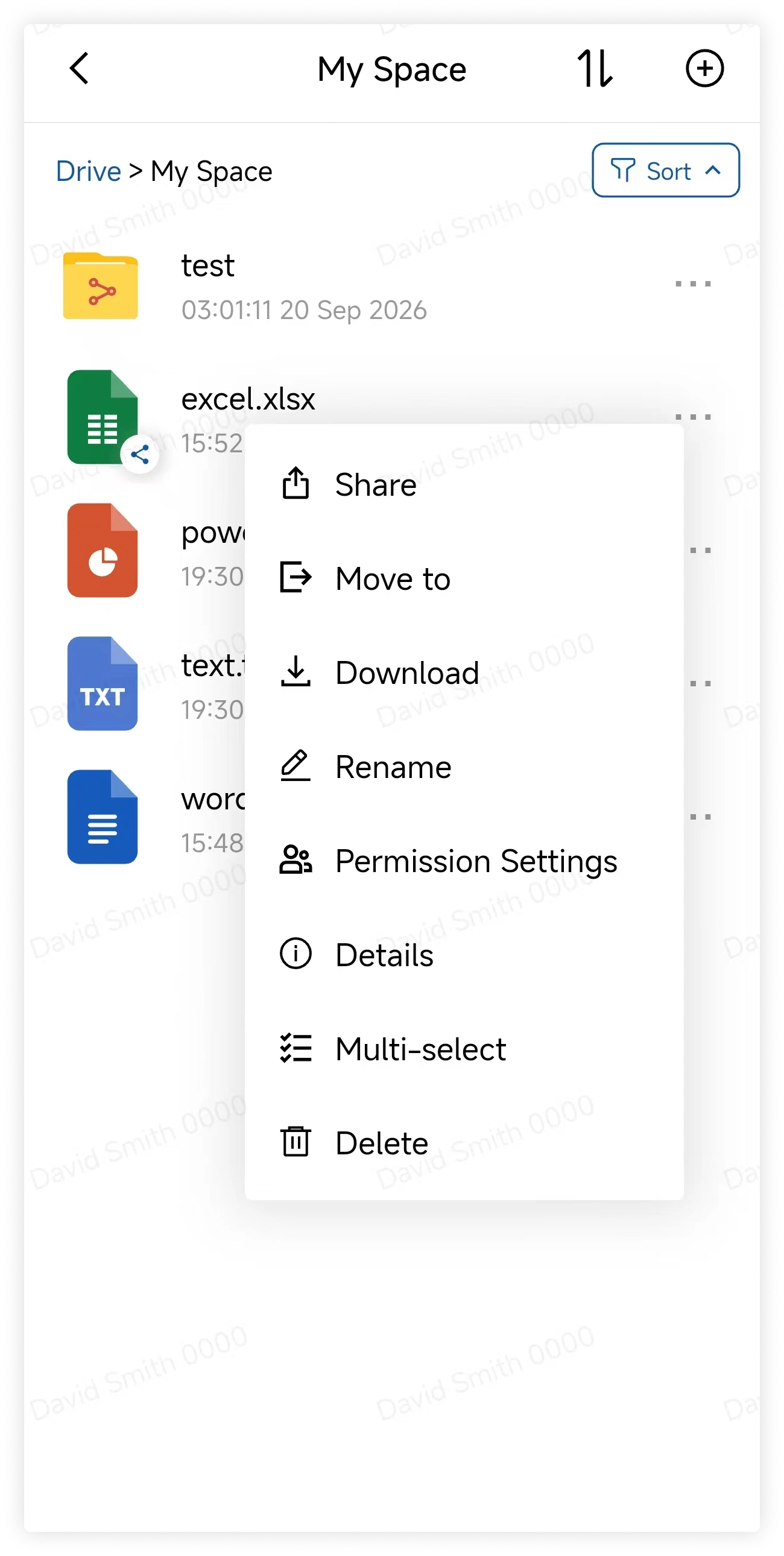
Tap a file's action button to open the available actions.
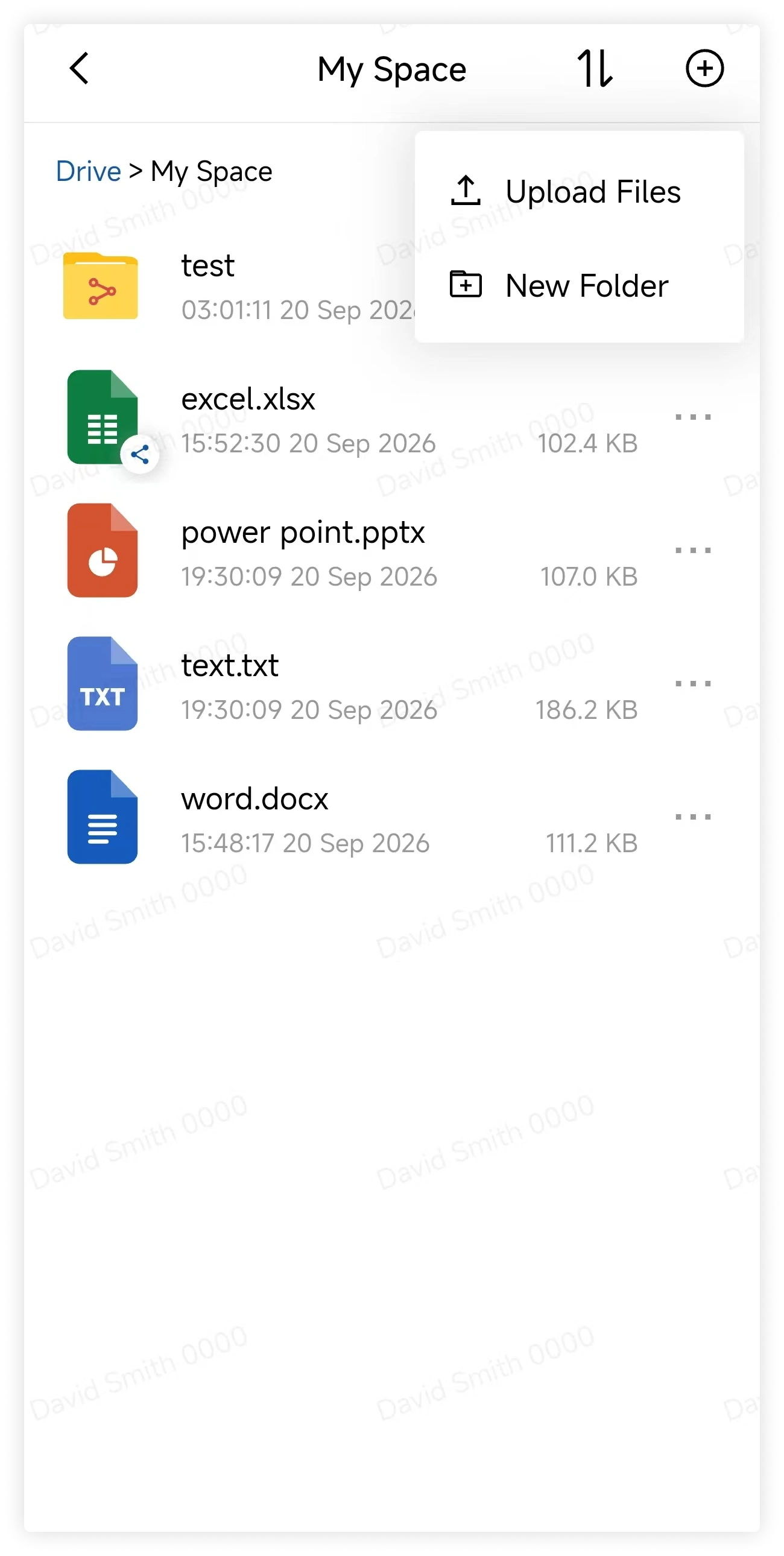
Tap the plus button and select Upload to add files from your device.
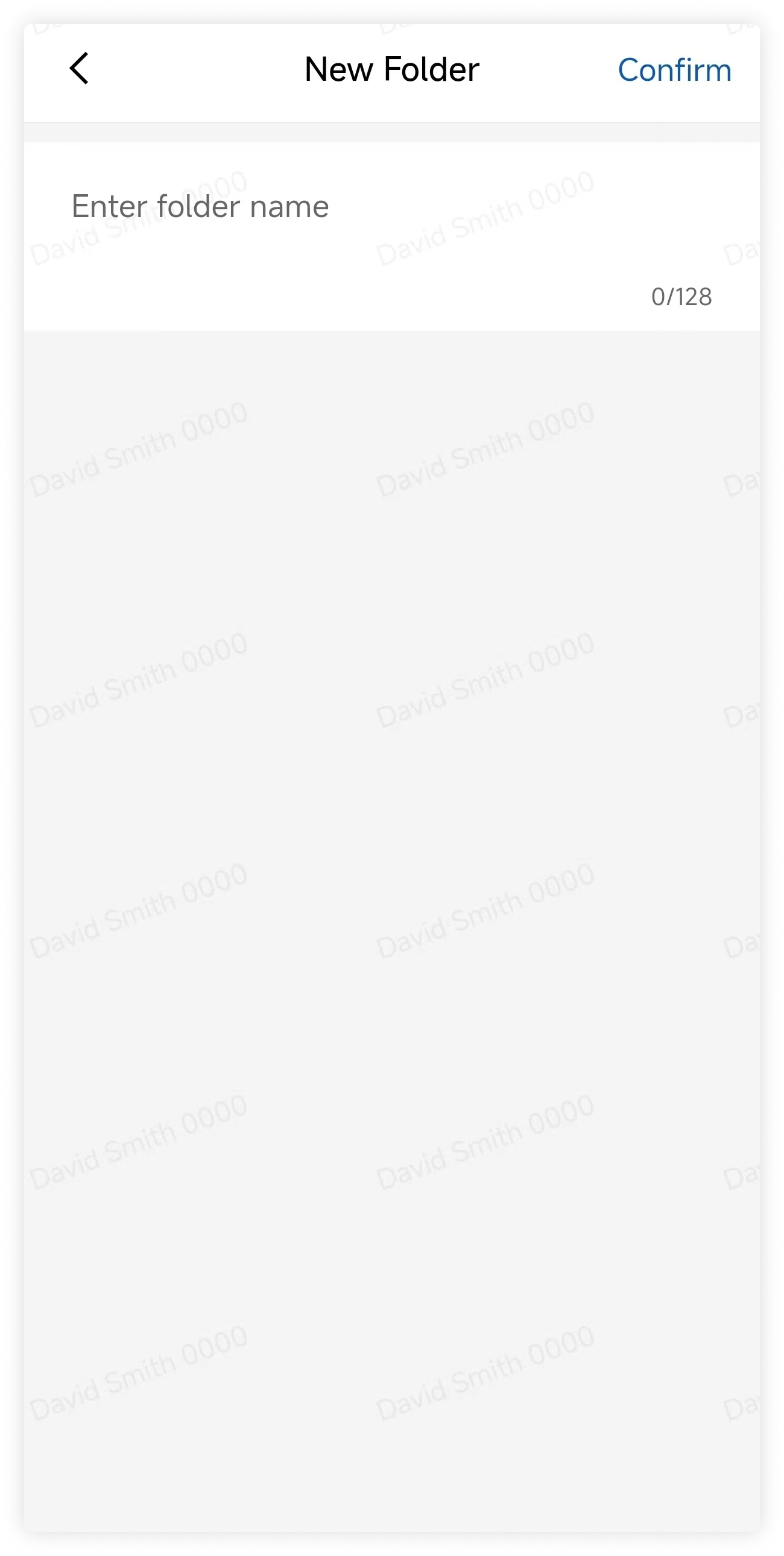
Tap the plus button and select New Folder to create a folder in the current location.
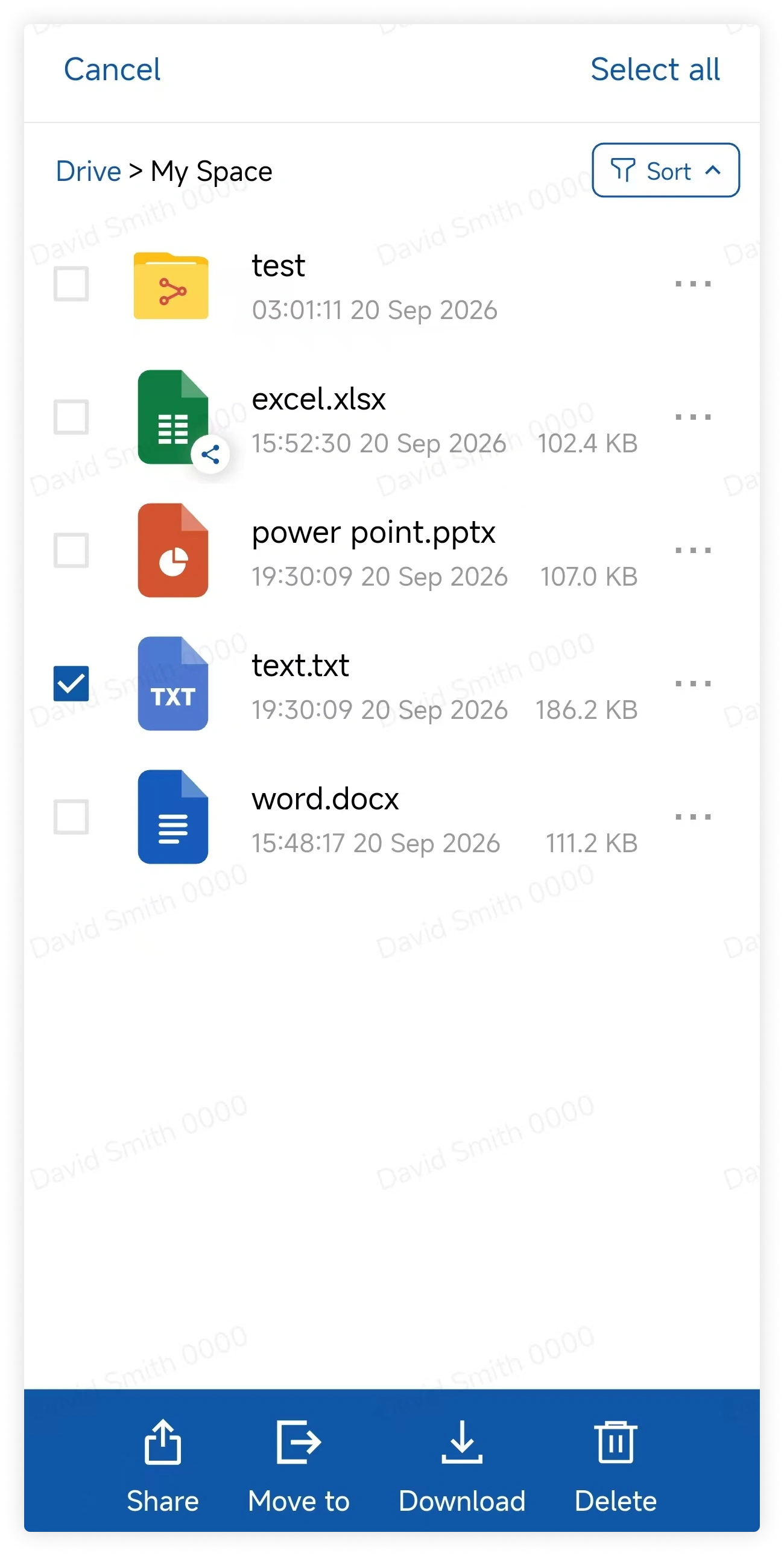
Long-press a file to enter selection mode, then tap Select All if needed.
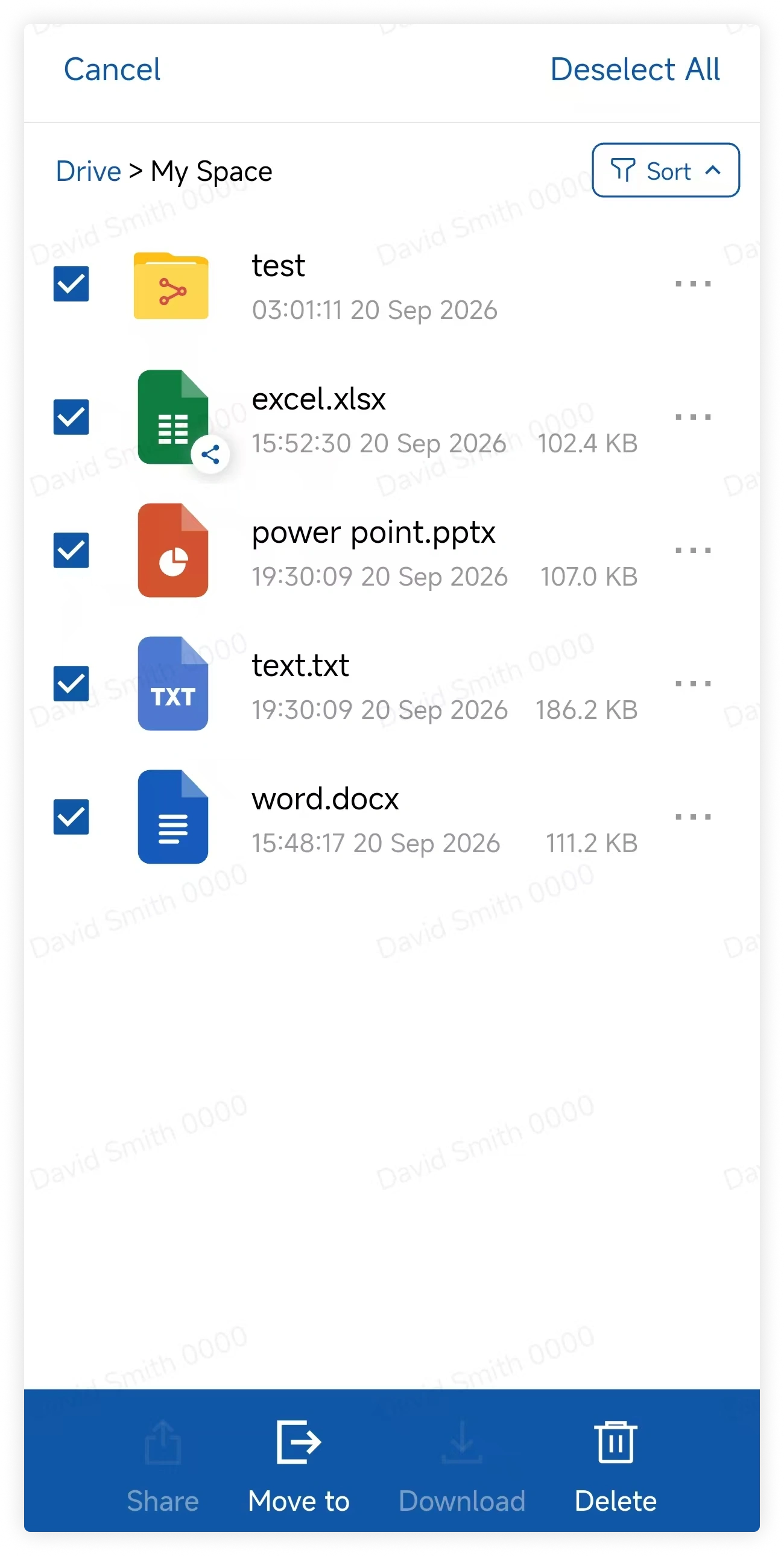
Select multiple files and tap Delete to move them to Recycle Bin.
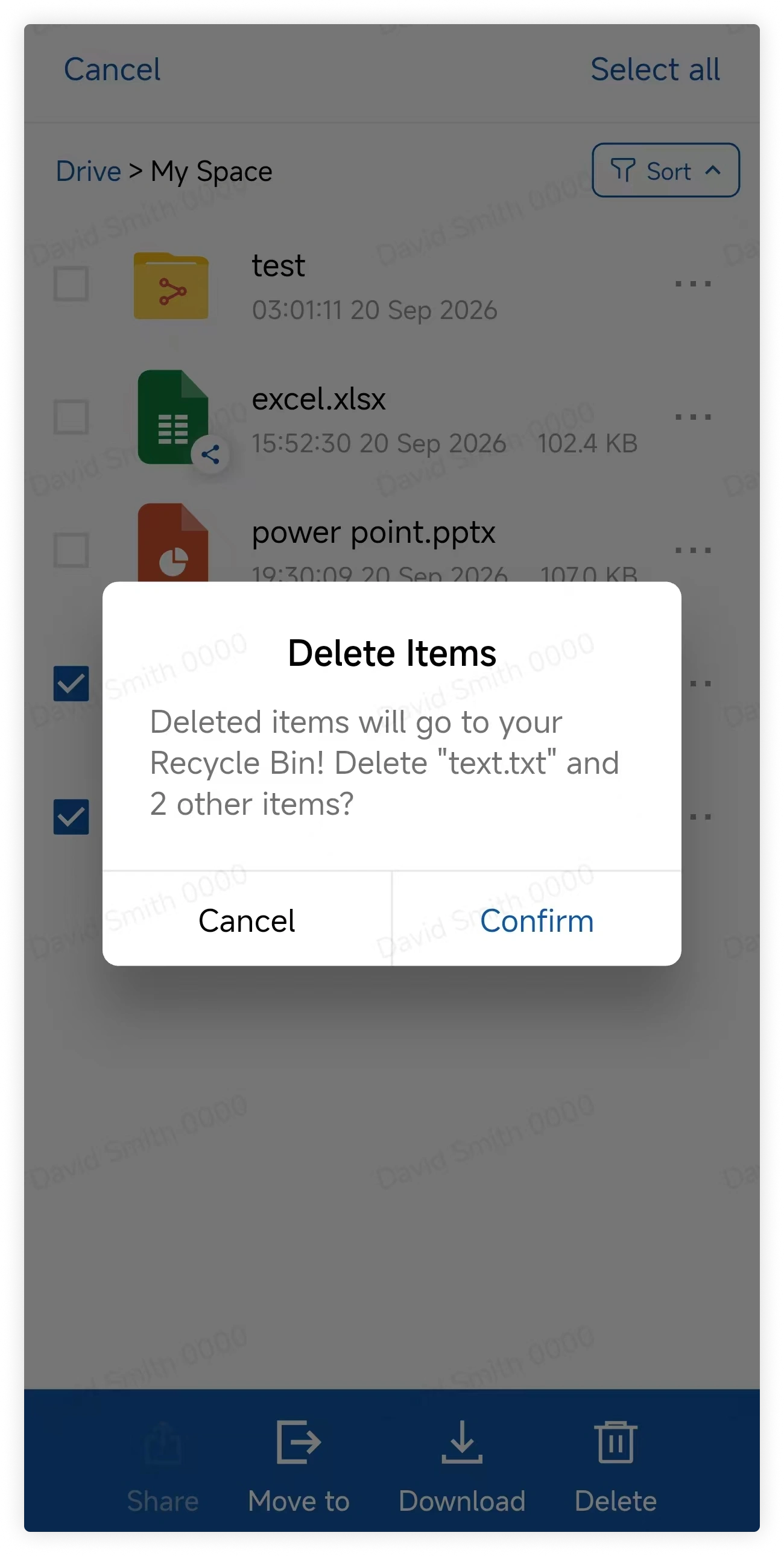
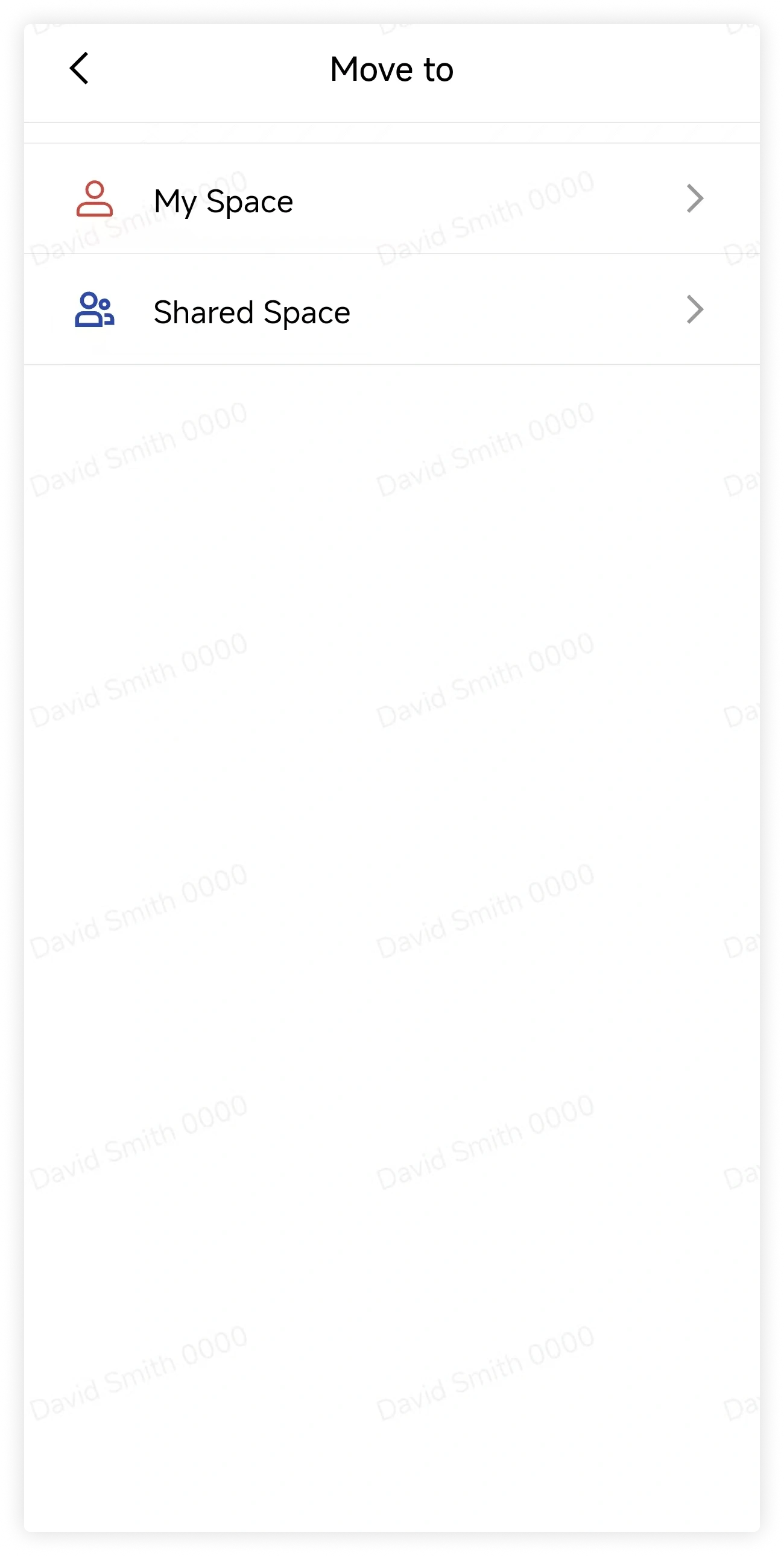
Select multiple files and tap Move to choose a destination folder.
Open a file's action menu to see the operations available to you.
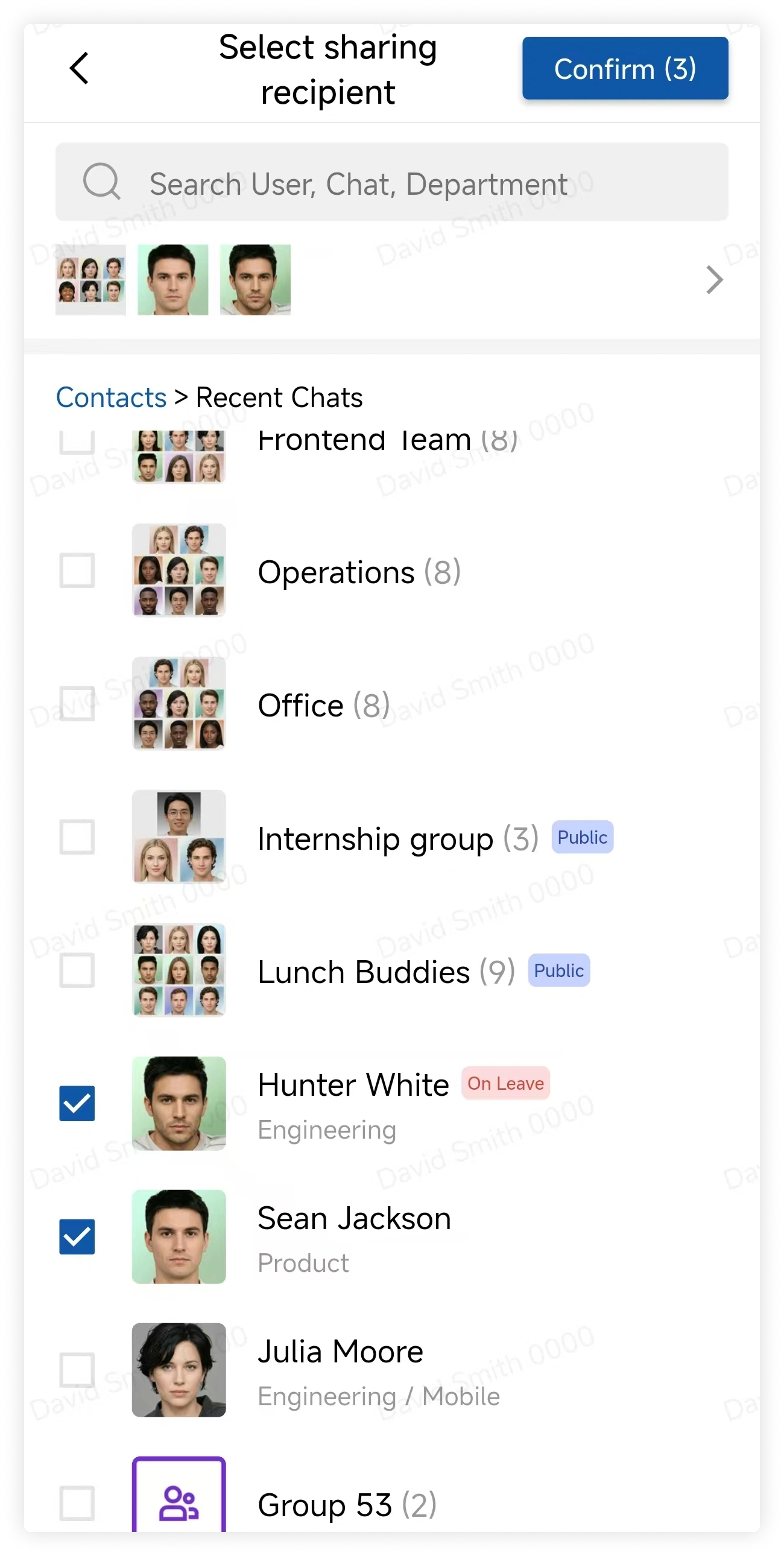
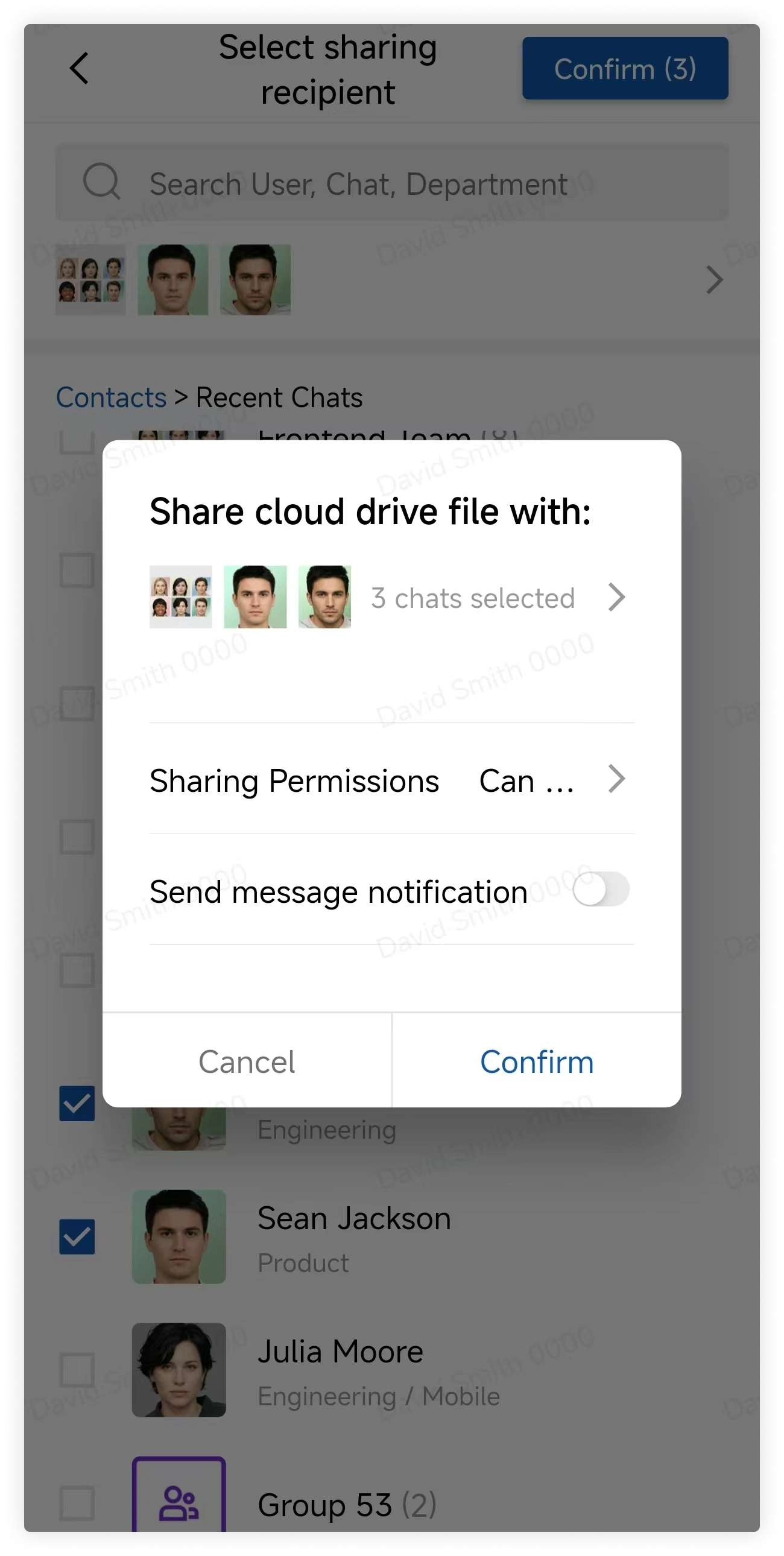
To share a file, choose the recipients, assign permissions, and confirm.
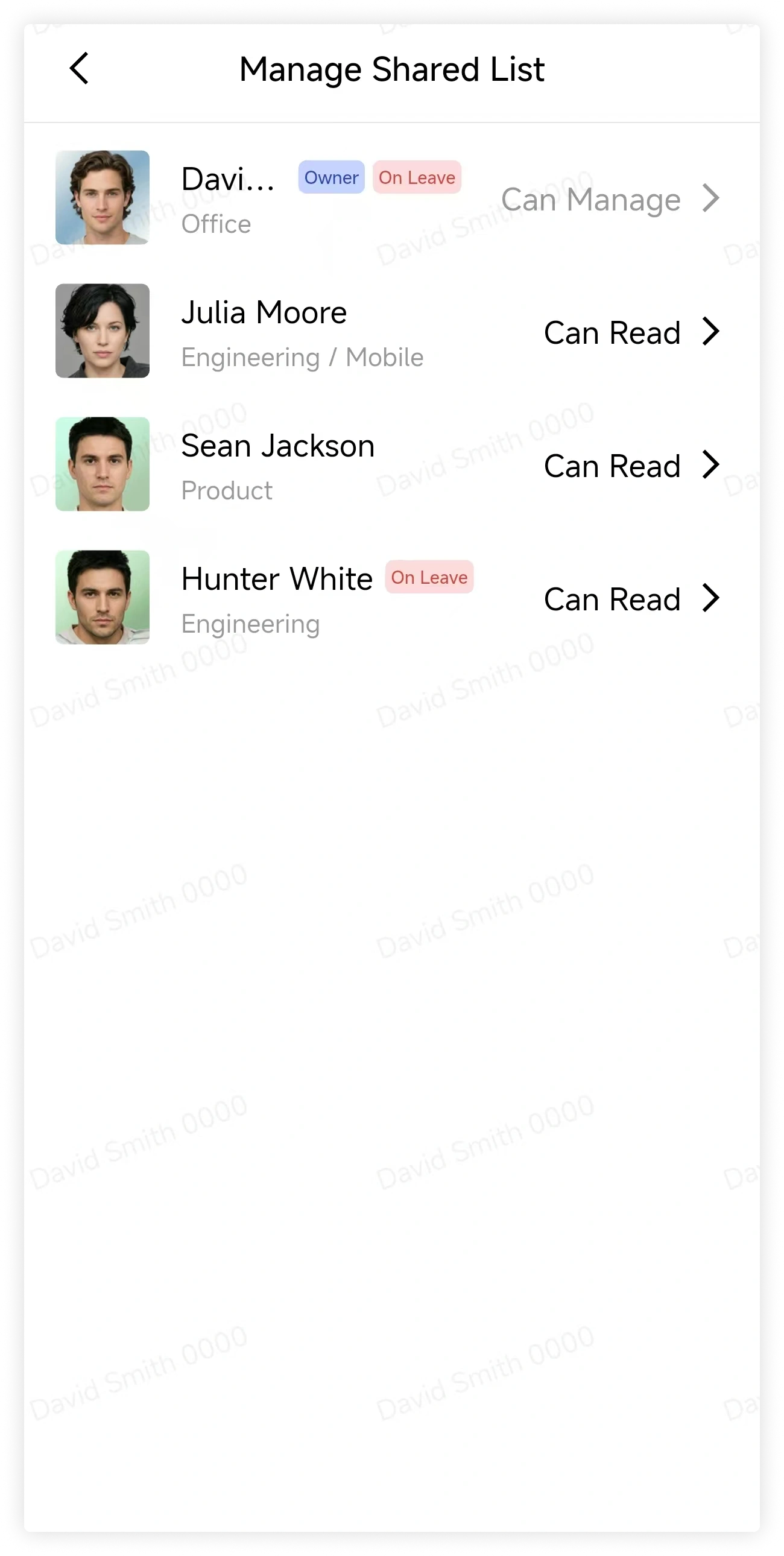
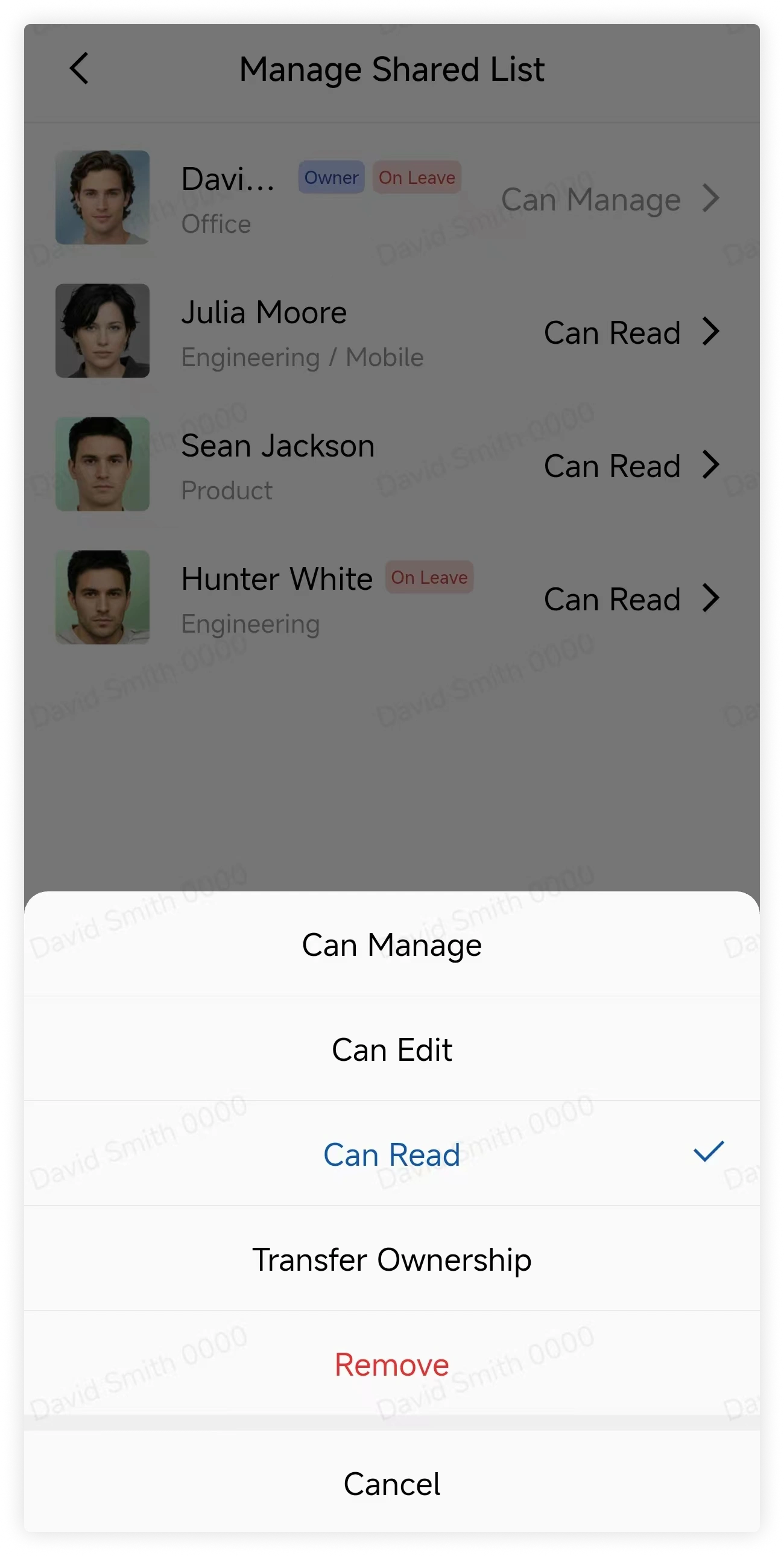
Open the sharing settings to change or remove permissions for existing recipients.
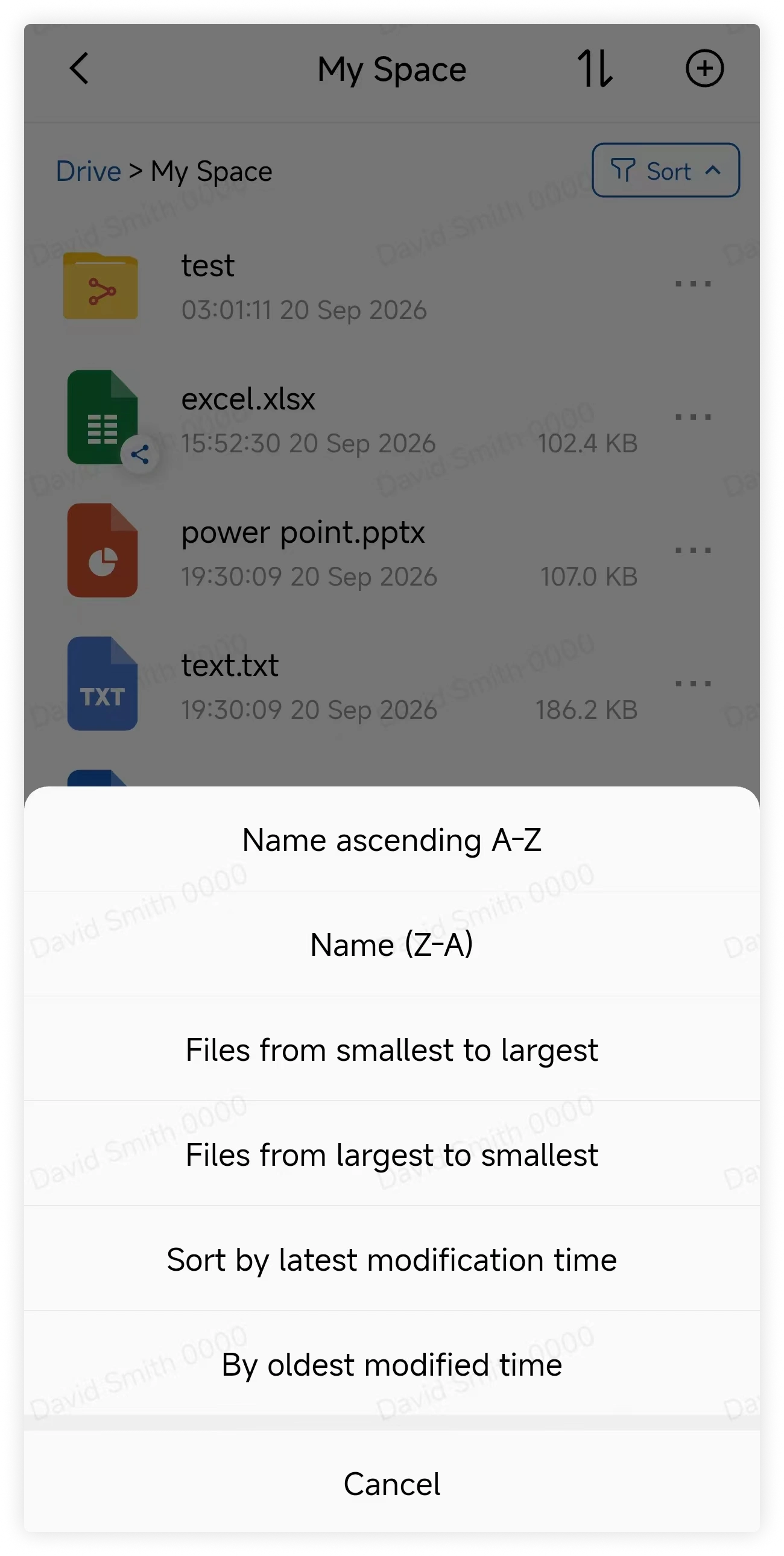
Use Sort to change the file order.
2. Shared Space
Open Shared Space to see files you shared and files shared with you.
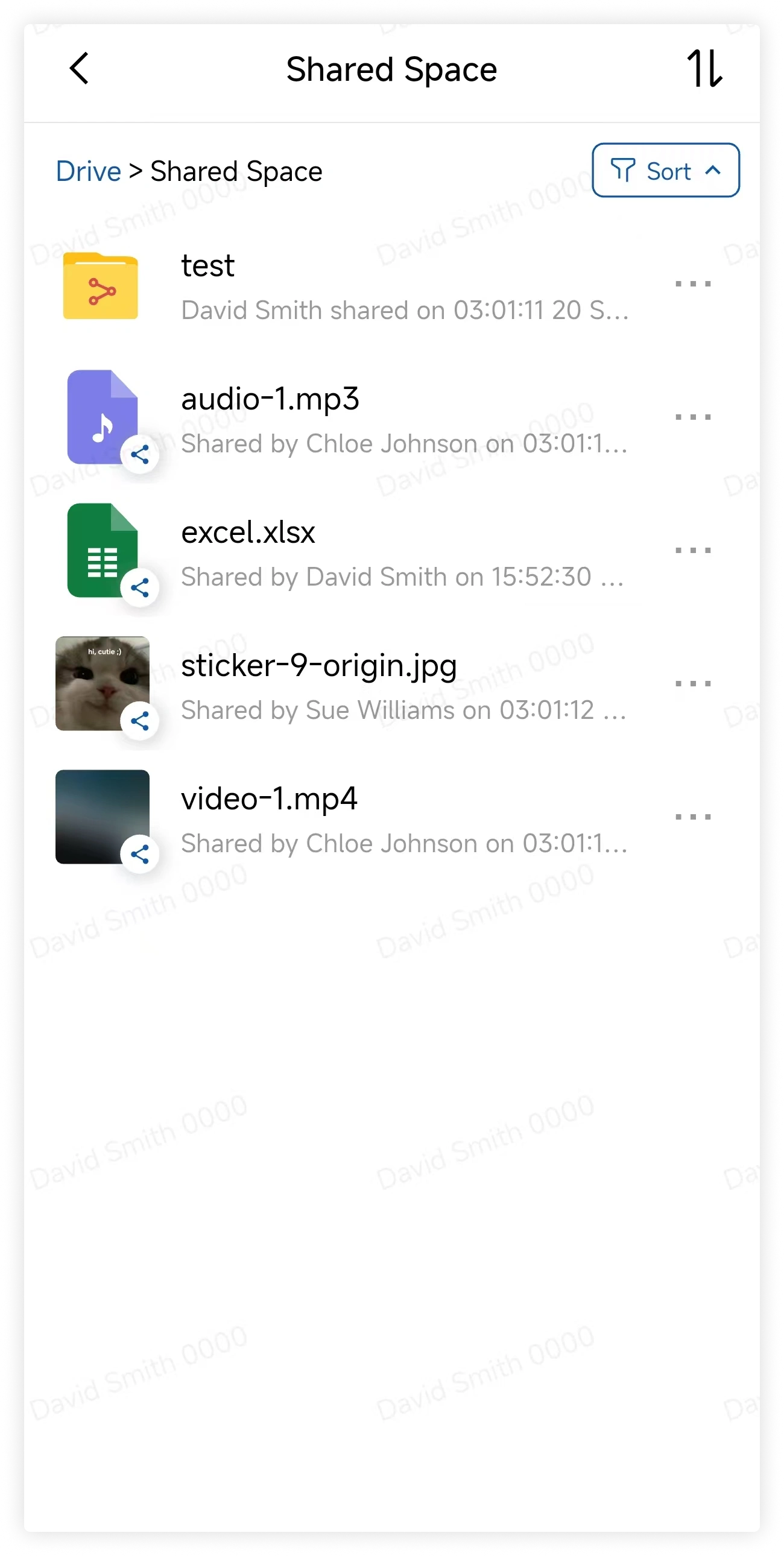
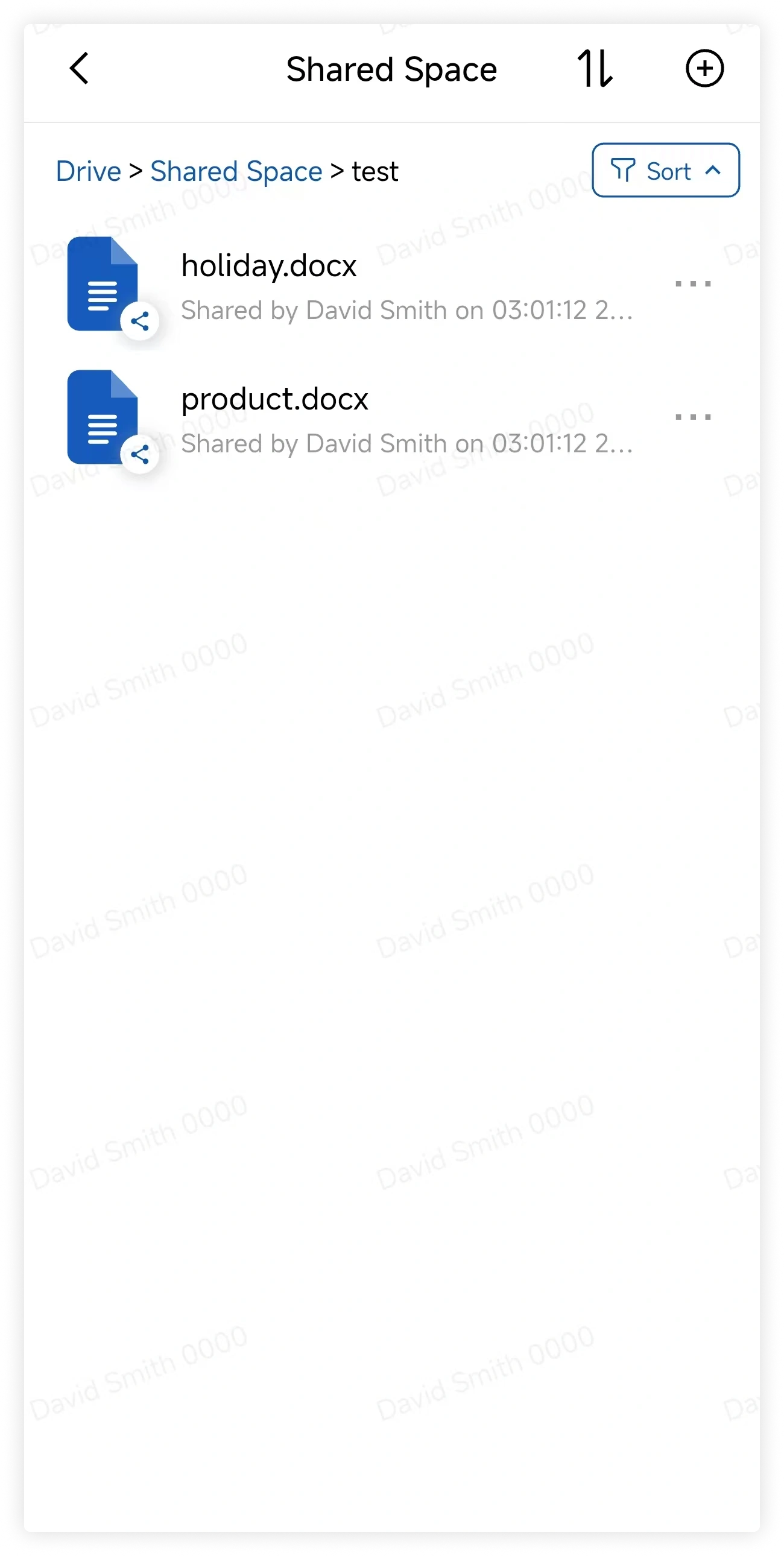
Tap a shared folder to view its contents.
3. Recycle Bin
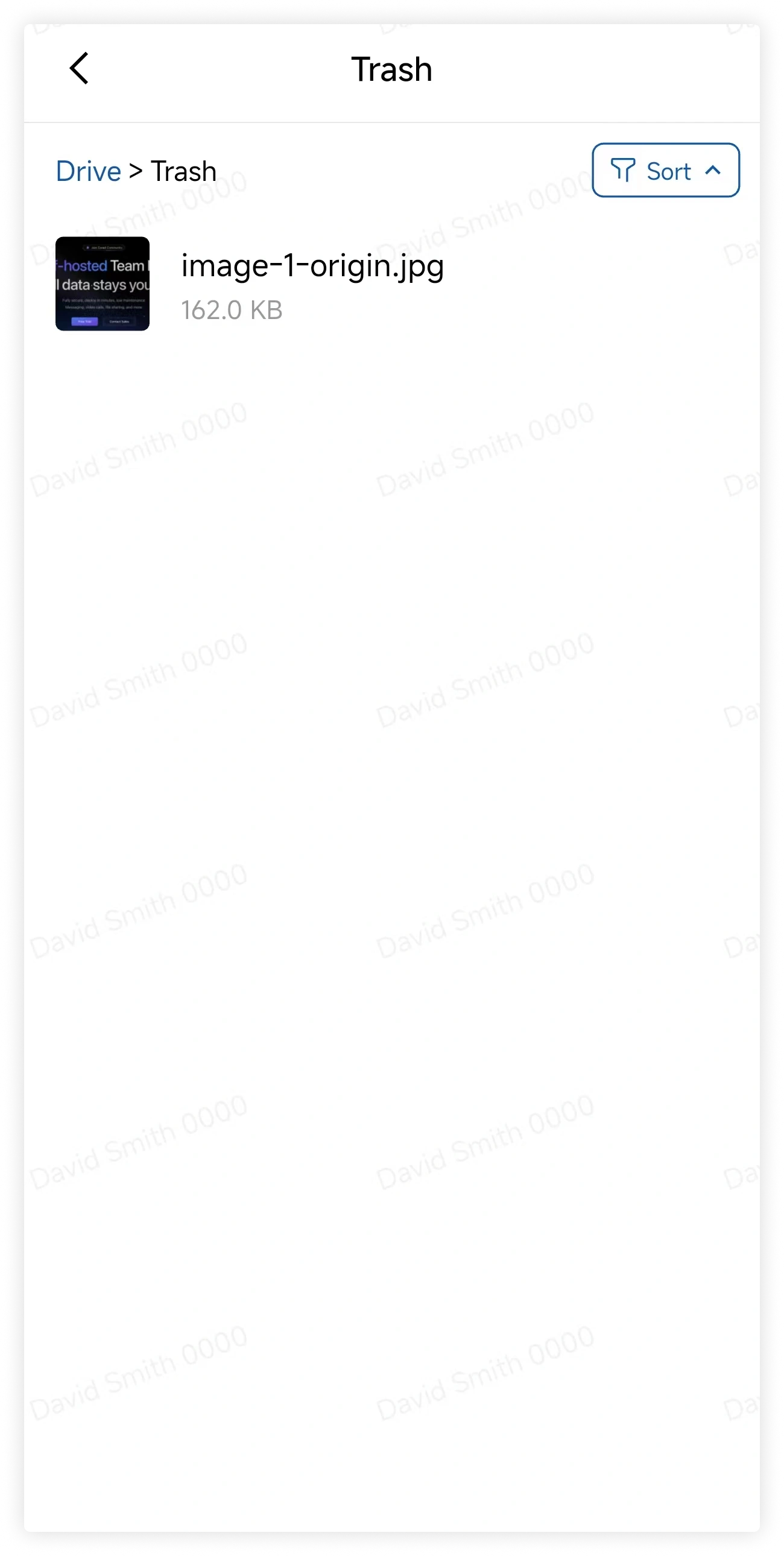
Open Recycle Bin to review deleted files.
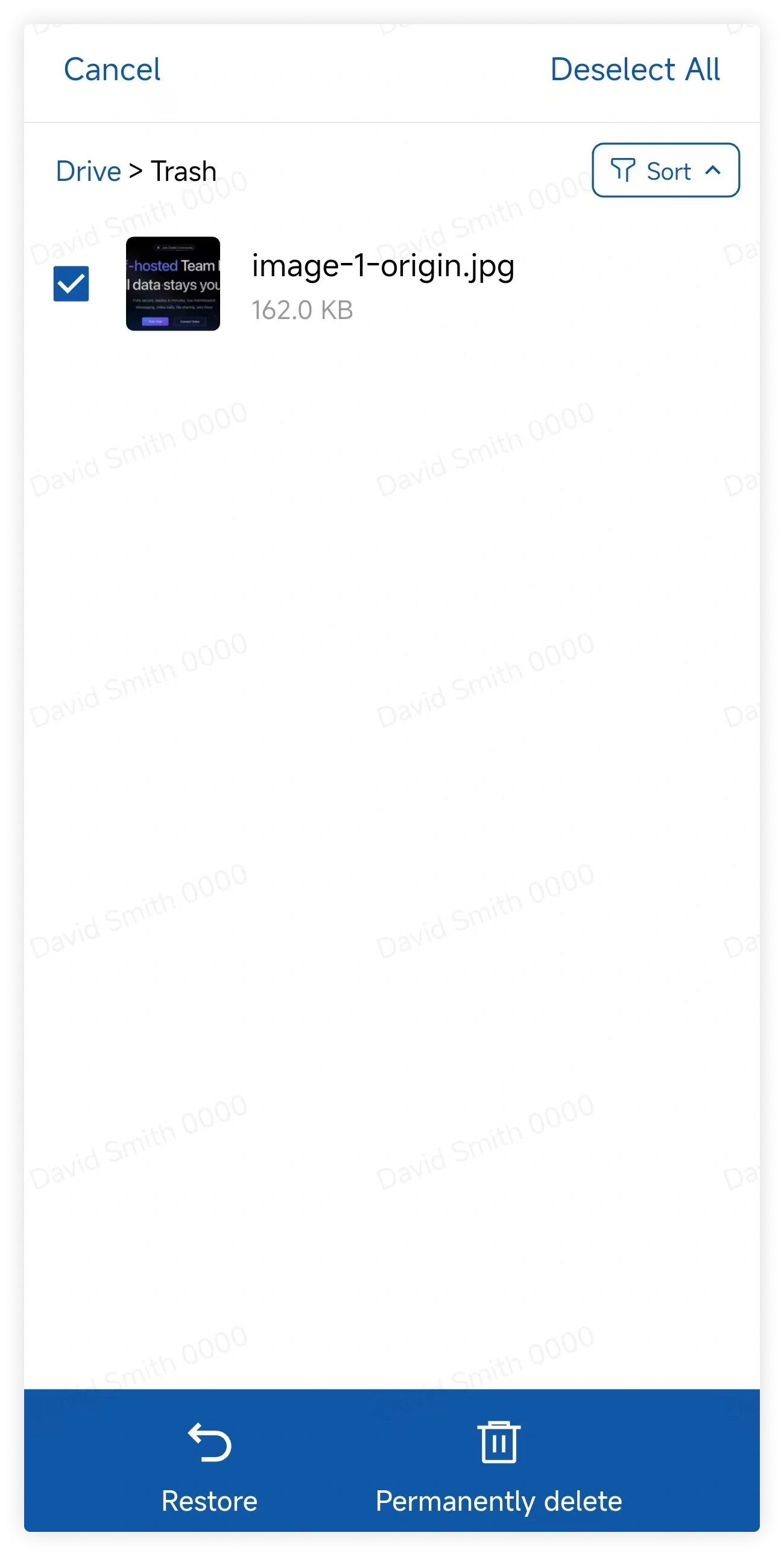
Select one or more files, then delete them permanently.
4. Quick Access
Tap a folder under Quick Access to open it directly.
Open a folder's action menu and select Add to Quick Access.